
We have all been there. You are settled into your favorite seat at a cafe in Downtown Dubai, ready to dive into a podcast or your favorite playlist, but only one of your AirPods Pro decides to join the party. Or perhaps, you’ve noticed that your Active Noise Cancellation (ANC) feels a bit “off,” or your iPhone simply refuses to acknowledge that your charging case is open. Before you start worrying about hardware failure or budgeting for a new pair, there is a powerful tool in your arsenal that solves 90% of these frustrations: a factory reset. This guide on Resetting Your AirPods Pro: How to Fix Software Glitches at Home will walk you through the process step-by-step, ensuring your audio experience remains as premium as the day you unboxed it.
In 2026, the AirPods Pro 2 and the newer AirPods 4 series are marvels of engineering, packed with H2 chips and complex firmware. However, even the most advanced tech can get “tangled” in its own code. Whether it’s a pairing loop or a battery percentage display glitch, a clean slate is often the only medicine your earbuds need. Let’s look at how you can perform this digital “oil change” in just a few minutes.
Why Do Software Glitches Happen?
Understanding the “why” can help you prevent future issues. When you search for Resetting Your AirPods Pro: How to Fix Software Glitches at Home, you are usually dealing with a breakdown in communication.
Firmware Desynchronization
Apple frequently pushes silent firmware updates to your AirPods while they are charging near your iPhone. Occasionally, if the update is interrupted perhaps due to a weak Wi-Fi signal or the case losing power one earbud might end up on a newer version than the other. This creates a “firmware mismatch” where the two buds literally speak different languages, leading to mono-audio or pairing failures.
Bluetooth Cache Bloat for Resetting Your AirPods Pro
Your iPhone or MacBook maintains a “handshake” history with every Bluetooth device you own. Over time, this cache can become corrupted. If you frequently switch your AirPods between an iPad, a Mac, and an Apple Watch, the “Automatic Switching” feature can sometimes get confused about which device currently owns the audio stream.
How to Perform a Factory Reset: The 3-Step Method
If you are ready to try Resetting Your AirPods Pro: How to Fix Software Glitches at Home, follow these precise steps. This method works for the original Pro, the USB-C Pro 2, and even the latest AirPods Max.
Step 1: “Forget” the Device for Resetting Your AirPods Pro
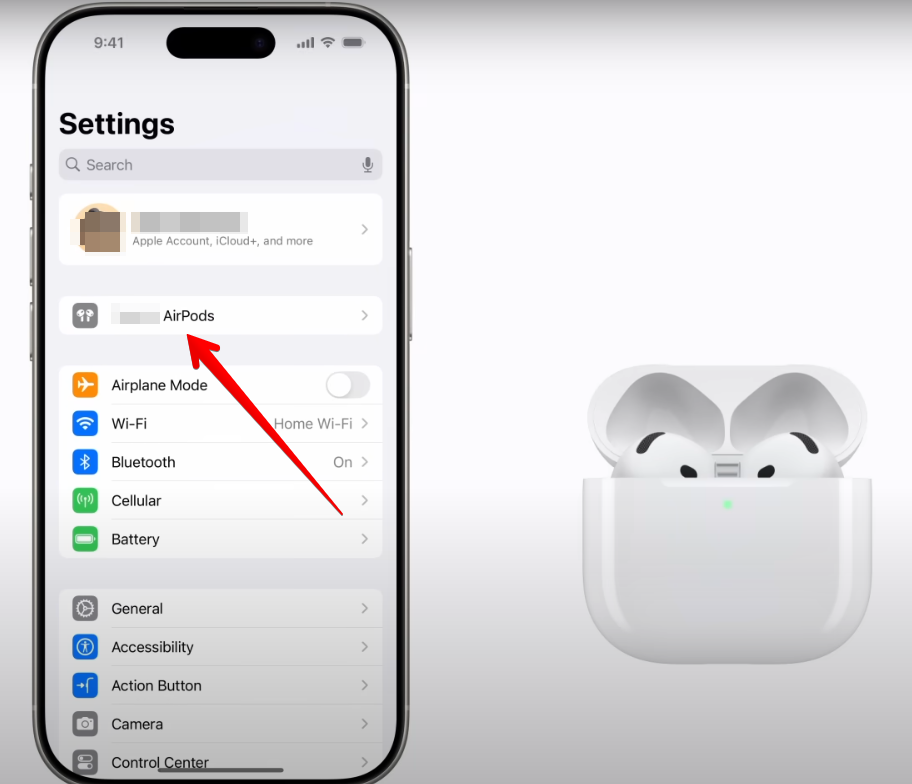
First, you need to tell your iPhone to let go of the old connection. Open your Settings, tap on Bluetooth, and find your AirPods Pro in the list. Tap the small “i” icon next to their name and select “Forget This Device.” Confirm the choice. This clears the local Bluetooth cache on your phone.
Step 2: The Amber Light Sequence for Resetting Your AirPods Pro
Place both earbuds back into the charging case and keep the lid open. Look for the small setup button on the back of the case. Press and hold this button. The status light on the front (or inside) will pulse white. Continue holding it do not let go yet. After about 15 seconds, the light will flash amber, then return to white. This amber flash is the signal that the internal memory has been wiped clean.
Step 3: Re-Pairing for Resetting Your AirPods Pro
Now that the light is pulsing white again, bring the open case close to your unlocked iPhone. A setup animation will appear on your screen. Follow the prompts to reconnect. By doing this, you are establishing a fresh, clean “handshake” between the H2 chip and your device.
Common Issues Solved by a Reset
Many users find that Resetting Your AirPods Pro: How to Fix Software Glitches at Home is the ultimate “fix-all” for the following symptoms:
- Uneven Battery Drain: If the left bud shows 10% and the right shows 80% after equal use, a reset recalibrates the power management system.
- Static or Crackling: While sometimes hardware-related, crackling can be caused by interference in the digital signal processing (DSP). A reset flushes the DSP buffer.
- Find My Location Errors: If your “Find My” app shows your AirPods are in Al Barsha when they are actually in your hand in Deira, a reset re-syncs the GPS data with your Apple ID.
Milaaj Mobile and Laptop Repair Dubai: Your Tech Rescue Team
While a reset is a miracle worker for software, it cannot fix a physically broken hinge or a dead lithium-ion cell. If you’ve tried Resetting Your AirPods Pro: How to Fix Software Glitches at Home and the amber light never appears, or the sound remains distorted, you likely have a hardware fault. This is where Milaaj mobile and laptop repair Dubai steps in to save your investment.
Why Dubai Audiophiles Trust Milaaj:
- Low Price Guarantee: Apple’s official out-of-warranty service can often cost nearly as much as a new pair. We offer low price repair solutions, including individual bud replacements and battery revivals, that keep your wallet happy.
- Speed Repairing: We know you can’t live without your ANC in a noisy city. Our technicians offer same-day diagnostics and repair in Al Barsha, ensuring you are back to your music in no time.
- Ultimate Convenience: Too busy to visit us? We offer free pickup and delivery across Dubai. We can collect your faulty AirPods from your office, fix the hardware issue, and drop them back off.
- Uncompromising Part Quality: We only use original-grade or OEM parts. Whether we are replacing a mesh grille or a charging port, we ensure the part quality matches Apple’s strict standards so your Transparency Mode and Spatial Audio function perfectly.
- Expert Calibration: Our team doesn’t just “fix” parts; we use specialized software to re-calibrate the sensors, ensuring your “Automatic Ear Detection” works every single time.
FAQs About Resetting Your AirPods Pro
1. Will resetting my AirPods Pro delete my music?
No. Your music is stored on your iPhone or in your iCloud library. Resetting the AirPods only clears the connection data and firmware settings on the earbuds themselves.
2. My AirPods won’t reset (no amber light). What should I do?
This usually happens if the case doesn’t recognize that the earbuds are inside. Use a cotton swab with a tiny bit of rubbing alcohol to clean the charging contacts at the bottom of the case and the stems of the buds. If they still won’t reset, it’s likely a hardware failure.
3. How often should I reset my AirPods?
There is no need to do it regularly. Only perform a reset if you encounter a specific glitch, like connection drops or audio lag.
4. Does a reset fix the “muffled” sound issue?
If the muffled sound is caused by a software bug in the Adaptive Audio settings, a reset will help. However, in Dubai’s dusty environment, muffled sound is often caused by earwax or dust buildup in the grilles, which requires a professional cleaning.
5. Why do my AirPods keep disconnecting after a reset?
If the problem persists after Resetting Your AirPods Pro: How to Fix Software Glitches at Home, check if your iPhone is running the latest version of iOS. Sometimes the phone’s software is the culprit, not the AirPods.
Summary: Resetting Your AirPods Pro
Don’t let a small software bug ruin your day or force you into an unnecessary purchase. By mastering Resetting Your AirPods Pro: How to Fix Software Glitches at Home, you can resolve the majority of pairing and audio issues right from your living room. It is a quick, safe, and effective way to maintain your high-end Apple gear.
However, tech is complicated, and hardware wears down over time. If the “soft fix” isn’t enough, remember that professional help is just a phone call away. At Milaaj, we pride ourselves on providing the low price, speed repairing, and part quality that the residents of Al Barsha and the wider UAE deserve.
Are your AirPods Pro still acting up after a reset? Contact Milaaj today for a free diagnostic and let us restore your stereo experience to perfection!
Get professional AirPods repair services with expert technicians ensuring top-quality results.
Back in your hands faster: Enjoy rapid, reliable doorstep delivery for every device we service or sell.
Sell your old iPhone with confidence and get the best value instantly.
📍 Visit Any Milaaj Branch in Dubai
🔹 Bur Dubai
Milaaj Mobile and Laptop Repair Dubai
📞 055 258 8477
🔗 Google Maps
🔹 Al Barsha
Milaaj Mobiles and Laptop Repair Al Barsha
📞 052 596 2846
🔗 Google Maps
🔹 Al Barsha 3
Milaaj Service Center Reef Mall
📞 052 3405 814
🔗 Google Maps
🔹 Al Nuaimiya
Milaaj Mobiles and Laptops Ajman
📞 055 788 9654
🔗 Google Maps
📧 Email: support@milaaj.com
🕒 Operating Hours: Monday – Sunday



Leave a Reply