
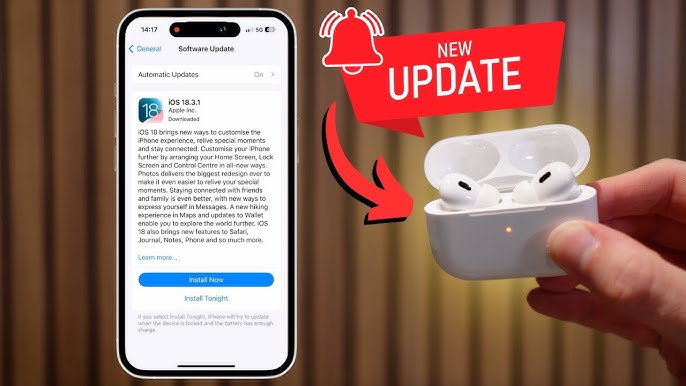
When you rely on your AirPods every day for music, calls, and meetings, having your AirPods not updating can be incredibly frustrating. Although AirPods firmware updates are designed to improve performance, enhance stability, and fix bugs, many users experience unexpected firmware update problems. From updates not installing to AirPods repeatedly failing to sync, these issues can disrupt the entire listening experience.
Fortunately, understanding why your AirPods are not updating and learning the right repair tips can help you fix the problem easily. Even better, most solutions are safe and simple—requiring no technical expertise. However, when firmware problems involve hardware faults, advanced diagnostics from professionals may become necessary.
In this detailed guide, we will explain why AirPods firmware update problems occur, how to fix them, and when to seek help from expert technicians. We will also provide step-by-step solutions that ensure your AirPods update smoothly and remain in top condition long-term.
Why Are Your AirPods Not Updating? Understanding Firmware Update Problems
Before applying any repair steps, it’s essential to understand the reasons behind AirPods not updating. Although Apple has made the update process automatic, several factors can interrupt or completely block a firmware update.
Below are the most common causes of AirPods firmware update problems:
1. Low Battery Levels in AirPods or Charging Case
Firmware updates require stable power. If your AirPods or charging case battery is too low, the update will not begin.
2. Interrupted Bluetooth Connection
Since updates download through your iPhone, any disruption in Bluetooth connectivity can prevent installation.
3. Outdated or Buggy iOS Version
Surprisingly, your iPhone’s software may be the reason your AirPods are not updating.
4. Pairing Errors or Sync Glitches
Even small connection bugs can stop the update process.
5. Defective Charging Case or Faulty Sensors
Hardware-related issues such as damaged pins, misaligned sensors, or moisture can prevent firmware updates.
6. Corrupted Firmware Data
Sometimes, the partial update files themselves get corrupted, causing the update to fail repeatedly.
Understanding these causes helps you troubleshoot effectively while avoiding unnecessary attempts.
How to Fix AirPods Not Updating: Step-By-Step Repair Tips
Now that you know why AirPods firmware update problems happen, let’s explore the most effective ways to fix them. These troubleshooting steps gradually transition from basic solutions to advanced repair methods.
Basic Fixes for AirPods Not Updating (Quick Firmware Update Solutions)
1. Keep AirPods in the Charging Case
First, ensure both AirPods are inside the charging case. Updates only install when they are fully seated and charging.
2. Charge the Case and AirPods
AirPods must have at least 50% battery, and the case must have sufficient charge. Plug the case into a power source and wait for a few minutes before retrying.
3. Keep Your iPhone Nearby
For the update to download, your iPhone must stay close to the AirPods case. Moving too far away can disrupt Bluetooth, making it seem like your AirPods are not updating.
4. Connect Your iPhone to Stable Wi-Fi
Firmware updates rely on the iPhone’s internet connection. A weak or unstable Wi-Fi network can delay or block the update.
5. Update Your iPhone to the Latest iOS
Often, older iOS versions contain bugs that directly affect whether your AirPods firmware update problems appear. Updating your iPhone refreshes compatibility.
Advanced Fixes for Persistent AirPods Firmware Update Problems
If the basic fixes don’t work, transition to the more advanced troubleshooting methods below.
1. Reset Your AirPods Completely
A full reset clears sync errors and pairing glitches.
Steps:
- Forget AirPods from Bluetooth settings
- Hold the button on the case until the LED flashes amber, then white
- Reconnect the AirPods to your iPhone
This eliminates many causes of AirPods not updating.
2. Clean the Charging Case Connectors
Dust, moisture, and debris can interfere with contact points, preventing the AirPods from charging correctly—leading to firmware failures. Clean the charging pins gently using a microfiber cloth or cotton swab.
3. Try Updating Using a Different iPhone or iPad
Sometimes the issue is not with your AirPods but with the device they are paired with.
4. Turn Off Low Power Mode
Low power mode restricts background tasks, which can delay or interrupt an update.
5. Restore iPhone Network & Bluetooth Settings
Resetting network settings can eliminate Bluetooth configuration conflicts.
Hardware-Related Firmware AirPods not updating Issues
In some cases, the reason your AirPods are not updating goes deeper than software glitches. Hardware issues can completely stop the update process.
1. Faulty AirPods Battery
A weak or unstable battery cannot sustain firmware updates.
2. Damaged Charging Case
If your charging case cannot communicate with the AirPods or iPhone, firmware installation becomes impossible.
3. Corroded Connectors from Moisture Exposure
Even small amounts of humidity can gradually corrode internal components, leading to update failures.
4. Internal Chip or Bluetooth Module Issues
If the AirPods’ internal communication chips are damaged, firmware updates cannot proceed.
When you notice continuous AirPods firmware update problems, professional diagnostics are the safest option.
Professional Repair Tips for AirPods Not Updating (Expert Solutions)
While many issues can be handled at home, ongoing firmware failures often require expert intervention. Professional technicians can diagnose and repair problems that are invisible to the user.
Technicians may use tools such as:
- Diagnostic software to detect firmware corruption
- Micro-soldering equipment for repairing internal components
- Charging case calibration tools
- Moisture and corrosion detection devices
With these tools, professionals can determine whether the firmware is corrupted, the battery is weakening, the antenna is malfunctioning, or the case is not communicating properly.
When to Visit a Professional Repair Center for AirPods not updating Problems
If your AirPods still won’t update after trying all the repair tips, you should seek expert help. At this stage, forcing repeated updates may worsen internal firmware corruption.
You can visit Milaaj Mobile and Laptop Repair Dubai, a trusted repair center known for diagnosing and repairing AirPods firmware update problems using advanced tools and experienced technicians. They can identify whether the issue is caused by hardware defects, charging-case faults, or firmware corruption—and fix it quickly and safely.
How Technicians Fix AirPods Not Updating (Step-by-Step Professional Process)
Here is what typically happens during a professional repair:
1. Full Diagnostic Scan
Technicians examine Bluetooth signals, battery health, firmware status, and charging-case communication.
2. Firmware Recovery or Reinstallation
Using specialized software, they reinstall corrupted firmware to restore stability.
3. Hardware Repair if Needed
This includes fixing damaged connectors, replacing batteries, or repairing charging-case circuits.
4. Final Testing and Calibration
Once the repair is done, your AirPods are updated and tested to ensure that future firmware updates install properly.
How to Prevent Future AirPods not updating Problems
To avoid having your AirPods not updating again, follow these preventive steps:
1. Keep Your AirPods Clean and Dry
Moisture damage is one of the silent causes of firmware failures.
2. Charge Regularly
Avoid letting your AirPods battery reach 0% often.
3. Update Your iPhone Frequently
New iOS versions often fix AirPods connectivity and update issues.
4. Store Your AirPods Properly
Extreme heat, humidity, and dust can damage internal components.
FAQs About AirPods not updating
1. Why are my AirPods not updating?
AirPods may fail to update due to low battery, unstable Bluetooth connection, outdated iOS, or pairing glitches between the iPhone and AirPods case.
2. How do I manually update my AirPods firmware?
Place AirPods in the case, connect it to power, keep your iPhone nearby with Wi-Fi enabled, and the update should install automatically.
3. What if my AirPods firmware still won’t update?
Try resetting the AirPods, unpairing and re-pairing them, updating your iPhone, or restarting the device to refresh system connections.
4. Can firmware issues cause performance problems?
Yes. Outdated firmware may lead to connection drops, audio delay, battery drain, or microphone glitches.
5. Do AirPods require professional repair for update failures?
If the issue is caused by hardware faults—like a failing charging case, damaged battery, or defective Bluetooth chip—professional repair is recommended.
6. Where can I repair AirPods that refuse to update?
You can visit Milaaj, where experts diagnose firmware issues, hardware faults, and charging-case problems using advanced tools.
Conclusion: AirPods not updating
Although having your AirPods not updating can be incredibly frustrating, understanding the causes and applying the right troubleshooting steps can solve most problems. With the transition from basic fixes to advanced repair tips, you can address battery issues, pairing glitches, Bluetooth problems, and firmware corruption effectively.
However, when your AirPods firmware update problems persist despite multiple attempts, seeking professional repair becomes the best solution. Expert technicians—like those at Milaaj Mobile and Laptop Repair Dubai—use specialized tools to diagnose and repair hardware faults that block firmware updates.
Book now for doorstep mobile and laptop repair services!
📍 Visit Any Milaaj Branch in Dubai
🔹 Bur Dubai
Milaaj Mobile and Laptop Repair Dubai
📞 055 258 8477
🔗 Google Maps
🔹 Al Barsha
Milaaj Mobiles and Laptop Repair Al Barsha
📞 052 596 2846
🔗 Google Maps
🔹 Al Barsha 3
Milaaj Service Center Reef Mall
📞 052 3405 814
🔗 Google Maps
🔹 Al Nuaimiya
Milaaj Mobiles and Laptops Ajman
📞 055 788 9654
🔗 Google Maps
📧 Email: support@milaaj.com
🕒 Operating Hours: Monday – Sunday


Leave a Reply