
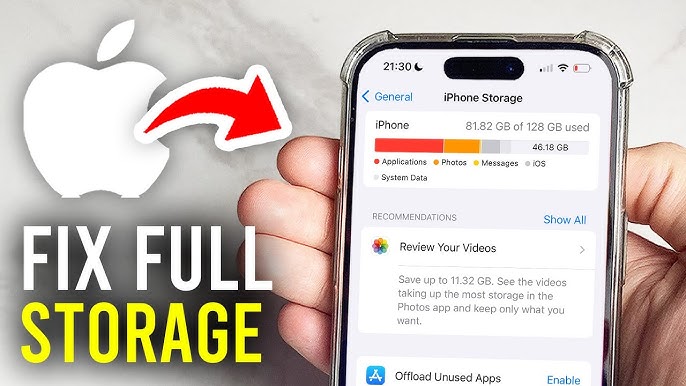
Apple devices are known for their smooth performance and reliable ecosystem. However, one common issue that frustrates many users is the Apple storage full warning. Whether you’re using an iPhone, iPad, or Mac, running out of storage can slow down your device, block updates, and interrupt daily tasks. Moreover, when storage fills up unexpectedly, it often leaves users confused about what’s taking up so much space.
Fortunately, Apple storage full problems are easier to fix than you might think. With the right approach, you can quickly free up space, improve performance, and prevent the issue from returning. Therefore, in this detailed guide, we explain why Apple storage fills up, what mistakes to avoid, and the most effective solutions both DIY and professional to reclaim storage safely and efficiently.
Why Does Apple Storage Get Full So Quickly?
Understanding why Apple storage full alerts appear is the first step toward solving the problem. Although Apple optimizes storage intelligently, several factors contribute to storage filling up faster than expected.
System Data and Cached Files
First of all, system data and cache files accumulate over time. Apps store temporary files, logs, and backups that slowly consume valuable space.
Photos, Videos, and Media Files
In addition, high-resolution photos and 4K videos take up a significant amount of storage. Even short video clips can occupy hundreds of megabytes.
App Data and Hidden Downloads
Moreover, apps like WhatsApp, Instagram, and streaming platforms store media and offline data internally, which often goes unnoticed.
As a result, users frequently encounter Apple storage full warnings without realizing what’s causing them.
Apple Storage Full After iOS or macOS Update
Many users report Apple storage full after a system update. While updates are essential, they can temporarily or permanently consume extra space.
Why Updates Increase Storage Usage
During updates, Apple creates backup files to ensure data safety. Consequently, duplicate system files may remain even after the update completes.
How to Fix Storage Issues After Updates
Restarting the device, clearing cache, and reviewing system data often helps. However, persistent storage problems may require advanced cleanup.
How to Check What’s Using Apple Storage Full
Before deleting anything, it’s important to analyze storage usage.
Check Storage on iPhone or iPad
Go to Settings → General → iPhone Storage. Here, Apple categorizes storage usage by apps, media, and system data.
Check Storage on Mac
Open System Settings → General → Storage to view a detailed breakdown.
This step helps identify exactly why Apple storage space running out issues are occurring.
Easy DIY Solutions to Fix Apple Storage Full Issues
There are several safe and effective ways to free up space quickly.
Delete Unused Apps
First, remove apps you no longer use. Many apps consume space even when idle.
Clear App Cache and Data
Some apps allow manual cache clearing. Clearing temporary files can instantly recover storage.
Remove Old Photos and Videos
Transfer media to iCloud, an external drive, or cloud storage, then delete local copies.
Enable Optimize Storage
Apple’s “Optimize Storage” feature automatically removes unused content while keeping files accessible in the cloud.
By following these steps, Apple storage space running out warnings often disappear quickly.
Advanced Solutions for Apple Storage Full Problems
If basic methods don’t work, advanced solutions may be necessary.
Delete Old Backups
Old device backups stored locally or in iCloud can consume large amounts of space.
Manage Message Attachments
Messages with photos and videos accumulate over time. Deleting old conversations can free significant storage.
Clear System Data on Mac
System cache, logs, and temporary files can grow excessively. Professional tools or expert assistance may be required.
Common Mistakes to Avoid When Fixing Apple Storage Full
While trying to free up space, users often make costly mistakes.
Deleting Important System Files
Removing system files manually can cause instability or data loss.
Using Unsafe Third-Party Cleaner Apps
Unverified apps may delete critical data or compromise privacy.
Ignoring Storage Warnings
Delaying action can lead to app crashes, failed updates, and performance issues.
Therefore, handling Apple storage space running out issues carefully is essential.
When Apple Storage Full Requires Professional Help
Sometimes, storage problems go beyond basic cleanup.
Persistent System Data Growth
If system data continues growing despite cleanup, internal issues may exist.
Storage Errors or Corruption
Corrupted storage files can falsely trigger full-storage warnings.
Data That Can’t Be Deleted
When files refuse to delete or reappear after removal, professional diagnosis is recommended.
Why Professional Apple Storage Full Optimization Is Better
Professional repair and optimization offer several advantages.
Accurate Diagnosis
Experts identify hidden storage drains that users can’t access.
Safe Data Handling
Professionals ensure no important files are lost during cleanup.
Long-Term Performance Improvement
Proper optimization prevents recurring Apple storage space running out alerts.
Milaaj Mobile Repair: Apple Storage Full Solutions in Dubai
If you’re struggling with Apple storage space running out issues that won’t go away, Milaaj mobile and laptop repair Dubai provides expert storage optimization and Apple device repair services.
Low-Price Apple Storage Cleanup
Storage optimization is offered at affordable rates without unnecessary upselling.
Fast Service and Quick Results
Most storage issues are resolved quickly, saving time and frustration.
High-Quality Tools and Expert Handling
Advanced diagnostic tools ensure safe cleanup and system stability.
Convenience and Customer Support
From consultation to completion, services are designed for maximum convenience and transparency.
How to Prevent Apple Storage Full in the Future
Prevention is the best solution.
Regular Storage Monitoring
Check storage usage monthly to catch issues early.
Use Cloud Storage Wisely
iCloud helps offload data while keeping files accessible.
Delete Temporary Files Periodically
Clearing cache and old files prevents accumulation.
By adopting these habits, Apple storage full warnings become rare.
FAQs About Apple Storage Full Issues
Why does Apple storage fill up so fast?
System data, media files, app cache, and backups accumulate over time.
Does deleting apps free up storage immediately?
Yes, deleting apps removes their data and cache instantly.
Can iCloud fix Apple storage full problems?
iCloud helps by offloading files, but local cleanup is still necessary.
Is it safe to delete system data?
System data should only be cleared carefully or professionally.
Is professional storage cleanup expensive?
Professional cleanup is usually affordable and prevents costly device issues.
Final Thoughts: Apple Storage Full
Seeing an Apple storage full alert can be frustrating, but it doesn’t mean your device is failing. In most cases, storage fills up due to hidden files, media, and system data that can be cleaned safely. With the right steps and professional help when needed you can free up space quickly, improve performance, and extend your device’s lifespan.
Instead of ignoring storage warnings or risking data loss with unsafe methods, taking timely action ensures your Apple device remains fast, reliable, and ready for everyday use.
Get professional iPhone repair services with expert technicians ensuring top-quality results.
Enjoy quick and reliable home delivery for your repaired or purchased devices.
Sell your old iPhone with confidence and get the best value instantly.
📍 Visit Any Milaaj Branch in Dubai
🔹 Bur Dubai
Milaaj Mobile and Laptop Repair Dubai
📞 055 258 8477
🔗 Google Maps
🔹 Al Barsha
Milaaj Mobiles and Laptop Repair Al Barsha
📞 052 596 2846
🔗 Google Maps
🔹 Al Barsha 3
Milaaj Service Center Reef Mall
📞 052 3405 814
🔗 Google Maps
🔹 Al Nuaimiya
Milaaj Mobiles and Laptops Ajman
📞 055 788 9654
🔗 Google Maps
📧 Email: support@milaaj.com
🕒 Operating Hours: Monday – Sunday




Leave a Reply