

In today’s digital world, our laptops are our daily work partners. However, a rapidly draining battery can interrupt productivity and cause frustration. Learning extend laptop battery life effectively is essential for anyone who wants their device to perform reliably throughout the day. Whether you’re a student, a remote worker, or a professional on the go, improving battery efficiency can make a big difference.
In this comprehensive guide, you’ll discover expert strategies, hardware tips, and software tweaks that will help you extend your laptop battery life effectively and avoid unnecessary battery replacements.
Why Understanding Extend Laptop Battery Life Effectively Matters
Before diving into solutions, it’s important to understand why battery health declines over time. Every laptop battery, regardless of brand, has a limited number of charge cycles. With frequent use, improper charging habits, and poor maintenance, your battery performance can degrade much faster.
However, by following a few smart habits and maintenance routines, you can significantly extend your laptop battery life effectively and keep your system running smoothly for years.
1. Adjust Display Settings Extend Laptop Battery Life Effectively to Save Battery Power
One of the simplest yet most effective ways to extend laptop battery life is by reducing display brightness. The screen consumes more energy than any other component in a laptop.
Try lowering your brightness level to around 50–70% when working indoors. Additionally, enable adaptive brightness if your laptop supports it — this automatically adjusts brightness based on surrounding light.
Moreover, switching to dark mode and reducing screen timeout duration can further help you extend laptop battery life effectively, especially during long working hours.
2. Optimize Power and Sleep Settings
Another crucial step in learning how to extend laptop battery life effectively is customizing your power plan. Both Windows and macOS allow you to adjust performance modes for better battery management.
Choose “Battery Saver” or “Energy Saver” mode when you’re not running heavy tasks. This mode minimizes background activity and lowers CPU performance slightly to conserve power.
Furthermore, set your laptop to sleep automatically after a few minutes of inactivity. This ensures energy efficiency without manual intervention.
3. Manage Startup Programs and Background Processes
When multiple programs run in the background, your battery drains faster. Open your task manager (Ctrl + Shift + Esc on Windows or Activity Monitor on macOS) to identify unnecessary applications consuming power.
Disabling unwanted startup apps ensures smoother performance and helps you extend laptop battery life effectively throughout the day.
Transitioning to lightweight software alternatives also helps — for instance, using a browser with energy-saving modes or disabling unused extensions.
4. Keep Your Laptop and Battery Cool
Heat is one of the biggest enemies of battery health. Overheating not only shortens battery life but also affects internal components.
Always use your laptop on a flat, hard surface to allow proper ventilation. Avoid placing it on blankets or soft materials that block airflow. Additionally, consider cleaning your laptop’s cooling vents regularly or using a cooling pad for extra support.
By maintaining an optimal temperature, you can extend your laptop battery life effectively and ensure stable performance over time.
5. Disconnect Unnecessary Peripherals and Devices
External devices like USB drives, external hard disks, and wireless mice consume extra power even when not actively used. When your laptop runs on battery power, unplug these peripherals unless necessary.
This simple practice can make a noticeable difference, helping you extend laptop battery life effectively and conserve energy for important tasks.
Additionally, disabling unused Bluetooth or Wi-Fi connections when offline further improves power efficiency.
6. Update Software and Drivers Regularly
It might sound unrelated, but keeping your system software and drivers up to date is vital in learning how to extend laptop battery life effectively. Manufacturers often release updates that improve power optimization, battery calibration, and thermal performance.
Ensure your operating system and battery management software are current. Updating BIOS or firmware may also enhance your laptop’s charging patterns and overall efficiency.
7. Avoid Overcharging and Deep Discharging
Battery charging habits play a critical role in overall lifespan. Constantly charging your laptop to 100% or draining it to 0% reduces long-term capacity.
Instead, keep your charge level between 20% and 80% for optimal performance. Modern laptops feature built-in battery management that prevents overcharging, but it’s still best to unplug the charger once the battery reaches full capacity.
This balanced charging approach can significantly extend laptop battery life effectively and maintain healthier battery chemistry.
8. Use Original Chargers and Cables for Extend Laptop Battery Life Problems
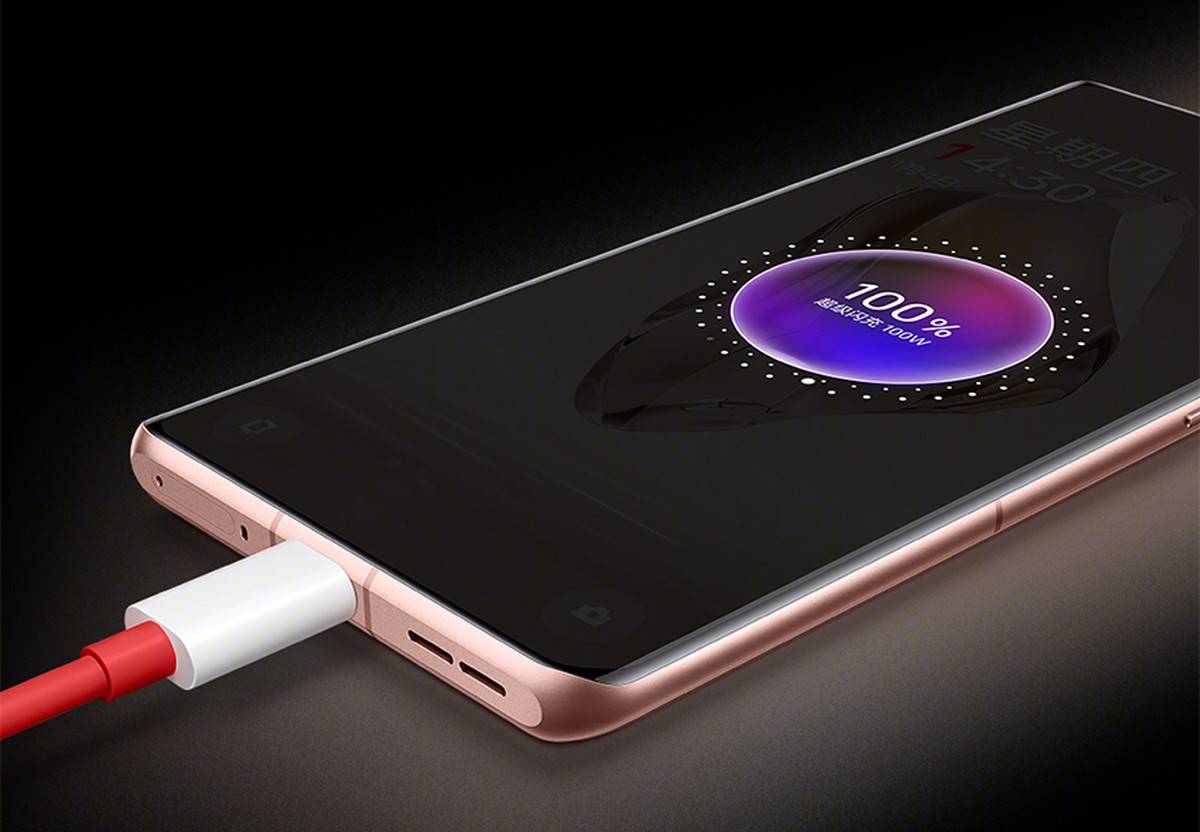
Using non-certified or cheap chargers can cause voltage irregularities, overheating, and faster battery degradation. Always rely on original chargers from your laptop’s manufacturer or authorized resellers.
Not only does this ensure safe charging, but it also helps you extend your device battery life effectively by maintaining consistent power flow.
If you’re unsure about your charger’s compatibility, consult professionals like Milaaj, who can help test and replace faulty chargers with genuine components.
9. Turn Off Location, Bluetooth, and Background Sync
Many users forget that Bluetooth, GPS, and background sync services continue to consume power even when idle. Disabling these when not in use is one of the most efficient ways to extend laptop battery life effectively.
Similarly, closing cloud backup or syncing tools (like OneDrive or Dropbox) when offline can minimize background data transmission and improve battery duration significantly.
10. Replace Old Batteries When Necessary
Even after following all these tips, batteries degrade with time. If your laptop battery drains too quickly, holds less charge, or the system shows “Service Battery” warnings, it may be time for a replacement.
At Milaaj, trained technicians can test your battery’s health, calibrate it, or install a high-quality replacement to restore full performance.
Timely replacement ensures your laptop functions reliably and helps you extend laptop battery life in the long run.
Advanced Tips to Extend Laptop Battery Life Effectively
- Use Airplane Mode: When not connected to Wi-Fi, switch to airplane mode to stop wireless activity.
- Reduce Processor Usage: Limit background apps, browser tabs, and unnecessary multitasking.
- Dim Keyboard Backlight: Disable or reduce brightness when not needed.
- Regular Maintenance: Cleaning dust from vents and fans helps with efficient cooling.
- Battery Calibration: Calibrate your battery every few months for accurate percentage readings.
By following these advanced measures, you can further extend your laptop battery life and enjoy optimal performance for years.
When to Seek Professional Help
Sometimes, despite applying all troubleshooting methods, your laptop battery might still fail to hold charge. This could indicate deeper hardware issues like motherboard faults, damaged charging IC, or defective battery cells.
In such cases, professional diagnosis is essential. Milaaj Mobile and Laptop Repair Dubai offers expert laptop battery inspection and replacement using advanced tools, ensuring safe and reliable solutions.
Extend Laptop Battery Life Effectively
To sum up, knowing how to extend laptop battery life effectively involves a mix of good habits, proper maintenance, and timely updates. From adjusting brightness and power settings to avoiding overcharging, each step contributes to a longer-lasting, more reliable laptop.
With consistent care — and professional support when necessary — your laptop battery can deliver maximum performance and endurance, keeping you productive anywhere.
Get professional laptop repair services with expert technicians ensuring top-quality results.
Instead of trying random recovery apps, always rely on certified software or trusted repair centers like Milaaj for secure data restoration.
Enjoy quick and reliable home delivery for your repaired or purchased devices.
Sell your device with confidence and get the best value instantly.
📍 Visit Any Milaaj Branch in Dubai
🔹 Bur Dubai
Milaaj Mobile and Laptop Repair Dubai
📞 055 258 8477
🔗 Google Maps
🔹 Al Barsha
Milaaj Mobiles and Laptop Repair Al Barsha
📞 052 596 2846
🔗 Google Maps
🔹 Al Barsha 3
Milaaj Mobiles and Gaming Store
📞 052 3405 814
🔗 Google Maps
🔹 Al Nuaimiya
Milaaj Mobiles and Laptops Ajman
📞 055 788 9654
🔗 Google Maps
📧 Email: support@milaaj.com
🕒 Operating Hours: Monday – Sunday


Leave a Reply