
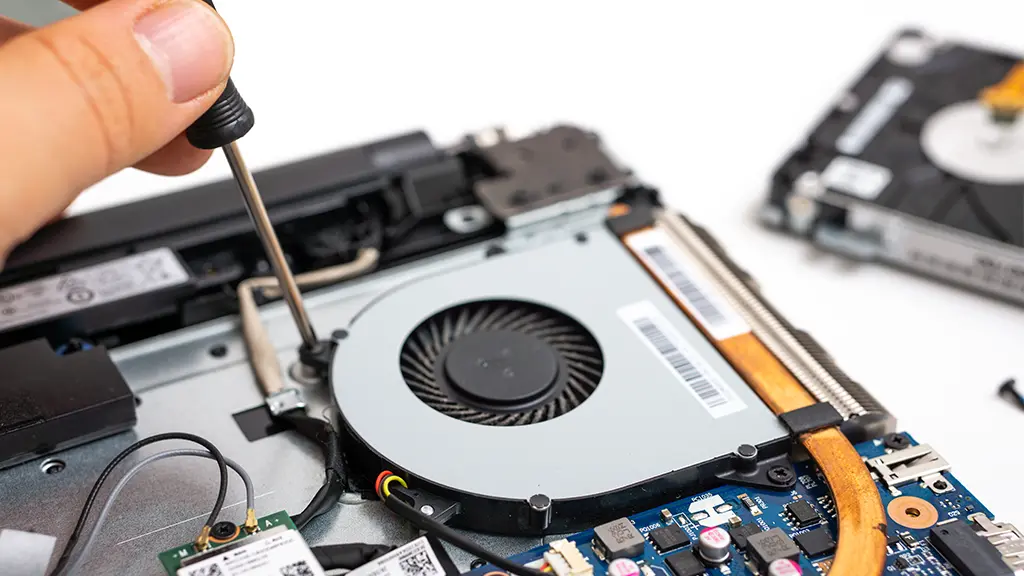
When your laptop fan is loud after the latest OS update, it is usually a sign that your hardware is working overtime to accommodate the new software changes. Updates often trigger a flurry of background activities from re-indexing files to optimizing system drivers that push your CPU and GPU temperatures higher. Actually, while it might feel like the update “broke” your fan, it is more likely that your cooling system is just doing its job by reacting to an increased workload. Indeed, understanding the “why” behind the noise is the first step to finding a permanent fix.
The Science of Post-Update Noise: Why It Happens
Specifically, several technical factors contribute to that frantic whirring sound immediately following a system refresh.
Background Indexing and Optimization for Laptop Fan Loud After OS Update
Immediately after a major update, your operating system needs to “get organized.” On a Mac, this often involves Spotlight Indexing, where the system scans every file to ensure search works perfectly. On Windows, the Windows Search Indexer performs a similar task. Furthermore, the system might be pre-compiling shaders or running background maintenance tasks that weren’t finished during the initial installation. This spike in CPU activity generates heat, which in turn forces the fans to spin at maximum RPM.
Incompatible or Outdated Drivers for Laptop Fan Loud After OS Update
As a result of a core OS change, your old hardware drivers might not be communicating efficiently with the new system. If your chipset or thermal management drivers are outdated, the OS may default to a “safe” mode, which often involves running the fan at a constant high speed to prevent any risk of overheating. Instead of a variable fan speed, you get a loud, steady drone that won’t go away.
Milaaj Mobile and Laptop Repair Dubai: Professional Thermal Care
Sometimes, an OS update is just the “last straw” for a cooling system that was already struggling. If your laptop continues to run loud despite trying software fixes, it may have a physical blockage or failing thermal paste. At Milaaj mobile and laptop repair Dubai, we specialize in restoring laptops to their whisper-quiet state.
We offer a comprehensive service suite that keeps your device running cool:
- Low Price Guarantee: Professional cleaning and thermal servicing at competitive rates.
- Speed Repairing: Most fan and thermal issues are resolved on the same day.
- Convenience: We provide free pickup and delivery across Dubai, so you don’t have to interrupt your day.
- Part Quality: If your fan is actually failing, we only use genuine or high-grade OEM replacements.
- Expert Diagnostics: We don’t just clean; we check for sensor errors and driver conflicts to ensure a total fix.
How to Fix a Loud Laptop Fan After an Update
Ideally, you should start with these low-risk software solutions before considering hardware repairs.
1. Give it Time (The Patience Method)
Actually, the simplest fix is often just waiting. If your system is indexing thousands of files, the noise should subside within 24 to 48 hours. Consequently, keep your laptop plugged in and let it finish its background chores overnight. If the noise persists after two days, then it is time to intervene.
2. Check the Task Manager or Activity Monitor
Specifically, you need to identify which process is “hogging” your CPU.
- Windows: Press
Ctrl + Shift + Escto open Task Manager. Sort by the CPU column to see which apps are at the top. - Mac: Press
Cmd + Spaceand type “Activity Monitor.” Look for processes likemdworkerorfileproviderd. If a non-essential app is using 80-90% of your CPU, try closing it or checking for a specific app update that addresses the new OS compatibility.
3. Reset Thermal Controls (SMC and PRAM)
For MacBook users, resetting the System Management Controller (SMC) is a classic fix for erratic fan behavior. The SMC controls thermal management and power. Furthermore, resetting the NVRAM/PRAM can clear out glitchy settings that might have been carried over during the update.
4. Update Your BIOS and Firmware
Indeed, hardware manufacturers like Dell, HP, and ASUS often release BIOS updates shortly after a major Windows release to refine fan curves. Therefore, visit your manufacturer’s support site and ensure you are running the latest firmware. This often contains the specific “handshake” needed for the new OS to manage temperatures correctly.
FAQ: Laptop Fan Loud After OS Update
1. Is it dangerous if my fan is always loud?
Actually, the noise itself isn’t dangerous it’s a safety feature. However, a fan running at 100% constantly can lead to “bearing wear” over time, meaning the fan might eventually fail or start making a grinding noise. As a result, it’s best to address the root cause early.
2. Can I use software to manually slow down my fan?
Technically, yes, apps like Macs Fan Control or SpeedFan allow this. But, proceed with extreme caution. If you force a fan to be quiet while the CPU is actually hot, you could cause permanent hardware damage or trigger a thermal shutdown.
3. Why is my laptop fan loud even when I’m not doing anything?
Specifically, this is usually due to background tasks like “Windows Update” or “Cloud Syncing.” Furthermore, check for malware; some viruses use your CPU to mine cryptocurrency in the background, which keeps your laptop hot and noisy.
4. Does a cooling pad help after an OS update?
Indeed, a cooling pad can provide the extra airflow needed to help the system finish its indexing tasks faster without the internal fans needing to hit max speed. Consequently, it’s a great temporary solution for post-update heat spikes.
5. When should I take my laptop to a repair shop?
If you hear grinding, clicking, or rattling sounds, or if the fan stays loud even after a fresh OS reinstall, you likely have a hardware issue. In addition, if your laptop is more than two years old, the thermal paste may have dried out, making it impossible for the fan to cool the processor efficiently.
Final Thoughts: Laptop Fan Loud After OS Update
In conclusion, while it is startling when your laptop fan is loud after the latest OS update, it is usually a manageable software symptom. By checking your processes, updating your drivers, and giving the system time to settle, you can usually resolve the issue yourself. However, if the noise is accompanied by extreme heat or strange mechanical sounds, don’t hesitate to seek professional help. As a result of proactive maintenance, your laptop will stay fast, cool, and most importantly quiet.
Get professional macbook repair services with expert technicians ensuring top-quality results.
Instead of trying random recovery apps, always rely on certified software or trusted repair centers like Milaaj for secure data restoration.
Back in your hands faster: Enjoy rapid, reliable doorstep delivery for every device we service or sell.
Sell your old iPhone with confidence and get the best value instantly.
📍 Visit Any Milaaj Branch in Dubai
🔹 Bur Dubai
Milaaj Mobile and Laptop Repair Dubai
📞 055 258 8477
🔗 Google Maps
🔹 Al Barsha
Milaaj Mobiles and Laptop Repair Al Barsha
📞 052 596 2846
🔗 Google Maps
🔹 Al Barsha 3
Milaaj Mobiles and Gaming Store
📞 052 3405 814
🔗 Google Maps
🔹 Al Nuaimiya
Milaaj Mobiles and Laptops Ajman
📞 055 788 9654
🔗 Google Maps
📧 Email: support@milaaj.com
🕒 Operating Hours: Monday – Sunday

Leave a Reply