
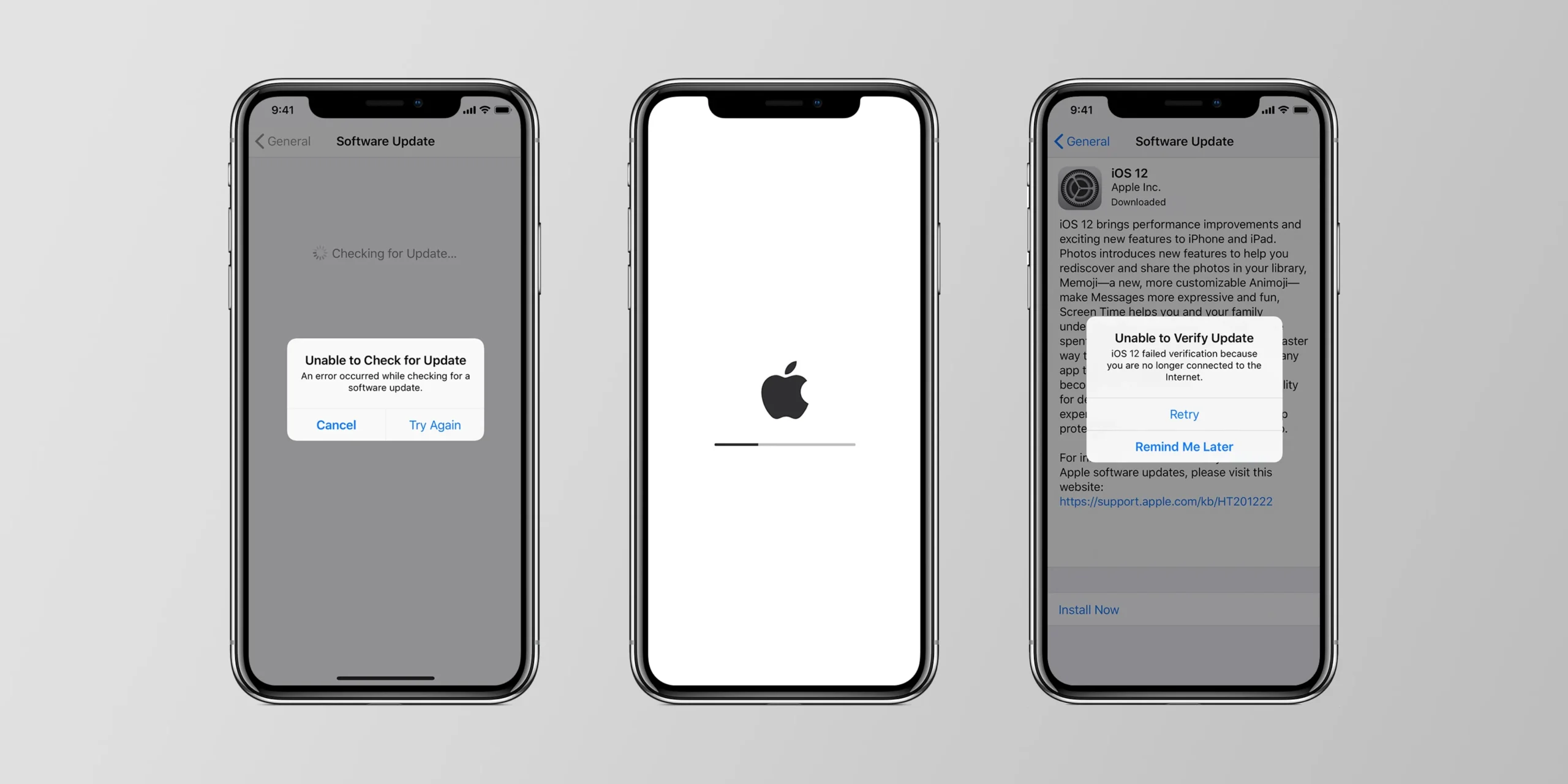
If your iPhone or iPad suddenly shows an iOS update failed message, the experience can be both confusing and frustrating. Although Apple updates are designed to improve performance, enhance security, and introduce new features, the process does not always go smoothly. Sometimes, the iOS update failed error appears due to network interruptions, low storage, software corruption, or server issues. Fortunately, with the right steps, you can easily overcome most update errors.
This detailed guide explains why the iOS update failed, how to fix it step by step, and when to seek expert repair support from Milaaj Mobile and Laptop Repair Dubai. Additionally, you will learn preventive tips so your future updates run smoothly every time.
iOS Update Failed Error – Why It Happens
Understanding why the iOS update failed is the first step toward fixing the problem. Although several factors can trigger the issue, most are easy to resolve.
1. Insufficient Storage Causing iOS Update Failed Error
One of the most common reasons the iOS update failed is simply not having enough free space. Updates often require several gigabytes, and even temporary installation files need additional room.
Moreover, older devices with limited storage are more prone to this issue. Clearing unnecessary photos, unused apps, and cache files can quickly free space and fix the problem.
2. Weak or Unstable Internet Causing Update Failure
A slow or unstable Wi-Fi connection can also cause the iOS update failed message. Apple updates require a stable, uninterrupted connection, and even slight drops can interrupt the installation process.
Additionally, if multiple devices are connected to the same router, bandwidth may be reduced, further increasing update failure risks.
3. Apple Server Issues Leading to iOS Update Failed Message
Sometimes, the problem is not your device at all. Apple servers may be temporarily overloaded—especially on major update release days. When servers are down, your device cannot verify or download the update.
Checking Apple’s System Status page can confirm if server downtime is the cause.
4. Battery Level Too Low for iOS Update
If your battery level is below 20%, your device may refuse to proceed, resulting in the iOS update failed notice. Apple requires sufficient power to ensure the update does not interrupt, which could cause system corruption.
5. Software Corruption Causing iOS Update Failed Error
Occasionally, corrupt system files or previously failed updates can interfere with new installations. This may lead to an infinite update loop or repeated iOS update failed notifications.
Resetting settings or performing a restore often resolves such software glitches.
Immediate Steps to Fix the iOS Update Failed Problem
Now that you understand possible causes, let’s explore practical solutions. Each method includes transition words to guide you smoothly through the troubleshooting process.
1. Restart Your iPhone or iPad First
Before trying anything complicated, start by restarting the device. Often, a simple reboot resolves minor glitches that trigger the iOS update failed message. Additionally, restarting refreshes system memory.
2. Check and Improve Internet Connection
First, switch from mobile data to Wi-Fi. Next, restart your router. Then, try updating again. A stronger connection significantly reduces update failure chances.
Moreover, moving closer to the router or using a less crowded network can improve reliability.
3. Free Up Storage to Avoid Update Failure
Open Settings → General → iPhone Storage to see what is consuming space. Delete duplicate photos, offload unused apps, and clear Safari cache. Consequently, your update will have enough free room to download and install.
Aim to free at least 5–8 GB for major iOS releases.
4. Charge Your Device Above 50%
Plug in your charger before starting the update. Furthermore, avoid using the device during installation to ensure stable power flow. Insufficient battery often causes update failure.
5. Update iOS Using a Computer (Alternative Fix)
If the iOS update failed multiple times directly from the device, try updating with a Mac or Windows PC.
Steps:
- Connect device to computer
- Open Finder (macOS) or iTunes (Windows)
- Choose Update Device
- Let the computer handle the installation
This method bypasses common over-the-air update errors.
6. Reset Network Settings If Wi-Fi Interruption Caused Failure
If Wi-Fi issues keep causing the iOS update failed alert, go to:
Settings → General → Transfer or Reset → Reset → Reset Network Settings
Although this clears saved Wi-Fi passwords and VPN profiles, it can fix underlying network configuration errors that interrupt updates.
7. Force Restart & Try Again
A force reboot can resolve deeper software freezes or stuck update processes.
For most iPhones:
- Press Volume Up → release
- Press Volume Down → release
- Hold Power button until Apple logo appears
Once restarted, try updating again.
8. Restore Device Using Recovery Mode
If all else fails, recovery mode solves stubborn iOS update failed errors.
Recovery mode allows the system to be reinstalled without deleting your data.
Steps:
- Connect to computer
- Force restart
- Select Update when prompted
However, avoid Restore unless you have a backup.
What If iOS Update Still Fails? Advanced Fixes for Persistent Issues
If the iOS update failed error persists despite troubleshooting, your device may have deeper issues.
1. Check for Malware or Rogue Profiles
Although rare in Apple devices, some configuration profiles or VPN apps can interfere with updates. Removing unknown profiles may fix the issue.
2. Check Lightning Port and Cable Quality
Dirty or low-quality cables may interrupt the update process during computer-based installation. Furthermore, broken charging ports can prevent stable power supply.
3. Restore Using DFU Mode (Last Resort)
DFU mode is the most advanced and complete reset. It wipes the firmware entirely and installs a fresh version of iOS.
Although this method is effective, use it only if you have a backup.
When to Seek Professional Help for iOS Update Failed Issues
While many update errors can be fixed at home, some require expert diagnosis—especially when hardware, motherboard, or system partition failures occur.
If:
- Updates fail repeatedly
- Device shuts down during update
- Storage issues persist even after deleting files
- Firmware becomes corrupted
- Boot loop begins after update
…it is time to consult a repair specialist.
Milaaj provides professional Apple diagnostics, software repair, and data-safe update assistance to resolve complex failures safely.
How to Prevent iOS Update Failed Errors in the Future
Preventive steps significantly reduce the chances of encountering update problems.
1. Maintain at Least 10 GB Free Storage
This ensures smooth updates even for major iOS releases.
2. Update Apps Regularly
Outdated apps can conflict with system updates. Keeping them updated improves compatibility.
3. Avoid Updating on Low Battery
Always plug in your device during updates.
4. Keep iCloud and iTunes Backup Enabled
Backing up protects your data in case an update fails.
5. Use Stable Wi-Fi for All Major Updates
Mobile data or public Wi-Fi often interrupts downloads.
Conclusion
In summary, receiving the iOS update failed message can be annoying, but it is rarely serious. Most update failures happen due to simple issues like low storage, weak Wi-Fi, or software interference. By following the step-by-step solutions above, you can usually complete the update quickly and safely. However, if problems continue—especially after multiple attempts—professional help is essential to avoid data loss or system damage.
For secure, reliable, and expert Apple repair, Milaaj Mobile and Laptop Repair Dubai is always ready to assist you.
Get professional iPhone repair services with expert technicians ensuring top-quality results.
Enjoy quick and reliable home delivery for your repaired or purchased devices.
Sell your old iPhone with confidence and get the best value instantly.
📍 Visit Any Milaaj Branch in Dubai
🔹 Bur Dubai
Milaaj Mobile and Laptop Repair Dubai
📞 055 258 8477
🔗 Google Maps
🔹 Al Barsha
Milaaj Mobiles and Laptop Repair Al Barsha
📞 052 596 2846
🔗 Google Maps
🔹 Reef Mall (Salah Al Din)
Milaaj Service Center Reef Mall
📞 052 3405 814
📍 1st Floor, Shop 16, Deira
🔗 Google Maps
🔹 Al Nuaimiya
Milaaj Mobiles and Laptops Ajman
📞 055 788 9654
🔗 Google Maps
📧 Email: support@milaaj.com
🕒 Operating Hours: Monday – Sunday


Leave a Reply