
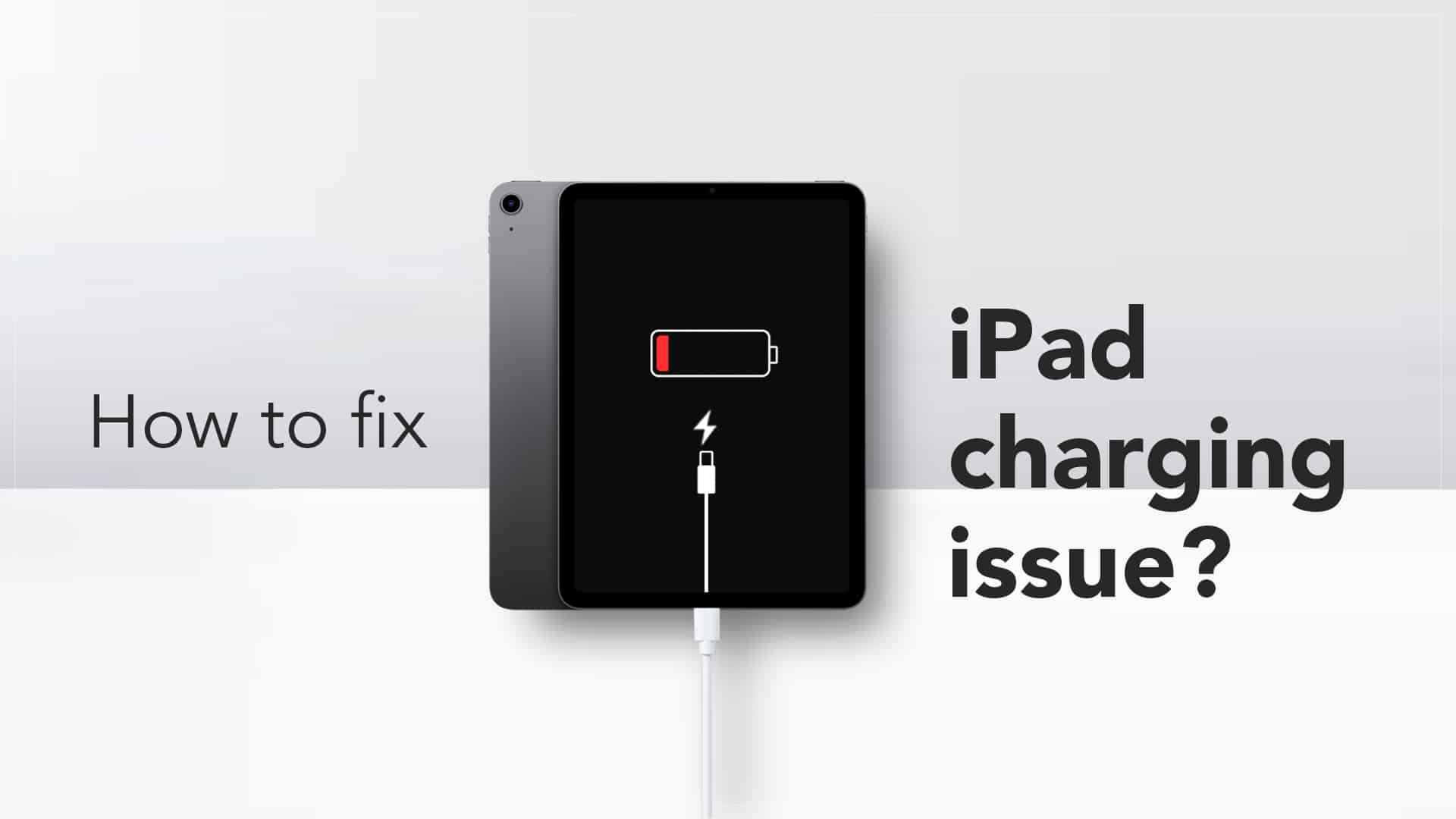
When your device suddenly stops powering up after installing new software, it can be incredibly frustrating. Although updates are designed to improve performance, they can sometimes trigger unexpected issues—especially charging problems. If your iPad not charging after update is causing stress, you’re not alone. Thousands of users experience similar issues every year, especially after major iOS or iPadOS releases.
Fortunately, there are simple and effective ways to fix the problem. In this comprehensive guide, we will first explore the causes, then review the common symptoms, and finally walk you through the best solutions for power issues—along with professional repair options that guarantee long-term results.
What Causes an iPad Not Charging After Update? Understanding the Issue
Before attempting any fixes, it’s essential to understand why your iPad not charging after update happens in the first place. Surprisingly, this issue does not always mean there is hardware damage—it often stems from software conflicts introduced during the update process.
1. System Glitches After Software Installation
Sometimes, the new update doesn’t settle properly, leading to temporary bugs. Consequently, your iPad may fail to recognize the charger or charging port.
2. Battery Calibration Issues
Updates can sometimes disturb battery calibration. As a result, your device may show incorrect power levels or stop charging entirely.
3. Charging Port Miscommunication
After a system update, the iPad may temporarily “reject” the charger due to software-level handshake conflicts.
4. Background Processes Consuming Power
Major updates activate numerous background tasks—indexing, syncing, and system optimization. Because of this, your device might drain faster than it charges or simply appear like it’s not charging.
5. Firmware Errors Related to Power Management
The power management chip may behave abnormally when firmware is updated, leading to charging failures.
Symptoms You’ll Notice When iPad Not Charging After Update Occurs
Recognizing the signs early can help you troubleshoot more effectively. Common symptoms include:
- iPad displays “Not Charging” even with an original charger
- Battery percentage stays frozen
- Very slow charging or no charging at all
- Device only charges when powered off
- Charging stops at a certain percentage
- Occasional overheating near charging port
- Charging icon appears but battery doesn’t increase
If you’re experiencing any of these, it’s a strong indication that your iPad not charging after update may be software related.
How to Fix iPad Not Charging After Update – Most Effective Solutions
Thankfully, most issues can be resolved at home without specialized tools. Below are the most reliable troubleshooting steps to fix iPad not charging after update problems with smooth ease.
1. Restart Your iPad Immediately (Simple but Powerful)
Restarting clears temporary system glitches created during the installation process. Moreover, it helps the device re-sync charging protocols.
How to restart:
- Press and hold the power button
- Slide to power off
- Wait 30 seconds
- Turn the device back on
2. Force Restart to Refresh the System
When your iPad not charging after update persists, a force reboot can refresh frozen power drivers.
Force Restart Method:
- Press and release Volume Up
- Press and release Volume Down
- Hold the Power button until the Apple logo appears
3. Check the Charging Cable and Adapter
While the issue may have started after an update, faulty accessories can make the situation worse. Therefore, always test your charger with another device.
What to check:
- Cable for damage or bends
- Adapter wattage compatibility
- Apple-certified accessories
4. Inspect the Charging Port Physically
Dust and debris in the charging port can create poor contact, especially if the new update makes the system more sensitive to voltage fluctuations.
Gently clean the port using:
- A toothpick
- A soft brush
- A can of compressed air
5. Disable Background Processes Temporarily
After a major update, background indexing eats significant power. Hence, your iPad may not appear to charge.
Turn off unnecessary features:
- Bluetooth
- Wi-Fi
- App Refresh
- Location Services
This allows the device to charge normally again.
6. Update Apps to Avoid System Conflicts
Outdated apps often conflict with new software. Consequently, they may increase battery drain or cause power issues.
Go to App Store → Update All.
7. Reset All Settings (Safe & Non-Destructive)
If your iPad not charging after update issue continues, resetting all settings fixes software conflicts without deleting your data.
Go to:
Settings → General → Transfer or Reset iPad → Reset → Reset All Settings
8. Perform a Full Software Restore via Computer
This is the next-level solution. It fixes deep system corruption and recalibrates firmware components responsible for power management.
Steps:
- Connect iPad to a computer
- Open Finder (Mac) or iTunes (Windows)
- Select your device
- Choose “Restore iPad”
Note: This will erase data—backup first.
Advanced Solutions for iPad Not Charging After Update
If basic troubleshooting doesn’t work, you may need to use advanced methods.
1. DFU Restore (Deep Firmware Reset)
This is the most powerful reset. It fixes serious firmware-level conflicts that cause the iPad not charging after update issue.
DFU restores the operating system from scratch, ensuring clean installation of power management files.
2. Battery Recalibration
Sometimes the update confuses the battery’s reporting system. Recalibration helps the device report accurate charging data and improves compatibility with the updated OS.
3. Diagnosing Hardware Components
Although uncommon, a software update can expose an existing weak component such as:
- Charging IC
- Tristar chip
- Power management IC
- Battery degradation
Professional technicians can diagnose these components precisely.
iPad Not Charging After Update? Troubleshoot Power Issues Easily With Milaaj
If none of the above solutions work, it’s time to seek professional help. Fortunately, Milaaj offers the most trusted iPad repair solutions in the region.
Why Choose Milaaj for iPad Charging Problems?
1. Low Repair Prices
Moreover, Milaaj provides budget-friendly repair options without compromising on quality, making professional iPad repair accessible for everyone.
2. Fast, Same-Day Repair
Most charging-related issues are fixed within 30–60 minutes, ensuring you don’t lose valuable time.
3. Convenience at Its Best
You get doorstep pickup and drop services, saving you unnecessary travel and long waiting times.
4. Genuine & High-Quality Parts
From charging ports to batteries and IC components, Milaaj uses premium-grade parts to ensure long-lasting performance.
5. Skilled Technicians With Advanced Tools
Their certified technicians use micro-soldering tools and diagnostic software to solve even the most complex iPad not charging after update issues.
Whether your charging problem is software-related or requires hardware-level repair, Milaaj provides dependable solutions that restore your device quickly and safely.
Preventive Tips to Avoid Future iPad not charging after update
To ensure your device stays stable after future updates, follow these helpful tips:
1. Always Update with Sufficient Battery
Ensure at least 50% battery before initiating a software update.
2. Avoid Interrupting the Update
Pausing or stopping an update midway can cause firmware corruption.
3. Use Only Original Charging Accessories
This prevents voltage fluctuations that may confuse the system after updates.
4. Restart Your iPad After Every Update
This helps the system stabilize and reduces post-update glitches.
5. Clear Cache Before Installing Major Updates
A clean device environment leads to smoother installation.
Final Thoughts: iPad not charging after update
Experiencing iPad not charging after update can be stressful; however, the majority of issues are easy to fix once you understand the root cause. Moreover, from simple restarts to advanced resets, these proven solutions can effectively restore smooth charging functionality. Even so, if the problem continues despite troubleshooting, professional help becomes essential. Fortunately, with expert support from Milaaj Mobile and Laptop Repair Dubai, you can fix all iPad charging issues quickly, safely, and affordably.
Get professional iPad repair services with expert technicians ensuring top-quality results.
Instead of trying random recovery apps, always rely on certified software or trusted repair centers like Milaaj for secure data restoration.
Enjoy quick and reliable home delivery for your repaired or purchased devices.
Sell your old iPad with confidence and get the best value instantly.
📍 Visit Any Milaaj Branch in Dubai
🔹 Bur Dubai
Milaaj Mobile and Laptop Repair Dubai
📞 055 258 8477
🔗 Google Maps
🔹 Al Barsha
Milaaj Mobiles and Laptop Repair Al Barsha
📞 052 596 2846
🔗 Google Maps
🔹 Al Barsha 3
Milaaj Mobiles and Gaming Store
📞 052 3405 814
🔗 Google Maps
🔹 Al Nuaimiya
Milaaj Mobiles and Laptops Ajman
📞 055 788 9654
🔗 Google Maps
📧 Email: support@milaaj.com
🕒 Operating Hours: Monday – Sunday


Leave a Reply