
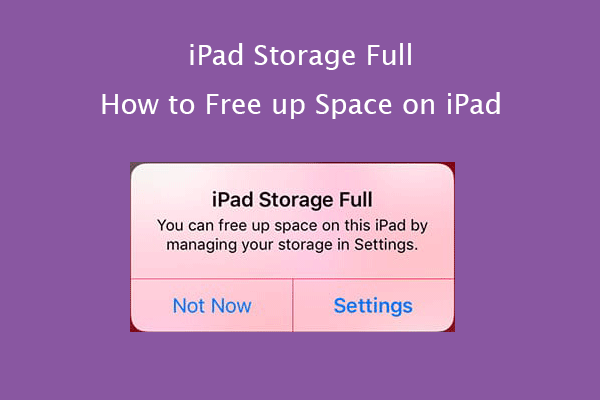
Apple iPads are powerful, reliable, and designed for smooth performance. However, many users suddenly encounter a frustrating message iPad storage full warning often appearing at the worst possible time. As a result, apps stop updating, photos fail to save, and system performance slows down dramatically.
Although this issue can feel overwhelming, the good news is that an iPad storage full warning is very common and completely fixable. Therefore, understanding why storage fills up and following the right solutions can restore your iPad’s speed and functionality. In this detailed guide, we explain the real causes, step-by-step fixes, mistakes to avoid, and when professional repair becomes the smartest option.
Why You See an iPad Storage Full Warning
First and foremost, iPads rely on internal storage for apps, photos, videos, system files, and temporary data. Over time, this storage fills up faster than expected.
Moreover, iPadOS updates create temporary files and cached data. Consequently, many users notice an iPad storage full warning immediately after an update. Additionally, hidden system files, app cache, and duplicate media quietly consume storage without obvious signs.
As a result, even users who delete apps and photos may still see storage warnings persist.
Common Causes of iPad Storage Full Issues
Understanding the causes helps you choose the correct solution instead of deleting files randomly.
App Cache and Temporary Files
Apps such as social media, browsers, and streaming platforms store large cache files. Over time, these files significantly contribute to the iPad storage full warning.
Photos and Videos
High-resolution photos and 4K videos quickly consume storage, especially when iCloud optimization is disabled.
iPadOS Update Files
Update installation files often remain on the device after completion, increasing system storage usage.
System Data Growth
System Data (previously “Other Storage”) includes logs, diagnostics, and temporary files that grow continuously.
Offline Downloads
Downloaded movies, music, and documents often go unnoticed but occupy large amounts of space.
iPad Storage Full Warning: What NOT to Do
Before fixing the problem, it’s important to avoid actions that may worsen the situation.
- Do not delete system folders manually
- Avoid untrusted storage-cleaning apps
- Don’t factory reset without backup
- Never ignore repeated storage warnings
Instead, follow structured steps to resolve the iPad storage full reminding safely.
Step-by-Step Solutions to Fix iPad Storage Full Warning
Now let’s walk through effective, safe, and proven methods to free up space.
Step 1: Restart and Recalculate Storage
Firstly, restart your iPad. This allows iPadOS to recalculate storage accurately and remove minor temporary files.
Step 2: Check Storage Breakdown
Go to Settings → General → iPad Storage. Here, you can clearly see what is using space. This step helps identify the biggest contributors to the iPad storage full reminding.
Step 3: Remove Unused Apps
Delete apps you no longer use. iPadOS also shows “Last Used” dates, making it easier to decide which apps to remove.
Step 4: Clear Safari Cache
Safari cache accumulates quickly.
- Settings → Safari → Clear History and Website Data
This alone can free significant storage instantly.
Advanced Storage Management for iPad
If basic steps are not enough, advanced optimization becomes necessary.
Delete Large Message Attachments
Photos and videos sent through messages remain stored even after viewing. Removing them reduces storage usage dramatically.
Enable iCloud Photo Optimization
Turn on Optimize iPad Storage so full-resolution photos stay in iCloud while smaller versions remain on the device.
Remove Offline Downloads
Delete downloaded movies, music, podcasts, and documents that are no longer needed.
Offload Unused Apps
Enable “Offload Unused Apps” to remove apps while preserving their data for later use.
Why iPad Storage Full Warning Slows Performance
When storage is full, iPadOS cannot create temporary working files. As a result:
- Apps crash frequently
- iPad becomes sluggish
- Updates fail
- Battery drains faster
Therefore, fixing the iPad storage full warning is essential not just for space, but for overall performance and device longevity.
When DIY Fixes Don’t Solve the Problem
Sometimes, storage issues persist despite following all steps. This usually happens due to:
- Corrupted update files
- Faulty storage indexing
- Excessive hidden system data
- Software bugs
In such cases, professional diagnosis becomes the safest and fastest solution.
Professional iPad Storage Repair Solutions
Expert technicians use advanced tools to:
- Identify hidden system data
- Safely remove corrupted files
- Optimize iPadOS storage indexing
- Preserve user data
- Restore smooth performance
Professional repair ensures that iPad storage full warning problems are fixed permanently, not temporarily.
Milaaj Mobile Repair – Trusted iPad Storage Experts
If you are struggling with a persistent iPad storage full warning, Milaaj mobile and laptop repair Dubai offers reliable and affordable solutions.
Why Choose Milaaj?
- Low-price diagnostics with transparent pricing
- Fast repairs to save your time
- Convenient service for all iPad models
- High-quality tools and safe handling
- Data protection guaranteed
Moreover, expert technicians ensure your iPad remains optimized long after the repair is completed.
How to Prevent iPad Storage Full Warning in the Future
Prevention saves time, money, and frustration. Follow these best practices:
- Keep at least 20–25% storage free
- Regularly clear cache and downloads
- Use iCloud optimization wisely
- Review large files monthly
- Delete old backups and attachments
By maintaining healthy storage habits, you can avoid repeated iPad storage full reminding messages.
FAQs iPad Storage Full Warning
1. Why does my iPad show a storage full warning?
An iPad storage full reminding appears when apps, photos, videos, system data, and cached files consume most of the available storage. Over time, hidden system files and app cache increase without notice.
2. Why is my iPad storage full even after deleting apps?
Even after deleting apps, cached data, message attachments, system logs, and temporary files may remain. Therefore, the iPad storage full reminding can persist until these files are cleared.
3. Does an iPadOS update cause storage to fill up?
Yes, iPadOS updates often create temporary installation files and increase system data size. As a result, many users experience an iPad storage full after updating.
4. How can I fix the iPad storage full warning quickly?
To fix the iPad storage full warning quickly, restart your iPad, delete unused apps, clear Safari cache, remove large message attachments, and enable iCloud photo optimization.
5. What is “System Data” on iPad and why is it so large?
System Data includes cache files, logs, and temporary update files. After updates, this data expands and becomes a major cause of iPad storage full warnings.
6. Is it safe to clear cache files on iPad?
Yes, clearing cache through Safari settings or app management is safe. It removes temporary files only and does not delete personal data.
Final Thoughts: iPad Storage Full Warning
An iPad storage full warning can disrupt productivity, entertainment, and daily tasks. However, with the right step-by-step solutions, the problem is entirely manageable. From clearing cache to advanced optimization, effective fixes exist for every scenario.
Most importantly, when storage problems persist, professional repair ensures safety, convenience, and long-term results. Instead of risking data loss or system damage, expert assistance delivers peace of mind and reliable performance.
With proper care and timely action, your iPad can stay fast, responsive, and storage-efficient for years to come.
Get professional iPad repair services with expert technicians ensuring top-quality results.
Instead of trying random recovery apps, always rely on certified software or trusted repair centers like Milaaj for secure data restoration.
Enjoy quick and reliable home delivery for your repaired or purchased devices.
Sell your old iPad with confidence and get the best value instantly.
📍 Visit Any Milaaj Branch in Dubai
🔹 Bur Dubai
Milaaj Mobile and Laptop Repair Dubai
📞 055 258 8477
🔗 Google Maps
🔹 Al Barsha
Milaaj Mobiles and Laptop Repair Al Barsha
📞 052 596 2846
🔗 Google Maps
🔹 Al Barsha 3
Milaaj Mobiles and Gaming Store
📞 052 3405 814
🔗 Google Maps
🔹 Al Nuaimiya
Milaaj Mobiles and Laptops Ajman
📞 055 788 9654
🔗 Google Maps
📧 Email: support@milaaj.com
🕒 Operating Hours: Monday – Sunday



Leave a Reply