
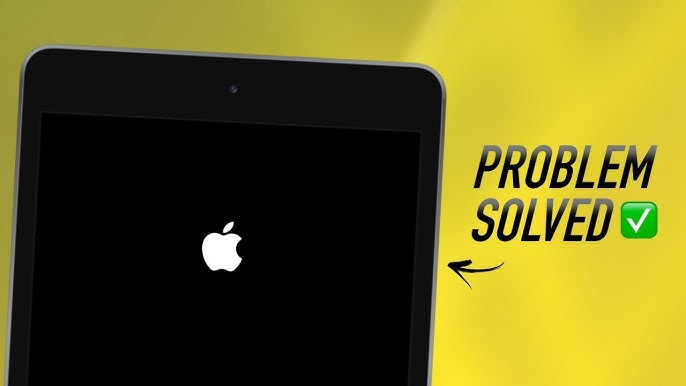
When your device suddenly freezes, boots endlessly, or becomes unresponsive, you might wonder why your iPad stuck after Apple update even though Apple promises smoother performance with every new version. Unfortunately, update issues happen more often than people realize. Sometimes, the update doesn’t install correctly, system files get corrupted, the battery fails during the update, or existing apps conflict with the new iPadOS. As a result, your iPad stuck after Apple update becomes more than just an inconvenience—it can disrupt your work, entertainment, communication, and school projects.
Fortunately, repair shops have tested, reliable, and professional techniques to fix the issue. With the right steps—and when needed, expert assistance—you can restore your iPad to full working condition. In this complete guide, we will explain why your iPad stuck after Apple update, the warning signs, the most effective repair-shop solutions, and powerful preventive methods to avoid future update failures. For trusted and professional service, Milaaj Mobile and Laptop Repair Dubai offers fast and expert iPad diagnostics and restoration.
Causes Behind Your iPad Stuck After Apple Update
Understanding why your iPad stuck after Apple update is the first step toward solving the issue. Even though Apple tests updates thoroughly, several problems can still occur during installation.
1. Software Conflicts Leading to iPadOS Update Failures
Sometimes, apps on your iPad are not yet optimized for the latest iPadOS. When the update installs, the system tries to connect with older files, which may lead to your iPad stuck after Apple update due to compatibility conflicts.
2. Corrupted iPadOS Files Interrupting System Startup
During an update, the device must stay stable, charged, and connected. If the connection drops or your iPad shuts down, corrupted files may instantly cause your iPad stuck after Apple update.
3. Insufficient Storage Causing Update Freezes
Apple updates require enough free space. Without it, the files cannot extract properly, and your iPad stuck after Apple update right after reboot.
4. Battery or Power Issues During Installation
If your battery drains below the recommended level while updating, the system may freeze. Consequently, your iPad stuck after Apple update because the device failed mid-process.
5. Firmware Glitches or Damaged NVRAM
Advanced users often overlook this. A firmware bug or NVRAM corruption may prevent the iPad from completing the update and cause freezing during startup.
Signs Your iPad Stuck After Apple Update Needs Expert Repair
Sometimes the symptoms appear confusing, but they often point toward deeper system issues. Below are the common warning signs associated with your iPad stuck after Apple update.
1. Endless Apple Logo Loop for iPad stuck after Apple update
Your screen shows only the Apple logo and restarts repeatedly. This loop is a classic indicator that your iPad stuck after Apple update and needs firmware repair.
2. Spinning Loading Wheel That Never Ends
If the loading wheel spins for hours, the update may not have completed properly.
3. Blank Screen or Frozen Display
Even though it looks like nothing is happening, the system may be stuck trying to load damaged files.
4. iPad Boots But Apps Won’t Open
This occurs when internal components and system files don’t match the new iPadOS version.
5. Update Progress Bar Stops Moving
If the bar stays stuck for more than 30 minutes, you likely have an issue requiring expert intervention.
How Repair Shops Fix Your iPad Stuck After Apple Update
Professional repair shops use specialized tools and methods to diagnose and restore your device. These steps ensure safe recovery without risking data loss.
1. Professional Diagnostic Scan for Update Damage
Technicians first connect your device to advanced diagnostic tools. These tools identify the exact cause behind your iPad hung after Apple update, such as file corruption, firmware failure, or hardware conflict.
2. Forced Reboot and Advanced Recovery Mode Repairs
Repair shops use deep-level reboot and restore procedures such as:
- DFU mode restore
- Recovery Mode firmware repair
- Error-code level troubleshooting
This process successfully restores devices when normal home-user methods fail.
3. iPadOS Reinstallation Without Data Loss
Experts can reinstall the system while preserving your data. This is extremely helpful when your iPad hung after Apple update due to incomplete installation.
4. Firmware Correction and NVRAM Rebuild
Advanced technicians fix internal firmware conflicts using specialized software. This helps the iPad boot normally again.
5. Storage and Flash Memory Repair
If your flash storage is weak or partially damaged, repair shops perform:
- NAND diagnostics
- Partition repairs
- Memory health restoration
These repairs eliminate deep system failures causing your iPad hung after Apple update.
6. Battery Stabilization for Update Completion
A weak battery may interrupt system installation. Technicians check and stabilize the battery to ensure proper functioning.
Home Fixes to Try Before Visiting a Repair Shop
Although professional help may be necessary, there are several troubleshooting steps you can attempt at home.
1. Force Restart Your iPad for iPad stuck after Apple update
A force restart clears temporary glitches. This may immediately solve your iPad hung after Apple update.
2. Connect to a Stable Wi-Fi and Update Again
Sometimes the update didn’t finish due to connection issues. Reconnecting and restarting the update can fix the problem.
3. Charge Your iPad for at Least 30 Minutes
Low battery power can freeze your device.
4. Reinstall iPadOS Using iTunes/Finder
You can restore your system safely through a computer connection.
5. Free Up Storage and Try Reinstalling
If storage caused your iPad hung after Apple update, free space and retry.
6. Boot in Recovery Mode for iPad stuck after Apple update
Recovery Mode often repairs minor update failures automatically.
Why Professional Repair Is the Best Solution for Serious Update Issues
While home methods sometimes help, many cases require expert intervention, especially when:
- The device does not enter Recovery Mode
- DFU restore fails
- The iPad gets stuck in an Apple logo loop
- Firmware tools detect corruption
- Storage or battery damage exists
Repair shops have:
- High-level diagnostic software
- Micro-soldering tools
- Secure data-recovery systems
- Certified technicians
These resources ensure that your iPad hung after Apple update receives the safest and most effective repair possible.
How to Prevent Your iPad from Getting Stuck After Future Apple Updates
To avoid experiencing your iPad hung after Apple update again, follow these preventive steps:
1. Always Keep Enough Storage Space Free
Updates require multiple gigabytes.
2. Charge Your iPad to At Least 70% Before Updating
This ensures the update completes smoothly.
3. Avoid Interrupting the Update for iPad stuck after Apple update
Don’t unplug your device or restart it during installation.
4. Update Your Apps Before Installing iPadOS
Compatibility improves performance.
5. Run Periodic System Maintenance for iPad stuck after Apple update
Clearing cache and deleting unused apps reduces system load.
6. Only Install Updates on Stable Wi-Fi
Weak internet may corrupt the update files.
FAQs – Your iPad Stuck After Apple Update
1. Why is my iPad stuck after Apple update?
Your iPad may become hung, frozen, or unresponsive after an Apple update due to corrupted system files, insufficient storage, outdated apps, or firmware conflicts. Additionally, sudden interruptions during installation—like low battery or weak Wi-Fi—can cause update failures.
2. How do I fix an iPad frozen on the Apple logo after an update?
First, try a forced restart. If the iPad remains stuck on the Apple logo, connect it to a computer and perform a Recovery Mode restore. When software repair fails, professional technicians can use advanced tools to rebuild or reinstall the system safely.
3. Why is my iPad unresponsive or not turning on after an update?
Sometimes, the device appears dead because the update caused a firmware crash. Try charging it for 30 minutes and then force-restart. If it still stays unresponsive, a technician may need to repair deeper system-level errors.
4. Can I fix an iPad stuck in a boot loop at home?
You can try using Finder/iTunes Restore, Safe Mode, or updating via computer. However, if your iPad keeps looping, the issue may involve NAND storage, logic board damage, or deep software corruption—requiring professional repair services.
5. Will I lose my data if my iPad is frozen after an Apple update?
Not necessarily. Many iPad stuck after update cases are repairable without data loss. But if the system is severely corrupted, a technician might need to extract or recover data before repairing the OS.
Conclusion: iPad stuck after Apple update
When your iPad stuck after Apple update, the issue often involves file corruption, system conflicts, insufficient storage, or firmware problems. Although you can try steps like Recovery Mode, force restart, or reinstalling iPadOS, deeper problems require expert-level solutions. That’s why professional repair shops remain the safest and most reliable option for restoring your device. With experienced technicians, advanced diagnostic tools, and fast turnaround times, Milaaj Mobile and Laptop Repair Dubai ensures your iPad returns to smooth and stable performance.
Get professional iPad repair services with expert technicians ensuring top-quality results.
Instead of trying random recovery apps, always rely on certified software or trusted repair centers like Milaaj for secure data restoration.
Enjoy quick and reliable home delivery for your repaired or purchased devices.
Sell your old iPad with confidence and get the best value instantly.
📍 Visit Any Milaaj Branch in Dubai
🔹 Bur Dubai
Milaaj Mobile and Laptop Repair Dubai
📞 055 258 8477
🔗 Google Maps
🔹 Al Barsha
Milaaj Mobiles and Laptop Repair Al Barsha
📞 052 596 2846
🔗 Google Maps
🔹 Al Barsha 3
Milaaj Mobiles and Gaming Store
📞 052 3405 814
🔗 Google Maps
🔹 Al Nuaimiya
Milaaj Mobiles and Laptops Ajman
📞 055 788 9654
🔗 Google Maps
📧 Email: support@milaaj.com
🕒 Operating Hours: Monday – Sunday




Leave a Reply