
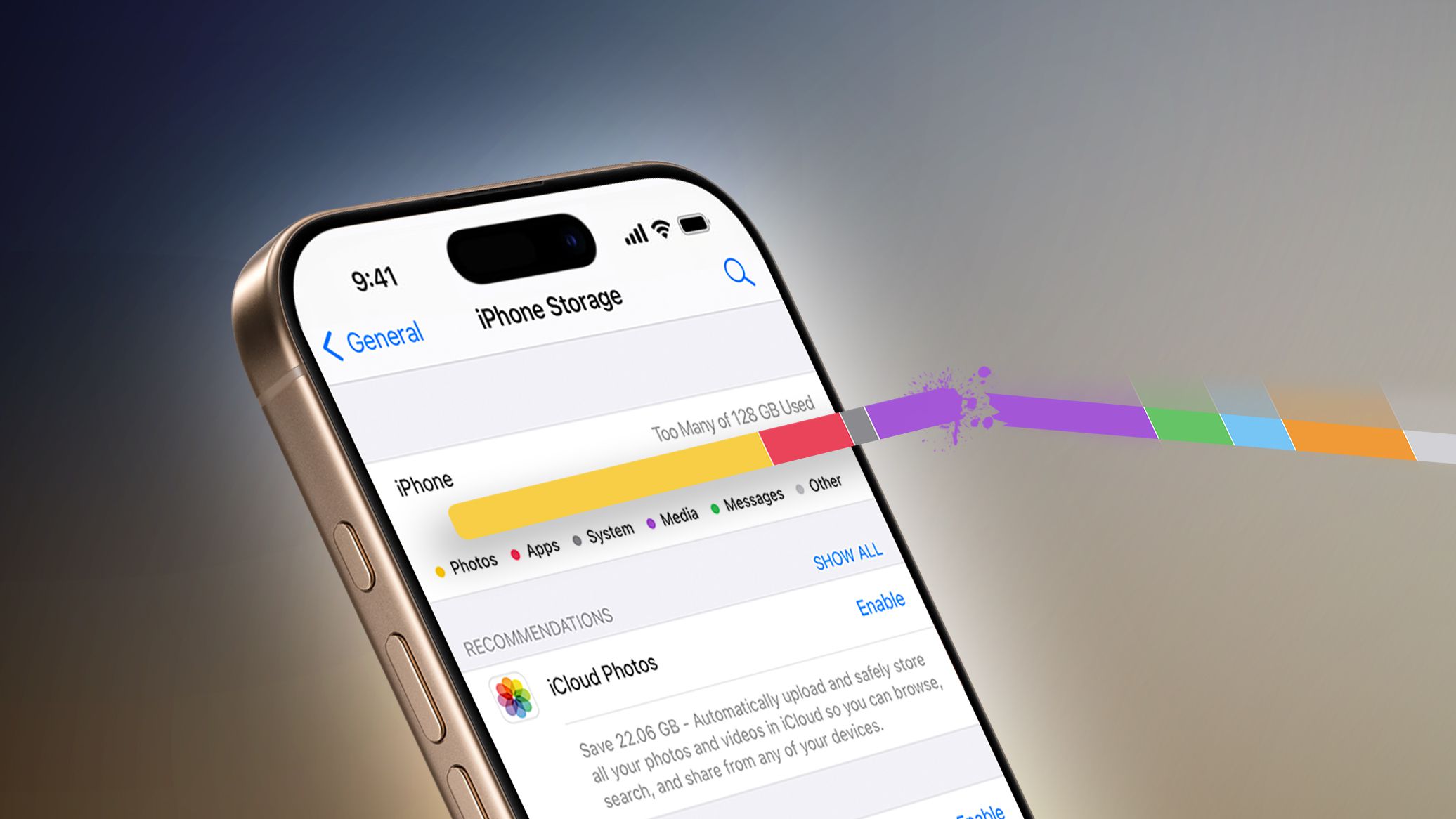
Running into the iPhone storage full warning can be incredibly frustrating, especially when it prevents you from downloading apps, taking photos, or updating iOS. Moreover, when Apple storage fills up unexpectedly, your iPhone may slow down, freeze, or behave unpredictably. Although Apple devices are designed for efficiency, storage overload is a common issue many users face over time.
Fortunately, iPhone storage full problems are not permanent. In fact, with the right Apple storage fixes, you can reclaim space quickly and improve device performance. Therefore, this guide explains why Apple storage fills up, what mistakes to avoid, and which proven solutions actually work. Most importantly, we also explain when professional help ensures safe and long-lasting results.
Why iPhone Storage Gets Full So Quickly
📌 Apps and Cache Files Pile Up Over Time
First of all, apps continuously store cache, temporary files, and offline data. As a result, your Apple storage fills up silently, even if you rarely install new apps.
📌 Photos and Videos Consume Maximum Space
Meanwhile, high-resolution photos and 4K videos occupy significant storage. Therefore, users often face iPhone storage running out warnings without realizing the cause.
📌 System Data and iOS Updates
Additionally, system files and failed updates may leave behind residual data. Consequently, Apple storage space running out becomes unavoidable.
Signs Your Apple Storage Is Almost Full
- Frequent iPhone storage full alerts
- Unable to install apps or updates
- Camera not saving photos or videos
- Slow performance and app crashes
- iMessage and WhatsApp media not downloading
Because these issues worsen over time, acting early is crucial.
Proven Apple Storage Fixes That Actually Work
✅ Check iPhone Storage Breakdown
Firstly, go to Settings → General → iPhone Storage. This overview shows exactly what is consuming space, helping you target the problem areas efficiently.
✅ Delete Unused Apps and Offload Data
Next, remove unused apps or enable Offload Unused Apps. Although the app is removed, its data remains saved, offering convenience without storage overload.
✅ Clear App Cache and Media Files
Moreover, apps like Safari, Instagram, and WhatsApp store large caches. Therefore, clearing browsing history and media files can instantly free up Apple storage.
✅ Optimize Photos and Use iCloud
Additionally, enabling Optimize iPhone Storage stores full-resolution photos in iCloud while keeping lighter versions on your device. As a result, storage space is freed without data loss.
Advanced Solutions for iPhone Storage Full Issues
🔧 Remove Large Attachments
Open Messages and review large media files. Surprisingly, message attachments often consume hidden storage.
🔧 Delete Downloaded Music and Videos
Furthermore, offline content from streaming apps can quietly fill Apple storage. Removing downloads restores space instantly.
🔧 Reset Storage-Heavy Settings
In rare cases, corrupted system files cause Apple storage full errors. Therefore, resetting settings (without data loss) can help.
Mistakes to Avoid When iPhone Storage Is Full
- Deleting system files manually
- Installing unreliable cleaning apps
- Ignoring repeated storage warnings
- Attempting DIY software modifications
Instead, following safe and professional solutions prevents further damage.
When Professional Apple Storage Repair Is Needed
Sometimes, iPhone storage full issues persist despite cleanup. This usually indicates system bugs, storage chip issues, or corrupted firmware. In such cases, professional diagnostics ensure accurate repair without risking data.
Milaaj Mobile Repair: Trusted Apple Storage Solutions
At Milaaj mobile and laptop repair Dubai, expert technicians provide advanced Apple storage diagnostics and safe optimization solutions. Moreover, customers benefit from:
- Low-price service packages
- Fast turnaround time
- Genuine-quality parts and tools
- Convenient repair options
- Data-safe repair methods
Therefore, instead of guessing, professional repair ensures long-term performance and storage stability.
How to Prevent Apple Storage Full Issues in the Future
- Regularly clear unused apps
- Enable iCloud photo optimization
- Review storage usage monthly
- Avoid unnecessary downloads
- Keep iOS updated properly
By following these habits, Apple storage stays optimized and reliable.
FAQs
Why does my iPhone storage get full so quickly?
iPhone storage fills up quickly due to large apps, high-resolution photos and videos, cached data, system files, and unused apps. Additionally, iOS updates and message attachments often consume hidden storage space.
How can I fix iPhone storage full without deleting important data?
You can free up space by offloading unused apps, clearing Safari and app cache, optimizing photo storage with iCloud, deleting duplicate files, and removing old backups without losing important data.
What is taking up the most space on my iPhone?
Usually, photos, videos, apps, system data, and message attachments take up the most storage. Checking Settings > General > iPhone Storage helps identify the biggest storage consumers.
Does iCloud really help when iPhone storage is full?
Yes, iCloud helps by moving photos, videos, and backups to the cloud. However, proper storage management is still required because iCloud does not automatically clear all local data.
Why is iPhone storage still full after deleting files?
This happens due to cached data, “Recently Deleted” items, system storage, or incomplete iOS cleanup. Restarting the device and clearing app cache usually resolves the issue.
Conclusion
In conclusion, facing an iPhone storage full warning does not mean your device is failing. On the contrary, most Apple storage issues are easily fixable with the right approach. From clearing cache to optimizing photos and managing system data, proven Apple storage fixes restore performance effectively.
However, when storage problems persist, professional repair remains the safest option. Ultimately, acting early ensures convenience, protects data, and extends your iPhone’s lifespan. With the right solutions, Apple storage full problems become a thing of the past.
Get professional iPhone repair services with expert technicians ensuring top-quality results.
Enjoy quick and reliable home delivery for your repaired or purchased devices.
Sell your old iPhone with confidence and get the best value instantly.
📍 Visit Any Milaaj Branch in Dubai
🔹 Bur Dubai
Milaaj Mobile and Laptop Repair Dubai
📞 055 258 8477
🔗 Google Maps
🔹 Al Barsha
Milaaj Mobiles and Laptop Repair Al Barsha
📞 052 596 2846
🔗 Google Maps
🔹 Al Barsha 3
Milaaj Service Center Reef Mall
📞 052 3405 814
🔗 Google Maps
🔹 Al Nuaimiya
Milaaj Mobiles and Laptops Ajman
📞 055 788 9654
🔗 Google Maps
📧 Email: support@milaaj.com
🕒 Operating Hours: Monday – Sunday



Leave a Reply