
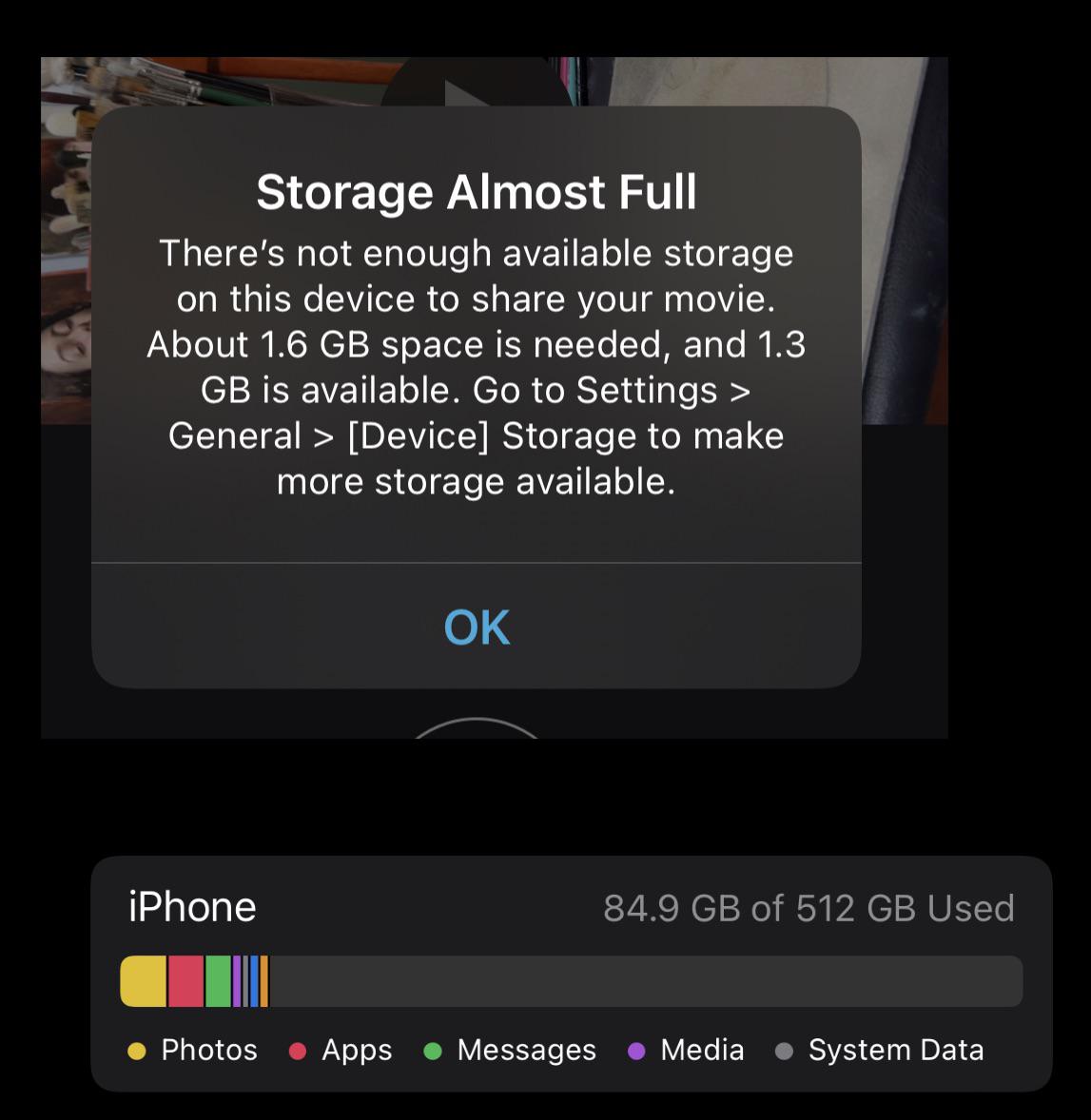
An iPhone Storage Full warning can appear at the most inconvenient times. Suddenly, you can’t take photos, install apps, or even update iOS. Moreover, performance may slow down, apps may crash, and important notifications can stop working. Therefore, understanding why this happens and how to fix it properly is essential for every iPhone user.
Fortunately, an iPhone Storage Full warning is not permanent. In fact, with the right step-by-step approach, you can free up space, restore performance, and prevent the issue from returning. In this detailed guide, we explain the real causes, practical fixes, and professional solutions that actually work.
Understanding the iPhone Storage Full Warning
Before fixing the issue, it’s important to understand what triggers an iPhone Storage Full warning. Apple devices manage storage automatically, but over time, hidden data accumulates.
Common Reasons iPhone Storage Gets Full
- System data buildup after updates
- Cached files from apps and browsers
- Duplicate photos and videos
- Large app data (social media, streaming apps)
- Unfinished iOS update files
As a result, even iPhones with high storage capacity may display an iPhone Storage Full warning unexpectedly.
Step 1: Check iPhone Storage Breakdown
First and foremost, you need to identify what’s consuming your space.
How to Check Storage Usage for iPhone Storage Full Warning
- Open Settings
- Tap General
- Select iPhone Storage
Here, Apple clearly shows which categories are using space. Consequently, you can target the real problem instead of guessing.
Tip: If “System Data” is unusually large, it’s a common cause of the iPhone Storage Full warning.
Step 2: Delete Unnecessary Apps (Safely)
Next, removing unused apps is one of the fastest solutions.
Smart App Removal Tips for iPhone Storage Full Warning
- Sort apps by size
- Remove games you no longer play
- Delete duplicate utility apps
- Offload apps instead of deleting them fully
Offloading preserves app data while freeing space. Therefore, it’s an effective method to resolve an iPhone Storage Full reminding without losing important information.
Step 3: Clear Safari and App Cache
Although iOS doesn’t offer a universal cache-clear button, cache files still accumulate silently.
Clear Safari Cache for iPhone Storage Full Warning
- Go to Settings > Safari
- Tap Clear History and Website Data
Additionally, apps like Instagram, WhatsApp, and YouTube store large cache files. Reinstalling them often clears gigabytes of hidden data, helping eliminate the iPhone Storage Full reminding.
Step 4: Manage Photos and Videos Efficiently
Photos and videos are among the biggest storage hogs. Therefore, managing media files is crucial.
Photo Storage Optimization for iPhone Storage Full Warning
- Enable iCloud Photos
- Turn on Optimize iPhone Storage
- Delete duplicate screenshots
- Remove large videos sent via apps
By doing this, you not only fix the iPhone Storage Full reminding, but also improve phone responsiveness.
Step 5: Delete Old Messages and Attachments
Messages, especially those with photos and videos, consume more space than most users realize.
Clean Message Storage
- Go to Settings > Messages
- Set messages to auto-delete after 30 days or 1 year
- Remove large attachments manually
As a result, message cleanup alone can free several gigabytes and reduce the iPhone Storage Full reminding significantly.
Step 6: Fix Storage Issues After iOS Updates
Many users notice the iPhone Storage Full warning right after updating iOS. This happens because update files and temporary system data remain stored.
Effective iOS Update Storage Fixes
- Restart your iPhone
- Check for incomplete update files
- Update again if necessary
- Reset settings (without deleting data)
In many cases, system storage recalculates after a restart, instantly resolving the iPhone Storage Full warning.
Step 7: Use iCloud and External Storage Wisely
Cloud storage is an excellent long-term solution.
Best Storage Practices
- Move photos to iCloud
- Back up videos to cloud drives
- Transfer large files to a computer
- Use external storage devices (Lightning-supported)
Thus, your iPhone remains clutter-free, preventing future iPhone Storage Full warnings.
Common Mistakes That Make Storage Problems Worse
Even though users try to fix storage issues, some actions make things worse.
Avoid These Mistakes
- Installing “storage cleaner” apps
- Deleting system files manually
- Ignoring update-related storage warnings
- Filling storage to 99%
Therefore, safe and guided steps are always better when dealing with an iPhone Storage Full reminding.
When DIY Fixes Are Not Enough
Sometimes, storage problems persist despite all efforts. In such cases, professional inspection is required.
Signs You Need Expert Help
- Storage remains full after reset
- iPhone overheats frequently
- Apps fail to install or update
- System Data keeps increasing
At this stage, internal software conflicts or storage chip issues may be responsible for the recurring iPhone Storage Full reminding.
Milaaj Mobile Repair – Trusted iPhone Storage Solutions in Dubai
If you want a permanent solution, professional repair is the safest option. Milaaj mobile and laptop repair Dubai specializes in advanced iPhone storage diagnostics and optimization.
Why Choose Milaaj Mobile Repair?
- Low price solutions with transparent pricing
- Speed repairing – most storage issues fixed same day
- Convenience with walk-in and quick service
- High-quality parts and professional tools
- Safe system cleanup without data loss
Unlike temporary fixes, professional storage optimization ensures your iPhone Storage Full reminding doesn’t return.
How Professional Repair Solves Storage Issues Permanently
Professional technicians use advanced tools that regular users don’t have access to.
Expert-Level Fixes Include
- System cache reconstruction
- Corrupted data cleanup
- iOS reinstallation without data loss
- Storage chip health analysis
As a result, your iPhone regains full performance, stability, and storage efficiency.
Preventing iPhone Storage Full Warning in the Future
Once fixed, prevention is key.
Long-Term Storage Management Tips
- Keep at least 10–15% storage free
- Regularly clear cache
- Review storage monthly
- Use cloud backups
- Avoid unnecessary apps
By following these steps, you significantly reduce the chances of seeing the iPhone Storage Full reminding again.
FAQs About iPhone Storage Full Warning
1. Why does my iPhone show a storage full warning?
An iPhone storage full reminding usually appears when apps, photos, videos, system data, or cached files consume most of the available space. Additionally, iOS updates and hidden system files can unexpectedly fill storage.
2. Why is my iPhone storage full even after deleting apps?
Even after deleting apps, cached data, system files, messages, and media attachments may still occupy storage. Therefore, clearing cache, managing system data, and restarting the device can help recalculate and free space.
3. Does an iOS update cause the iPhone storage full warning?
Yes, iOS updates often create temporary files and increase system data size. As a result, many users experience an iPhone storage full reminding after updating their device.
4. How can I fix the iPhone storage full warning quickly?
To fix the iPhone storage full reminding quickly, remove unused apps, clear Safari cache, optimize photos, delete old messages, and restart your iPhone. Moreover, enabling iCloud optimization helps prevent future storage issues.
5. What is “System Data” and why does it take so much space?
System Data includes caches, logs, and temporary files created by iOS and apps. Over time, this data grows and contributes significantly to the iPhone storage full reminding if not managed properly.
6. Will resetting my iPhone fix the storage full problem?
Resetting your iPhone can fix storage issues if system files are corrupted. However, it should be done carefully with a full backup, as improper resets may lead to data loss.
Final Thoughts: iPhone Storage Full Warning
An iPhone Storage Full warning can be stressful, but it doesn’t mean your device is failing. In most cases, smart storage management and step-by-step solutions restore normal performance quickly. However, when issues persist, professional repair ensures a safe and lasting fix.
By understanding the causes, avoiding common mistakes, and choosing expert solutions when needed, you can enjoy a smoother, faster, and more reliable iPhone experience without constant storage warnings.
Get professional iPhone repair services with expert technicians ensuring top-quality results.
Enjoy quick and reliable home delivery for your repaired or purchased devices.
Sell your old iPhone with confidence and get the best value instantly.
📍 Visit Any Milaaj Branch in Dubai
🔹 Bur Dubai
Milaaj Mobile and Laptop Repair Dubai
📞 055 258 8477
🔗 Google Maps
🔹 Al Barsha
Milaaj Mobiles and Laptop Repair Al Barsha
📞 052 596 2846
🔗 Google Maps
🔹 Al Barsha 3
Milaaj Service Center Reef Mall
📞 052 3405 814
🔗 Google Maps
🔹 Al Nuaimiya
Milaaj Mobiles and Laptops Ajman
📞 055 788 9654
🔗 Google Maps
📧 Email: support@milaaj.com
🕒 Operating Hours: Monday – Sunday



Leave a Reply