
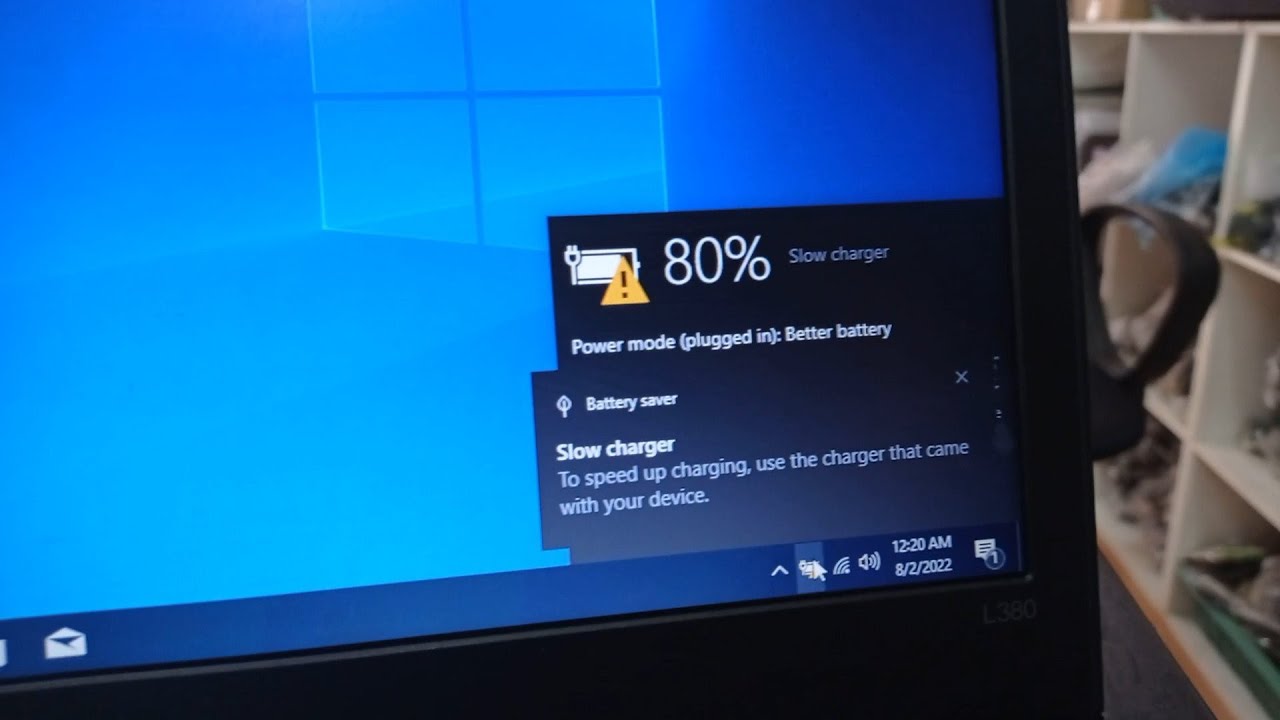
If your laptop is slow charging and taking far longer than usual to reach 100%, you are not alone. Many users experience this frustrating issue, especially when the laptop slow charging problem is caused by a damaged charging port, a faulty adapter, battery wear, or internal hardware failure. Understanding the real reason behind slow charging is essential—because the charging port, connector pins, or internal power IC may be failing without obvious signs.
In this detailed guide, we will explore laptop slow charging, step-by-step charging port troubleshooting, and the exact methods you can use to confirm and fix the issue. Additionally, if the problem becomes unrepairable at home, Milaaj Mobile and Laptop Repair Dubai is always ready to help restore your device safely.
1. What Causes Laptop Slow Charging? Understanding the Root Problem
When you face laptop slow charging, the first step is identifying the underlying cause. Although charging issues may seem simple, they often involve multiple hardware or software factors.
Common Reasons for Laptop Slow Charging
- Faulty charging port or loose internal connector
- Weak or damaged power adapter
- Software glitches or outdated BIOS
- Battery ageing or malfunction
- Overheating causing charging throttling
- Internal motherboard issues such as PMIC failure
Even though the problem may appear small, the laptop Low-speed charging issue often indicates that the charging port might not be supplying enough power.
2. Signs That Indicate the Charging Port Is Faulty
Your laptop’s charging port undergoes continuous wear and tear. When it becomes faulty or loose, slow charging is the first symptom to appear.
Clear Signs of Charging Port Failure
- Charger wiggles inside the port
- Laptop charges only when the cable is held at a specific angle
- Frequent connection and disconnection sound
- Laptop slow charging even with a new charger
- Charging stops when slightly touched
- Visible dust, burn marks, or bent pins
Because the charging port is the central power input, any instability leads directly to laptop Low-speed charging and inconsistent battery performance.
3. Laptop Slow Charging Troubleshooting – Step-by-Step Guide
Now let’s explore the actual ways to fix laptop slow charging issues. Each step will help you verify if the charging port is truly the culprit—or if something else is affecting your device.
Step 1 – Inspect Cable and Adapter Before Investigating Laptop Slow Charging
Sometimes, the charger is the true reason your laptop slow charging problem appears.
Troubleshoot the charger:
- Try a different compatible adapter
- Check voltage and wattage rating
- Test the cable for burns or bends
- Avoid using third-party cheap chargers
A low-wattage charger can cause laptop slow charging, especially in high-performance models like gaming laptops.
Step 2 – Examine the Charging Port for Loose Fit or Obstruction
Charging port issues are among the most common causes of laptop Low-speed charging problems.
What to check:
- Dust or debris blocking connection
- Loose charging pin inside the port
- Burn marks or corrosion
- Unstable contact between port and motherboard
Use a flashlight to inspect the port, but do not insert metal tools, as they can damage the pins.
Step 3 – Confirm if Laptop Slow Charging Is Due to Battery Failure
Batteries degrade over time, reducing charging speed and backup capacity.
Signs of battery-related slow charging:
- Laptop gets hot during charge
- Battery percentage stuck at certain levels
- “Plugged in, not charging” error
- Drains quickly after unplugging
Even though the battery plays a role, the laptop slow charging problem often worsens if the charging port isn’t providing stable power.
Step 4 – Run Software Diagnostics to Identify Laptop Slow Charging Issues
Software and firmware can also cause charging delays.
Essential checks:
- Install BIOS updates
- Disable battery saver mode
- Update drivers (especially power management)
- Restart the laptop in safe mode to test charging difference
Software bugs might limit charging speed, even though hardware appears fine.
Step 5 – Look for Overheating Causing Laptop Slow Charging
Thermal throttling significantly slows down charging speed.
Fix overheating:
- Clean internal fans
- Reapply thermal paste (if needed)
- Avoid charging on soft surfaces like beds
- Use laptop cooling pads
When temperatures rise above safe limits, the system automatically slows down charging to protect circuits.
Step 6 – Test the Charging Port Connection to Confirm Low Power Delivery
To confirm the port is the reason behind laptop Low-speed charging, perform these tests:
Port Testing Methods:
- Gently wiggle charger → Does charging stop?
- Plug charger into another port (USB-C models)
- Test with an original power adapter
- Observe battery meter → fluctuating input means port damage
If movement affects charging, the charging port is almost certainly faulty.
4. Can a Charging Port Be Repaired? What’s Actually Fixable?
Most users wonder if the charging port must be replaced entirely or if it can be repaired.
What’s repairable:
- Dry solder joints
- Loose connector
- Broken charging pin
- Dirt or corrosion buildup
- Internal flex cable damage
What requires a replacement:
- Burned charging port
- Melted connector
- Broken DC jack
- Faulty USB-C power circuit
Ignoring these issues can worsen the laptop Low-speed charging problem and damage the motherboard permanently.
5. When Laptop Slow Charging Means a Motherboard Problem
If your charging port is fine but the laptop still charges slowly, the motherboard may be the culprit.
Possible internal failures:
- Power Management IC (PMIC) damage
- Charging IC failure
- Battery MOSFET damage
- Shorted power rail
These issues reduce power delivery, causing severe laptop Low-speed charging patterns or complete charging failure.
6. Professional Repair – When You Should Seek Expert Help
If the laptop slow charging issue does not improve after troubleshooting, it’s time to consult professionals. Wrong handling can cause motherboard shorts or irreversible charging damage.
For reliable repair, Milaaj offers expert laptop charging port replacement, battery diagnostics, and motherboard-level service.
7. How to Prevent Laptop Slow Charging – Long-Term Tips
Follow these tips:
- Avoid over-bending charging cables
- Keep the port dust-free
- Use only original adapters
- Prevent liquid exposure
- Don’t charge while gaming or editing
- Keep your laptop cool
- Update BIOS regularly
Good charging habits significantly reduce laptop Low-speed charging issues.
Conclusion
Laptop Low-speed charging is a common but often misunderstood problem. Whether the issue is related to the charging port, battery, overheating, software bugs, or motherboard failure, identifying the cause early can prevent long-term damage.
By following the troubleshooting steps above, you can determine what’s wrong and fix many issues at home. However, if the laptop slow charging problem persists, consulting a professional repair technician is the safest option.
Get professional laptop repair services with expert technicians ensuring top-quality results.
Instead of trying random recovery apps, always rely on certified software or trusted repair centers like Milaaj for secure data restoration.
Enjoy quick and reliable home delivery for your repaired or purchased devices.
Sell your device with confidence and get the best value instantly.
📍 Visit Any Milaaj Branch in Dubai
🔹 Bur Dubai
Milaaj Mobile and Laptop Repair Dubai
📞 055 258 8477
🔗 Google Maps
🔹 Al Barsha
Milaaj Mobiles and Laptop Repair Al Barsha
📞 052 596 2846
🔗 Google Maps
🔹 Al Barsha 3
Milaaj Mobiles and Gaming Store
📞 052 3405 814
🔗 Google Maps
🔹 Al Nuaimiya
Milaaj Mobiles and Laptops Ajman
📞 055 788 9654
🔗 Google Maps
📧 Email: support@milaaj.com
🕒 Operating Hours: Monday – Sunday


Leave a Reply