
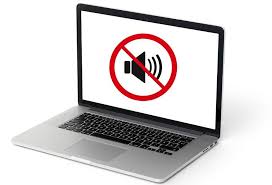
Sound issues on a laptop can be incredibly frustrating, especially when they interrupt online meetings, entertainment, or everyday tasks. If you’re searching for answers to laptop sound not working, you’re not alone. Many users suddenly experience no audio, distorted sound, or volume that refuses to increase. As a result, productivity and user experience drop immediately.
However, the good news is that laptop sound not working is usually fixable. In many cases, the problem stems from simple software settings, driver issues, or minor hardware faults. Therefore, before assuming the worst, it’s important to understand the root causes and apply the right troubleshooting steps. In this guide, we explain why laptop sound fails, what mistakes to avoid, and how professional repair solutions restore audio safely and effectively.
Why Laptop Sound Not Working Is a Common Problem
Modern laptops rely on a combination of software drivers, speakers, and internal audio circuits. When one element fails, sound problems appear suddenly.
Common Reasons for Laptop Sound Failure
- Muted or misconfigured sound settings
- Corrupted or outdated audio drivers
- Software bugs after system updates
- Dust or moisture damage to speakers
- Faulty sound card or audio IC
Although the issue may seem serious, most cases of laptop sound not working are resolved with proper diagnosis and timely action.
Laptop Sound Not Working Due to Simple Settings Issues
Before diving into complex fixes, always check basic settings.
Volume and Output Device Problems
Sometimes, the laptop routes sound to the wrong output device. As a result, users hear nothing even though sound is playing.
What to check immediately:
- Ensure volume is not muted
- Select the correct output device
- Test sound using built-in speakers
- Disconnect external audio devices
Often, these simple steps instantly resolve laptop sound not working issues.
Laptop Sound Not Working After System Update
System updates aim to improve performance, yet they sometimes disrupt audio functionality.
Driver Conflicts After Updates
After Windows or macOS updates, audio drivers may become incompatible. Consequently, sound stops working entirely.
Troubleshooting steps include:
- Restarting the laptop
- Updating or rolling back audio drivers
- Reinstalling sound drivers
- Installing manufacturer-recommended drivers
Therefore, driver management plays a major role in fixing laptop sound not working after update problems.
Software Bugs That Cause Laptop Sound Failure
In some cases, background services fail to start correctly.
Audio Services Not Running
If essential audio services stop, the system cannot process sound.
Fixes include:
- Restarting audio services
- Running built-in audio troubleshooters
- Resetting sound settings to default
As a result, sound functionality often returns without hardware repair.
Laptop Sound Not Working Due to Hardware Issues
When software fixes fail, hardware may be the underlying cause.
Dust and Debris Blocking Laptop Speakers
Over time, dust accumulates inside speaker grills. Consequently, sound becomes muffled or disappears completely.
Water or Liquid Damage
Even minor liquid exposure can damage speaker membranes or audio circuits. As a result, sound may cut out or stop entirely.
Physical Impact Damage
Drops or impacts can loosen internal speaker connections. Therefore, sound issues appear suddenly after accidents.
In these cases, professional inspection is essential to prevent further damage.
Laptop Sound Not Working Through Headphones or Speakers
Sound issues may occur only with specific output devices.
Headphone Jack Problems
If sound works through speakers but not headphones, the jack may be damaged or dirty.
Bluetooth Audio Issues
Sometimes, Bluetooth devices hijack audio output. Consequently, sound appears to stop working.
Solutions include:
- Disabling Bluetooth temporarily
- Cleaning the headphone jack
- Testing with different headphones
Thus, identifying where sound fails helps pinpoint the real issue.
Mistakes to Avoid When Laptop Sound Stops Working
Many users unintentionally worsen sound problems.
Avoid These Common Errors
- Installing random driver software
- Opening the laptop without tools
- Ignoring early sound distortion
- Using liquids to clean speakers
Instead, structured troubleshooting or professional repair ensures safe and effective recovery.
When Laptop Sound Not Working Requires Professional Repair
If sound remains absent despite troubleshooting, professional help becomes necessary.
Signs You Need Expert Repair
- No sound from speakers or headphones
- Audio device not detected by system
- Distorted or crackling sound persists
- Sound stops after brief use
At this stage, internal speaker replacement or audio IC repair may be required.
How Professionals Fix Laptop Sound Issues
Expert technicians follow a systematic approach.
Professional Repair Process
- Advanced diagnostics and testing
- Internal speaker and connector inspection
- Audio chip testing and repair
- Speaker replacement if necessary
As a result, professionals restore sound without risking data loss.
Why Choose Milaaj Mobile Repair for Laptop Sound Issues
When dealing with laptop sound not working, choosing the right repair center is crucial. Milaaj mobile and laptop repair Dubai offers reliable laptop audio repair solutions for all major brands.
Key Benefits of Professional Service
- Low price: Affordable sound repair solutions
- Speed repairing: Fast turnaround for audio issues
- Convenience: Easy diagnostics and transparent service
- Part quality: High-quality replacement speakers and components
Therefore, professional repair ensures long-lasting sound performance and peace of mind.
Preventing Laptop Sound Problems in the Future
Preventive care reduces the risk of recurring audio issues.
Best Maintenance Practices
- Keep speaker grills clean
- Avoid liquid exposure
- Update software and drivers regularly
- Use protective laptop cases
- Lower volume during extended use
By following these steps, users significantly reduce the chance of laptop sound not working again.
Frequently Asked Questions
Why is my laptop sound not working suddenly?
Most often due to driver issues, incorrect settings, or software glitches.
Can updates break laptop audio?
Yes, updates can temporarily disrupt audio drivers.
Is laptop sound failure always a hardware issue?
No. Many cases are software-related and easily fixable.
How long does laptop sound repair take?
Most sound repairs are completed within a few hours.
Conclusion: Fix Laptop Sound Issues the Right Way
In conclusion, laptop sound not working is a common but manageable issue. While it may seem alarming at first, most sound problems result from simple settings errors, driver conflicts, or minor hardware issues. Fortunately, with proper troubleshooting and timely professional repair, laptop audio can be restored quickly and safely.
Ultimately, understanding the causes, avoiding common mistakes, and choosing expert repair solutions ensures your laptop delivers clear, reliable sound exactly when you need it most.
Get professional macbook repair services with expert technicians ensuring top-quality results.
Instead of trying random recovery apps, always rely on certified software or trusted repair centers like Milaaj for secure data restoration.
Enjoy quick and reliable home delivery for your repaired or purchased devices.
Sell your device with confidence and get the best value instantly.
📍 Visit Any Milaaj Branch in Dubai
🔹 Bur Dubai
Milaaj Mobile and Laptop Repair Dubai
📞 055 258 8477
🔗 Google Maps
🔹 Al Barsha
Milaaj Mobiles and Laptop Repair Al Barsha
📞 052 596 2846
🔗 Google Maps
🔹 Al Barsha 3
Milaaj Mobiles and Gaming Store
📞 052 3405 814
🔗 Google Maps
🔹 Al Nuaimiya
Milaaj Mobiles and Laptops Ajman
📞 055 788 9654
🔗 Google Maps
📧 Email: support@milaaj.com
🕒 Operating Hours: Monday – Sunday

Leave a Reply