
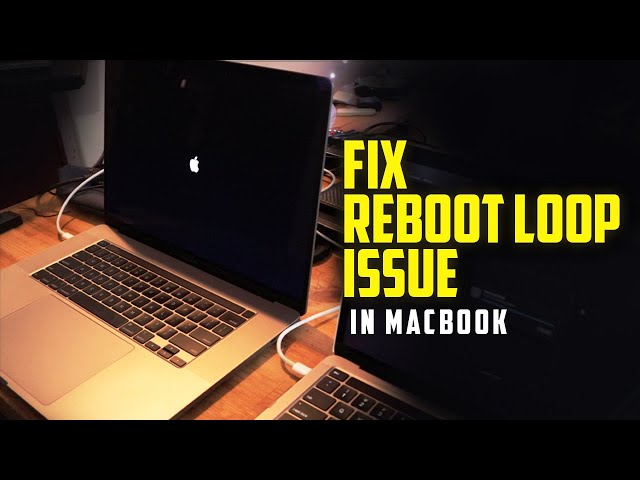
MacBook updates are designed to improve performance, strengthen security, and introduce new features. However, many users face a frustrating issue immediately after updating—MacBook boot loop after iOS update. Instead of loading macOS normally, the MacBook restarts repeatedly, shows the Apple logo endlessly, or gets stuck on a progress bar. As a result, the device becomes completely unusable.
Although this problem can feel alarming, the good news is that a MacBook boot loop after update is often fixable. In fact, understanding the causes and following the right troubleshooting steps can prevent permanent damage. Moreover, when advanced issues arise, professional repair technicians can restore your MacBook safely and efficiently.
In this comprehensive guide, we explain why a MacBook boot loop after update happens, how to recognize the warning signs, the most effective fixes you can try at home, and how expert repair centers resolve complex boot loop problems.
What Is a MacBook Boot Loop After iOS Update?
A MacBook boot loop after update occurs when your device repeatedly restarts instead of reaching the macOS desktop. Typically, the Apple logo appears, the loading bar progresses partially, and then the system restarts again. Consequently, users are locked out of their files, apps, and workflows.
This issue commonly appears after:
- Major macOS updates
- Interrupted update installations
- Failed firmware or security patches
Therefore, identifying the cause early is crucial to avoid data loss or hardware failure.
Common Causes of MacBook Boot Loop After iOS Update
Understanding the root cause is the first step toward fixing a MacBook boot loop after update. Although Apple rigorously tests updates, real-world conditions can still create conflicts.
1. Corrupted macOS System Files
During an update, files may become corrupted due to power loss, forced shutdowns, or storage errors. As a result, macOS fails to load correctly and forces the MacBook into a restart loop.
2. Insufficient Storage Space
If your MacBook lacks adequate free storage during an update, essential system files may not install completely. Consequently, the operating system becomes unstable and triggers a boot loop.
3. Incompatible or Outdated Applications
Some third-party apps or drivers may not be compatible with the latest macOS version. Therefore, conflicts can occur during startup, forcing repeated restarts.
4. Firmware or SMC Conflicts
Firmware updates often accompany macOS upgrades. If these updates fail, the MacBook may struggle to manage power, memory, or startup sequences, leading to boot loops.
5. Hardware-Related Issues
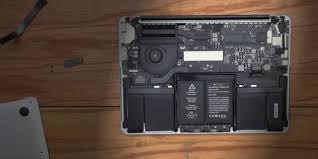
In some cases, failing SSDs, damaged logic boards, or aging batteries can surface during system updates. As a result, the MacBook cannot complete the boot process.
Symptoms of a MacBook Boot Loop After iOS Update
Recognizing the symptoms early can prevent further complications. Common signs include:
- Apple logo appearing and disappearing repeatedly
- Progress bar restarting mid-load
- Fan spinning loudly without reaching the desktop
- MacBook restarting every few minutes
- Black screen followed by sudden reboot
If these symptoms appear immediately after an update, a MacBook boot loop after update is likely the cause.
Immediate Steps to Take Before Repair for MacBook boot loop after iOS update
Before seeking professional help, you can try several safe troubleshooting steps. Fortunately, many boot loop issues resolve with basic system resets.
1. Force Restart Your MacBook
Sometimes, a temporary glitch causes the boot loop. Therefore, hold the power button until the MacBook shuts down, wait a few seconds, and restart.
2. Boot into Safe Mode
Safe Mode loads only essential macOS components. To do this:
- Power off the MacBook
- Turn it on and immediately hold the Shift key
- Release once the login screen appears
If your MacBook boots successfully, incompatible apps or login items may be causing the issue.
3. Reset NVRAM/PRAM
Resetting NVRAM clears startup settings that may conflict after an update:
- Shut down the MacBook
- Turn it on and immediately press Option + Command + P + R
- Hold for 20 seconds
This often resolves startup-related loops.
4. Reset the SMC
The System Management Controller controls power and battery functions. Resetting it can fix boot loop problems caused by power mismanagement.
Advanced Fixes for MacBook Boot Loop After iOS Update
If basic steps fail, more advanced solutions may be required.
Reinstall macOS via Recovery Mode
Reinstalling macOS replaces corrupted system files without deleting personal data:
- Restart and hold Command + R
- Select Reinstall macOS
- Follow on-screen instructions
This method often resolves persistent MacBook boot loop after update issues.
Run Disk Utility First Aid
Disk errors can prevent macOS from loading. Therefore:
- Enter Recovery Mode
- Open Disk Utility
- Run First Aid on the startup disk
This repairs file system issues that may cause boot loops.
When Home Fixes Are Not Enough for MacBook boot loop after iOS update
Although many users can fix boot loops at home, some situations require professional attention. For example:
- Reinstallation fails repeatedly
- The MacBook shuts down unexpectedly
- The SSD is not detected
- The device overheats during startup
At this stage, expert diagnostics become essential.
How Repair Centers Fix MacBook Boot Loop After iOS Update
Professional technicians use advanced tools and methods that go beyond standard troubleshooting.
1. Deep System Diagnostics
Experts analyze logs, firmware integrity, and boot sequences to identify the exact failure point.
2. Firmware and BIOS Reflashing
Corrupted firmware can prevent proper startup. Therefore, technicians reflash firmware safely using specialized tools.
3. SSD Health Testing and Replacement
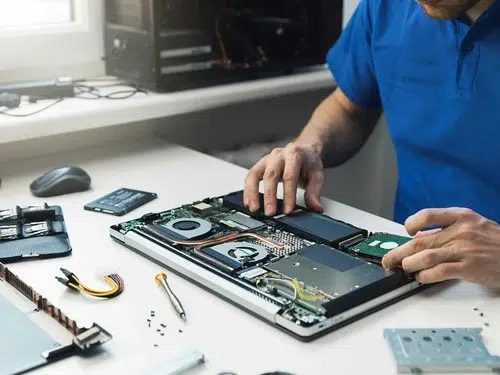
If the storage drive is failing, professionals clone data and replace the SSD to restore stability.
4. Logic Board Repair
In severe cases, micro-soldering is required to fix damaged circuits affecting power or data flow.
Why Choose Professional Repair Over DIY?
Although DIY solutions seem tempting, they often worsen the problem. On the other hand, professional repair ensures:
- Data safety
- Accurate diagnosis
- Long-term stability
- Warranty-safe repairs
Most importantly, expert repair prevents irreversible damage.
Trusted Expert Repair in Dubai for MacBook boot loop after iOS update
Milaaj specializes in resolving complex MacBook boot loop after update issues using industry-grade diagnostic tools and certified repair techniques. Moreover, their technicians focus on safe data handling, fast turnaround times, and reliable long-term results.
Whether the issue involves corrupted macOS files, firmware conflicts, or hardware failures, expert repair ensures your MacBook is restored efficiently.
How to Prevent Future MacBook boot loop after iOS update Issues
Prevention is always better than repair. Therefore, follow these steps before future updates:
- Back up data using Time Machine
- Ensure at least 20–30 GB of free storage
- Update third-party apps beforehand
- Keep the MacBook charged during updates
- Avoid interrupting installations
By preparing properly, you reduce the risk of another MacBook boot loop after iOS update.
Conclusion: MacBook boot loop after iOS update
A MacBook boot loop after iOS update can be stressful, but it is rarely permanent. In most cases, the issue stems from software conflicts, corrupted system files, or firmware problems. Fortunately, many boot loop issues resolve with Safe Mode, resets, or macOS reinstallation. However, when the problem persists, professional repair becomes essential.
With expert diagnostics, advanced repair tools, and reliable service, Milaaj mobile and laptop repair Dubai helps restore MacBooks quickly and safely. Ultimately, acting early and choosing the right solution ensures your MacBook runs smoothly after every update.
Get professional macbook repair services with expert technicians ensuring top-quality results.
Instead of trying random recovery apps, always rely on certified software or trusted repair centers like Milaaj for secure data restoration.
Enjoy quick and reliable home delivery for your repaired or purchased devices.
Sell your device with confidence and get the best value instantly.
📍 Visit Any Milaaj Branch in Dubai
🔹 Bur Dubai
Milaaj Mobile and Laptop Repair Dubai
📞 055 258 8477
🔗 Google Maps
🔹 Al Barsha
Milaaj Mobiles and Laptop Repair Al Barsha
📞 052 596 2846
🔗 Google Maps
🔹 Al Barsha 3
Milaaj Mobiles and Gaming Store
📞 052 3405 814
🔗 Google Maps
🔹 Al Nuaimiya
Milaaj Mobiles and Laptops Ajman
📞 055 788 9654
🔗 Google Maps
📧 Email: support@milaaj.com
🕒 Operating Hours: Monday – Sunday

Leave a Reply