
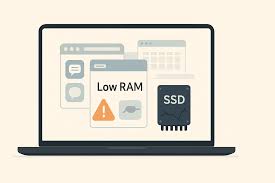
MacBooks are widely admired for their smooth performance, premium build quality, and long-term reliability. However, even the most powerful Apple laptops can slow down over time. If you are experiencing MacBook slow performance, you are not alone. Many users notice delays, lagging apps, longer boot times, and system freezes after months or years of use.
Fortunately, MacBook slow performance software fixes can significantly restore speed without immediately replacing hardware. In fact, when applied correctly, these solutions can make your MacBook feel fast again. Therefore, this guide explains the real causes of slow MacBooks, proven software-based solutions, common mistakes to avoid, and when professional help is the best choice.
Why MacBook Slow Performance Happens Over Time
First and foremost, understanding the reasons behind MacBook slow performance helps you fix the issue more effectively.
Common Reasons for MacBook Sluggish Performance
- Outdated macOS software
- Too many startup programs running in the background
- Insufficient storage space
- Corrupted system files
- High RAM usage from heavy applications
- Cached data buildup
- Malware or unwanted software
As a result, system resources become overloaded, causing delays and reduced responsiveness.
Check macOS Updates to Fix MacBook Slow Performance
Most importantly, keeping macOS updated is one of the easiest software fixes.
Why macOS Updates Matter
Apple frequently releases updates to:
- Improve system speed
- Fix bugs and performance issues
- Enhance security
- Optimize background processes
How to update macOS safely:
- Go to System Settings
- Click General → Software Update
- Install the latest stable version
However, always ensure enough storage space before updating.
Manage Startup Programs to Improve MacBook Speed
Another major reason for MacBook slow performance is excessive startup items.
Disable Unnecessary Login Items
When too many apps launch automatically, system boot time increases.
Steps to reduce startup load:
- Open System Settings
- Select General → Login Items
- Remove unnecessary background apps
As a result, your MacBook starts faster and runs smoother.
Free Up Storage Space to Fix MacBook Lag
Without enough free storage, macOS cannot function efficiently.
Why Storage Impacts Performance
macOS requires free disk space to:
- Create temporary files
- Manage memory swaps
- Run system updates smoothly
Software-based storage fixes include:
- Emptying Trash regularly
- Removing unused apps
- Clearing system cache files
- Using macOS Storage Recommendations
Therefore, freeing up space directly improves MacBook slow performance issues.
Monitor Activity Monitor for Performance Bottlenecks
Next, identifying resource-hogging apps is essential.
Use Activity Monitor Effectively
Activity Monitor shows:
- CPU usage
- Memory usage
- Energy consumption
How to use it:
- Open Applications → Utilities → Activity Monitor
- Sort by CPU or Memory usage
- Quit apps consuming excessive resources
Consequently, system performance improves immediately.
Reduce RAM Usage with Smart App Management
Even though macOS manages memory efficiently, excessive RAM usage can still slow things down.
RAM Optimization Tips For MacBook slow performance
- Close unused browser tabs
- Avoid running multiple heavy apps simultaneously
- Restart your MacBook weekly
Moreover, browser extensions often consume hidden memory, so removing unused ones helps significantly.
Clear Cache Files to Fix MacBook Slowness
Over time, cache files pile up and affect system speed.
Safe Cache Cleanup Methods
- Restart your MacBook (clears temporary cache)
- Use Finder to remove user cache files
- Avoid aggressive third-party cleaning tools
Thus, safe cache removal improves responsiveness without risking data loss.
Check for Malware or Unwanted Software
Although macOS is secure, malware still exists.
Signs of Malware-Related Slow Performance
- Sudden pop-ups
- Unrecognized background processes
- High CPU usage with no visible apps
Use trusted security tools or macOS built-in protections to scan your system. As a result, performance improves and security strengthens.
Reset System Settings Without Data Loss
When simple fixes fail, system resets help.
Helpful Reset Options For MacBook slow performance
- Reset SMC (for Intel Macs)
- Reset NVRAM/PRAM
- Reinstall macOS without erasing data
Therefore, these software-level resets fix deep performance issues safely.
When Software Fixes Aren’t Enough
Sometimes, MacBook slow performance persists despite optimization.
Signs You Need Professional Help
- Frequent freezing
- Apps crashing repeatedly
- Overheating during basic tasks
- macOS reinstall not improving speed
At this stage, professional diagnosis ensures accurate solutions.
Professional MacBook Optimization at Milaaj
If DIY fixes fail, expert support ensures lasting performance improvements. Milaaj mobile and laptop repair Dubai offers professional MacBook optimization services designed for speed, safety, and affordability.
Why Choose Professional MacBook Software Repair
- Low-cost optimization solutions
- Fast turnaround time
- High-quality service tools
- Expert technicians
- Convenient repair process
Moreover, professional servicing avoids unnecessary hardware replacement and protects your data.
Prevent MacBook Slow Performance in the Future
Finally, maintaining your MacBook ensures long-term speed.
Best Maintenance Practices
- Keep macOS updated
- Maintain at least 20% free storage
- Restart regularly
- Avoid unknown software downloads
- Monitor system usage monthly
As a result, your MacBook stays smooth and responsive.
FAQs: MacBook slow performance
Why is my MacBook slow even after updating macOS?
Sometimes background apps, storage issues, or corrupted files continue affecting performance even after updates.
Can software fixes really improve MacBook slow performance?
Yes. In most cases, software optimization restores speed without hardware upgrades.
How often should I clean cache files?
Once every few months is sufficient for optimal performance.
Does reinstalling macOS erase my data?
No, reinstalling macOS using recovery mode can preserve files if done correctly.
Is professional MacBook optimization expensive?
No. Software-based repairs are generally affordable and faster than hardware replacement.
Conclusion: MacBook slow performance
In conclusion, MacBook slow performance software fixes are effective, safe, and practical when applied correctly. Rather than rushing into costly hardware upgrades, optimizing software settings often restores speed and reliability. Moreover, combining routine maintenance with professional support ensures your MacBook continues performing at its best.
With timely action, expert care, and proper system management, your MacBook can regain smooth performance efficiently and safely.
Get professional macbook repair services with expert technicians ensuring top-quality results.
Instead of trying random recovery apps, always rely on certified software or trusted repair centers like Milaaj for secure data restoration.
Enjoy quick and reliable home delivery for your repaired or purchased devices.
Sell your device with confidence and get the best value instantly.
📍 Visit Any Milaaj Branch in Dubai
🔹 Bur Dubai
Milaaj Mobile and Laptop Repair Dubai
📞 055 258 8477
🔗 Google Maps
🔹 Al Barsha
Milaaj Mobiles and Laptop Repair Al Barsha
📞 052 596 2846
🔗 Google Maps
🔹 Al Barsha 3
Milaaj Mobiles and Gaming Store
📞 052 3405 814
🔗 Google Maps
🔹 Al Nuaimiya
Milaaj Mobiles and Laptops Ajman
📞 055 788 9654
🔗 Google Maps
📧 Email: support@milaaj.com
🕒 Operating Hours: Monday – Sunday


Leave a Reply