
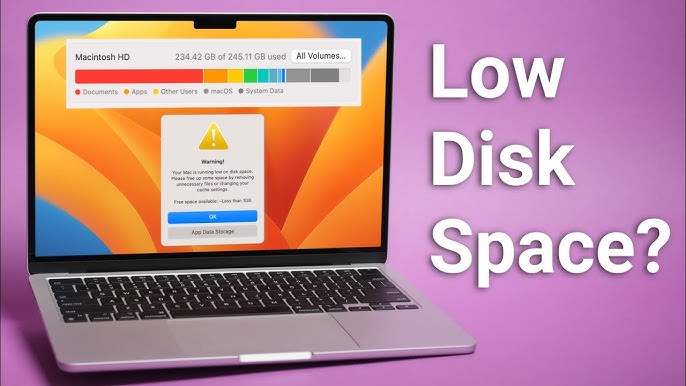
MacBooks are known for their speed, reliability, and premium performance. However, many users eventually encounter a frustrating problem MacBook storage full issues that appear suddenly and disrupt daily work. As a result, apps stop responding, updates fail, and overall performance drops noticeably.
Although facing MacBook storage full issues can feel overwhelming, the good news is that these problems are common and entirely fixable. Therefore, understanding why storage fills up and applying proven solutions can restore your MacBook’s performance safely and efficiently. In this comprehensive guide, we explain the real causes, effective fixes, common mistakes to avoid, and when professional repair becomes the smartest choice.
Why MacBook Storage Gets Full So Quickly
First and foremost, macOS relies heavily on internal storage for system operations, apps, and temporary files. Over time, these files accumulate quietly in the background. Consequently, many users experience MacBook storage issues even when they believe they haven’t stored much data.
Moreover, macOS updates create temporary installation files, backups, and system logs. As a result, storage usage increases dramatically after updates. Additionally, apps such as browsers, editing software, and cloud services generate large cache files that expand continuously.
Therefore, without regular storage management, even high-capacity MacBooks can run out of space faster than expected.
Common Causes of MacBook Storage Full Issues
Understanding the root causes helps you choose the right solution instead of deleting files randomly.
System Data and Cache Overload
System Data includes logs, temporary files, and cached content. Over time, this becomes one of the biggest contributors to MacBook storage full.
macOS Update Files
Old update files and backups often remain stored even after updates finish, silently consuming storage.
Application Cache and Residual Files
Apps leave behind residual data even after deletion. Consequently, storage continues filling up unnoticed.
Large Media Files
High-resolution photos, videos, and audio files quickly consume storage, especially when cloud optimization is disabled.
Duplicate Files and Downloads
Repeated downloads, duplicate documents, and unused installers often go unnoticed but take up significant space.
MacBook Storage Full Issues: What You Should Avoid
Before fixing the issue, it’s equally important to know what not to do.
- Do not delete system folders manually
- Avoid untrusted “one-click” cleanup apps
- Don’t repeatedly force shutdowns
- Never reset macOS without a proper backup
Instead, follow safe and structured solutions to prevent permanent data loss or system damage.
Real Solutions That Work for MacBook Storage Full Issues
Now let’s explore practical and proven methods that resolve MacBook storage full effectively.
Restart and Refresh Storage Indexing
Firstly, restart your MacBook. This allows macOS to recalculate storage usage and clear minor temporary files.
Use Built-In macOS Storage Management
Go to Apple Menu → System Settings → General → Storage. From here:
- Enable “Optimize Storage”
- Review large files
- Remove unused apps
- Empty the Trash
This step alone resolves many MacBook storage issues.
Clear Cache Files Safely
Clearing cache helps reduce System Data growth:
- Open Finder → Go → Go to Folder
- Enter:
~/Library/Caches - Delete the contents inside folders (not the folders themselves)
This frees space without affecting personal data.
Advanced Fixes for Persistent MacBook Storage Problems
If basic solutions are not enough, advanced optimization becomes necessary.
Remove Old iOS Device Backups
iPhone and iPad backups stored locally consume massive space. Removing outdated backups frees storage instantly.
Delete Large Mail Attachments
Email attachments often remain hidden in system folders. Removing them significantly reduces storage usage.
Optimize Photos and Videos
Enable iCloud optimization so full-resolution media stays in the cloud instead of local storage.
Remove Language Files and Logs
Unused language packs and diagnostic logs accumulate after updates and can be safely removed by professionals.
Why MacBook Storage Full Issues Affect Performance
When storage is full, macOS cannot create temporary working files. As a result:
- Apps crash frequently
- System becomes sluggish
- Startup time increases
- Fans run louder
- Battery drains faster
Therefore, resolving MacBook storage issues is essential not just for freeing space, but also for maintaining long-term performance and device health.
When DIY Fixes Don’t Solve MacBook Storage Full Issues
Sometimes, storage problems persist despite following all recommended steps. This often happens due to:
- Corrupted system files
- Faulty macOS indexing
- Hidden system data errors
- SSD-related issues
In such cases, professional diagnosis is the safest option to prevent further complications.
Professional Repair Solutions for MacBook Storage Full Issues
Expert technicians use advanced tools to:
- Identify hidden system data
- Remove corrupted or redundant files safely
- Rebuild macOS storage indexing
- Optimize SSD performance
- Protect user data
Professional repair ensures MacBook storage full issues are resolved permanently rather than temporarily.
Milaaj Mobile Repair – Trusted MacBook Storage Specialists
If you’re struggling with ongoing MacBook storage full issues, Milaaj mobile and laptop repair Dubai provides reliable, affordable, and professional solutions.
Why Choose Milaaj?
- Low-price diagnostics with transparent pricing
- Fast repair turnaround to minimize downtime
- Convenient service for all MacBook models
- High-quality tools and safe handling
- Strict data protection standards
Moreover, expert technicians ensure your MacBook remains optimized long after the repair is complete.
How to Prevent MacBook Storage Full Issues in the Future
Prevention saves time, money, and frustration. Follow these best practices:
- Keep at least 20–25% storage free
- Clear cache and downloads regularly
- Enable cloud storage optimization
- Review large files monthly
- Remove old backups and unused apps
By maintaining healthy storage habits, you can significantly reduce the chances of recurring MacBook storage full issues.
FAQs
1. Why does my MacBook show storage full even after deleting files?
MacBook storage often continue because macOS keeps hidden system data, cache files, and temporary update files. Therefore, deleting visible files alone may not free enough space.
2. What causes MacBook storage full issues the most?
The most common causes include system cache buildup, large app data, macOS update leftovers, duplicate files, and media stored in Photos or iCloud. As a result, storage fills up faster than expected.
3. How can I check what is using space on my MacBook?
You can check storage usage by going to Apple Menu > About This Mac > Storage. From there, macOS shows a detailed breakdown, helping identify MacBook storage quickly.
4. Are MacBook storage full issues related to macOS updates?
Yes, in many cases. After updates, macOS stores temporary installation files and backups. Consequently, storage space reduces unless these files are cleared properly.
5. Is it safe to delete system data to fix MacBook storage full issues?
Some system data can be safely removed, such as cache files and old update logs. However, deleting critical system files incorrectly can cause errors. Therefore, expert assistance is recommended.
6. Can iCloud help fix MacBook storage full issues?
Yes. iCloud optimization moves photos, documents, and files to the cloud. As a result, local storage is freed while files remain accessible when needed.
Final Thoughts
Facing MacBook storage full issues can disrupt productivity and slow down even the most powerful devices. However, with the right approach, the problem is completely manageable. From basic cleanup to advanced optimization, real solutions exist for every situation.
Most importantly, when DIY methods fail, professional repair ensures safety, speed, and long-lasting results. Instead of risking data loss or system damage, choosing expert help provides peace of mind and restores full performance.
With timely action, proper maintenance, and trusted repair support, your MacBook can remain fast, responsive, and storage-efficient for years to come.
Get professional macbook repair services with expert technicians ensuring top-quality results.
Instead of trying random recovery apps, always rely on certified software or trusted repair centers like Milaaj for secure data restoration.
Enjoy quick and reliable home delivery for your repaired or purchased devices.
Sell your device with confidence and get the best value instantly.
📍 Visit Any Milaaj Branch in Dubai
🔹 Bur Dubai
Milaaj Mobile and Laptop Repair Dubai
📞 055 258 8477
🔗 Google Maps
🔹 Al Barsha
Milaaj Mobiles and Laptop Repair Al Barsha
📞 052 596 2846
🔗 Google Maps
🔹 Al Barsha 3
Milaaj Mobiles and Gaming Store
📞 052 3405 814
🔗 Google Maps
🔹 Al Nuaimiya
Milaaj Mobiles and Laptops Ajman
📞 055 788 9654
🔗 Google Maps
📧 Email: support@milaaj.com
🕒 Operating Hours: Monday – Sunday



Leave a Reply