
Losing access to your smartphone can be extremely stressful, especially when it refuses to power on. Even worse, important photos, contacts, messages, and business files may feel permanently lost. Fortunately, learning how to recover data from an Android that won’t turn on is possible with the right methods and expert guidance.
In this in-depth guide, we’ll explore proven techniques, professional solutions, and expert insights to help you recover valuable data safely and efficiently. Moreover, we’ll explain when DIY methods work and when professional data recovery is the smarter option.
Understanding Recover Data from an Android That Won’t Turn On
Before learning how to recover data from an Android that won’t turn on, it’s important to understand what caused the issue. Identifying the root problem helps determine the safest recovery approach.
Common Reasons an Android Device Won’t Power On
- Completely drained or faulty battery
- Water or liquid damage
- Failed system update or corrupted firmware
- Physical damage to the motherboard
- Charging port or power IC failure
However, even when the screen stays black, your data often remains intact. Therefore, recovery is still possible in many cases.
Is Data Still Recoverable from a Dead Android Phone?
Yes, in most situations, data recovery is possible. How to recover data from an Android that won’t turn on depends on whether the internal storage is still accessible.
Factors That Affect Android Data Recovery Success
- Phone partially powers on (logo appears)
- Internal storage chip is undamaged
- USB debugging was previously enabled
- Device can enter recovery or download mode
Additionally, professional technicians can often extract data even when the phone appears completely dead.
How to Recover Data from an Android That Won’t Turn On Using Basic Checks
Before moving to advanced methods, always try basic troubleshooting steps.
Charge and Force Restart the Device
- Use the original charger and cable
- Charge for at least 30 minutes
- Press and hold Power + Volume Down for 20 seconds
Sometimes, the device simply needs a forced reboot. As a result, data access may be restored instantly.
Recover Android Data Using Recovery Mode (If Phone Partially Turns On)
If your phone shows signs of life, Recovery Mode may help.
Steps to Access Android Recovery Mode
- Turn off the phone completely
- Press Power + Volume Up (varies by brand)
- Select “Recovery Mode”
- Reboot system
Although this method doesn’t directly recover files, it may allow the phone to boot, enabling backup access.
How to Recover Data from an Android That Won’t Turn On Using Google Backup
If your Android was previously synced with Google, you’re in luck.
Recover Android Data via Google Account
- Contacts synced to Google Contacts
- Photos backed up to Google Photos
- App data stored in Google Drive
Simply log into your Google account from another device. Therefore, even without turning on your phone, your essential data may already be safe.
Recover Android Data from a Computer Using USB Connection
If the phone still responds when connected to a PC, file extraction may be possible.
Using File Transfer or ADB Tools
- Connect phone to computer via USB
- Check if storage appears on the system
- Use Android Debug Bridge (ADB) if enabled
However, USB debugging must be activated beforehand. Otherwise, professional recovery becomes necessary.
How to Recover Data from an Android That Won’t Turn On After Water Damage
Water damage is one of the most common causes of Android failure.
Important Water Damage Data Recovery Tips
- Do NOT try repeated power attempts
- Avoid heat or hair dryers
- Do not charge immediately
Instead, professional internal cleaning and board-level inspection significantly improve data recovery success.
Recovering Android Data After System Crash or Failed Update
System crashes can lock you out of your phone without deleting data.
Firmware Repair vs Data Safety
- Factory reset erases all data
- Flashing firmware incorrectly causes permanent loss
Therefore, data-first recovery methods should always be used before system repairs.
Professional Android Data Recovery: When DIY Isn’t Enough
If your device is completely unresponsive, professional data extraction is the safest option.
Advanced Android Data Recovery Techniques
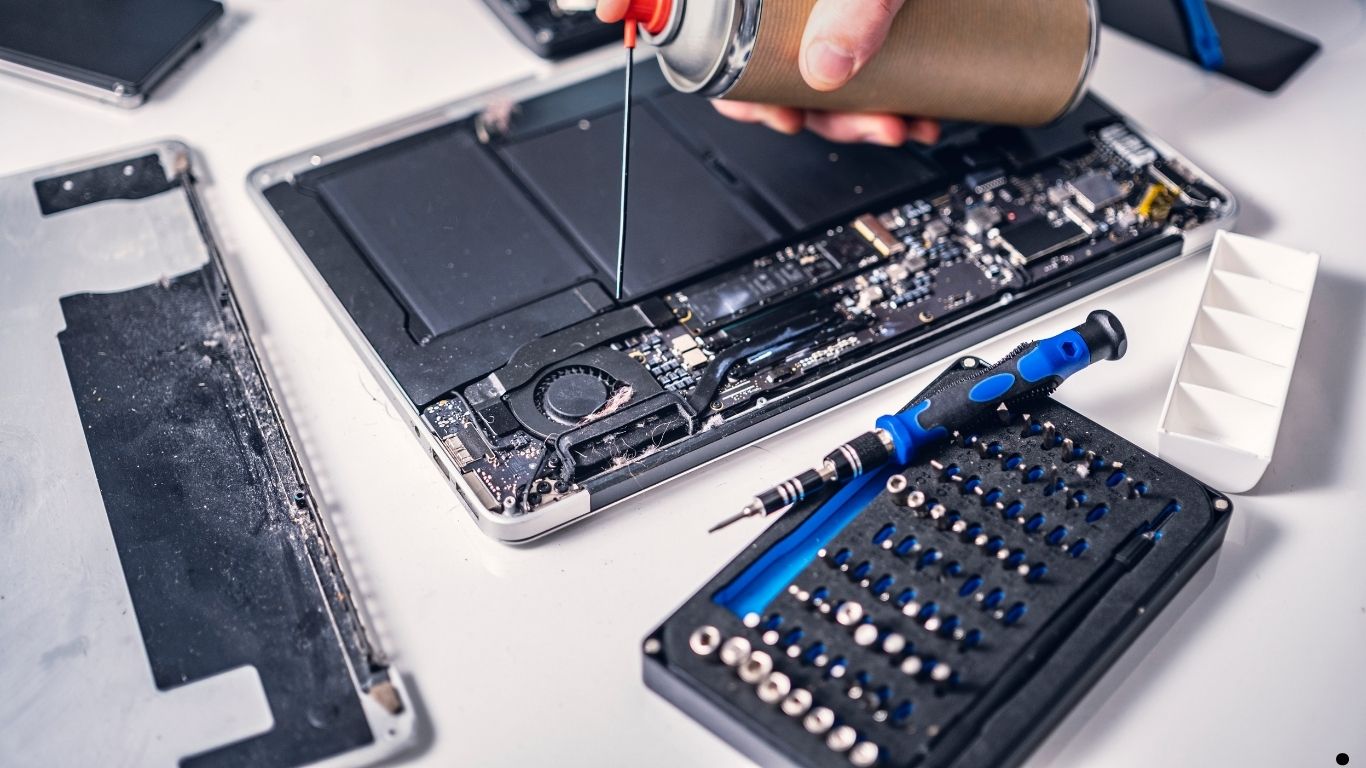
- Chip-level data extraction
- Power IC repair for temporary boot
- Storage chip direct reading
- Controlled board repair for data access
These methods require specialized tools and expertise that home users don’t have.
How to Recover Data from an Android That Won’t Turn On Safely
Attempting the wrong fix can permanently destroy data. Therefore, follow these safety guidelines:
What NOT to Do
- Don’t factory reset
- Don’t flash random firmware
- Don’t open the phone without expertise
- Don’t use untrusted recovery software
Safe recovery always prioritizes data protection over quick fixes.
Milaaj Mobile Repair – Trusted Android Data Recovery Experts
When all else fails, expert repair services offer the highest success rates. Milaaj mobile and laptop repair Dubai provides professional Android data recovery using industry-grade tools and expert technicians.
Why Choose Professional Android Data Recovery?
- Low-price solutions compared to replacement costs
- Fast turnaround time for urgent data recovery
- Convenient service with expert diagnosis
- High-quality parts used for temporary repairs
- Safe, non-destructive recovery methods
Moreover, professional services focus on recovering your data first, then repairing the device if needed.
Key Benefits of Professional Recover Data from an Android That Won’t Turn On Services
Affordable Pricing
Professional recovery is often cheaper than replacing lost business data or irreplaceable memories.
Speed Repairing
Expert technicians diagnose and recover data quickly, reducing downtime.
Convenience
No trial-and-error. Simply hand over your device and let specialists handle everything.
Quality Parts and Tools
Advanced equipment ensures safe access to internal storage without data loss.
How to Prevent Future Data Loss on Android Devices
Once you’ve learned how to recover data from an Android that won’t turn on, prevention becomes equally important.
Best Android Data Protection Tips
- Enable Google Backup
- Use cloud storage for photos and files
- Avoid unverified system updates
- Protect phone from water and drops
- Regularly back up important data
As a result, even unexpected phone failure won’t lead to permanent loss.
FAQ About Recover Data from an Android That Won’t Turn On
Can data be recovered if the phone won’t turn on at all?
Yes, in many cases, professional technicians can recover data using advanced methods.
Is Android data recovery guaranteed?
Success depends on storage condition, damage level, and prior backups.
Does factory reset help data recovery?
No. Factory reset permanently deletes data.
Final Thoughts: Recover Data from an Android That Won’t Turn On
Losing access to your Android phone doesn’t mean losing your data forever. By understanding how to recover data from an Android that won’t turn on, using safe recovery methods, and seeking professional help when necessary, you significantly increase your chances of success.
Whether it’s a system crash, water damage, or hardware failure, expert recovery solutions can save what matters most. Therefore, act quickly, avoid risky DIY fixes, and prioritize data safety above all else.
Get professional Mobile Phone repair services with expert technicians ensuring top-quality results.
Instead of trying random recovery apps, always rely on certified software or trusted repair centers like Milaaj for secure data restoration.
Enjoy quick and reliable home delivery for your repaired or purchased devices.
Sell your old Phone with confidence and get the best value instantly.
📍 Visit Any Milaaj Branch in Dubai
🔹 Bur Dubai
Milaaj Mobile and Laptop Repair Dubai
📞 055 258 8477
🔗 Google Maps
🔹 Al Barsha
Milaaj Mobiles and Laptop Repair Al Barsha
📞 052 596 2846
🔗 Google Maps
🔹 Al Barsha 3
Milaaj Mobiles and Gaming Store
📞 052 3405 814
🔗 Google Maps
🔹 Al Nuaimiya
Milaaj Mobiles and Laptops Ajman
📞 055 788 9654
🔗 Google Maps
📧 Email: support@milaaj.com
🕒 Operating Hours: Monday – Sunday

Leave a Reply