
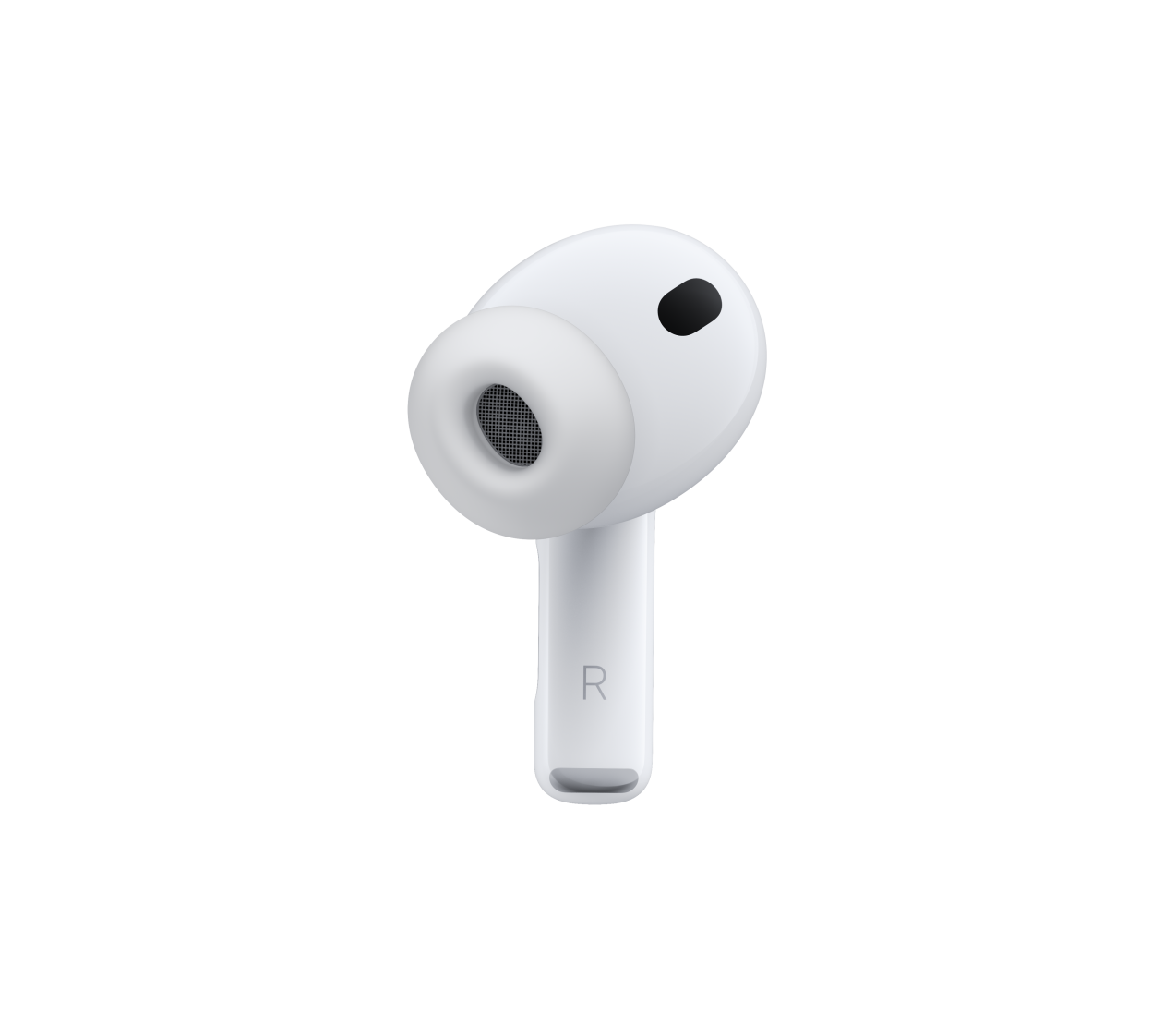
If your right Apple AirPods Pro volume too low problem is ruining your listening experience, you’re not alone. Many users notice one AirPod sounding quieter than the other — often due to dirt, wax buildup, software bugs, or even hardware malfunctions. Fortunately, there are several proven methods to fix this issue and restore balanced, high-quality sound.
In this detailed guide, we’ll explore the most common reasons why the right Apple AirPods Pro volume too low issue occurs, and step-by-step fixes you can try before heading for a professional repair at Milaaj Mobile and Laptop Repair Dubai.
Why Is the Right Apple AirPods Pro Volume Too Low?
To begin with, understanding the root causes is essential. The right Apple AirPods Pro volume too low issue can result from:
- Earwax or dust blocking the speaker mesh
- Software syncing errors between AirPods
- Incorrect audio balance settings
- Outdated firmware
- Water or moisture damage
By identifying the source, you can target the right fix and prevent further damage.
1. Clean the Speaker Mesh to Restore AirPods Volume
One of the most common reasons for right AirPods Pro volume too low is debris buildup. Over time, earwax and dust can clog the sound output.
- Step 1: Use a soft, dry brush or microfiber cloth.
- Step 2: Gently clean the speaker grill and microphone area.
- Step 3: Avoid using liquid cleaners or sharp tools, as they can push debris deeper.
Moreover, make cleaning your AirPods a weekly habit to maintain optimal audio quality.
2. Check Audio Balance Settings to Fix Uneven Sound
Sometimes, it’s not the hardware — but your iPhone’s Accessibility settings.
- Go to Settings → Accessibility → Audio/Visual → Balance.
- Ensure the slider is centered between L and R.
If it’s shifted even slightly toward the left, your right AirPods Pro volume too low issue may appear. Adjusting the balance instantly restores even sound.
3. Reset AirPods Pro to Fix Volume Sync Issues
If cleaning and balance adjustments fail, try resetting. This often fixes Bluetooth pairing or software glitches.
- Step 1: Place your AirPods Pro in the charging case.
- Step 2: Hold the setup button until the LED flashes amber, then white.
- Step 3: Reconnect them to your iPhone.
After resetting, test the sound again. You’ll often notice the right Apple AirPods Pro volume too low problem disappearing.
4. Update Firmware and iOS
Outdated software can cause pairing conflicts or uneven sound output. Therefore, always keep your iPhone and AirPods updated.
- Connect your AirPods to your iPhone and ensure Wi-Fi is enabled.
- The firmware will update automatically when charging near your iPhone.
Once updated, check if the right Apple AirPods Pro volume too low issue is fixed.
5. Use the Ear Tip Fit Test
Poor ear tip fit can also lead to reduced sound perception.
- Open Settings → Bluetooth → AirPods Pro → Ear Tip Fit Test.
- Follow the on-screen steps.
If the right ear tip doesn’t seal properly, sound may leak. Switching to a different tip size can make a significant difference in resolving the right AirPods Pro volume too low issue.
6. Disable Equalizer (EQ) Settings for Right Apple AirPods Pro Volume Problems
While EQ settings enhance certain sounds, they can distort volume balance.
- Go to Settings → Music → EQ → Off.
Turning off EQ can sometimes balance both sides, especially when dealing with right Apple AirPods Pro volume problems.
7. Inspect for Water or Moisture Damage
If your AirPods were recently exposed to water or sweat, this might explain the right Apple AirPods Pro volume too low issue.
- Place your AirPods in a dry, warm environment for 24–48 hours.
- Avoid using heat sources like hair dryers.
If the issue persists, moisture might have reached internal components, requiring professional inspection.
8. Forget and Reconnect Your AirPods
Bluetooth connection glitches are another common culprit.
- Open Settings → Bluetooth → Forget This Device.
- Reconnect your AirPods to re-sync audio channels.
This step refreshes Bluetooth data and often resolves the right AirPods Pro volume.
9. Test AirPods on Another Device Before Repair
To determine whether the problem is with your AirPods or your iPhone:
- Connect the AirPods to another device (like a MacBook or iPad).
- If the volume issue persists, it’s a hardware problem.
- If not, it’s a software issue on your primary device.
This simple test helps narrow down the cause of the right AirPods Pro volume too low issue.
10. Visit Professionals for Persistent AirPods Volume Problems
If all else fails, you may be dealing with a damaged speaker driver or internal circuitry. At this point, it’s best to seek professional help.
Milaaj specializes in diagnosing and repairing AirPods problems — including rightAirPods Pro volume too low issues caused by moisture, physical damage, or worn-out components.
Their experts use advanced diagnostic tools and genuine parts to ensure your AirPods are restored to optimal performance.
Preventing Right Apple AirPods Pro Volume Too Low in the Future
- Clean AirPods weekly using a soft brush.
- Store them in a dust-free charging case.
- Avoid exposure to sweat, rain, or extreme temperatures.
- Regularly update your AirPods firmware.
Following these steps will minimize the chances of right AirPods Pro volume too low problems recurring.
When to Replace Your AirPods Pro
Even with maintenance, AirPods have a limited lifespan (around 2–3 years). If your right AirPods Pro volume too low issue continues despite professional repairs, replacement might be the most cost-effective solution.
Right Apple AirPods Pro Volume Too Low
Dealing with the right Apple AirPods Pro volume too low issue can be frustrating, but it’s often repairable with careful troubleshooting. From cleaning to resetting and updating software, most problems have simple fixes.
However, if hardware damage is suspected, visit Milaaj Mobile and Laptop Repair Dubai for a detailed diagnosis and expert repair. With professional care and regular maintenance, your AirPods can deliver clear, balanced sound once again.
Get professional Apple Airpods repair services with expert technicians ensuring top-quality results.
Enjoy quick and reliable home delivery for your repaired or purchased devices.
Sell your device with confidence and get the best value instantly.
📍 Visit Any Milaaj Branch in Dubai
🔹 Bur Dubai
Milaaj Mobile and Laptop Repair Dubai
📞 055 258 8477
🔗 Google Maps
🔹 Al Barsha
Milaaj Mobiles and Laptop Repair Al Barsha
📞 052 596 2846
🔗 Google Maps
🔹 Reef Mall (Salah Al Din)
Milaaj Service Center Reef Mall
📞 052 3405 814
📍 1st Floor, Shop 16, Deira
🔗 Google Maps
🔹 Al Nuaimiya
Milaaj Mobiles and Laptops Ajman
📞 055 788 9654
🔗 Google Maps
📧 Email: support@milaaj.com
🕒 Operating Hours: Monday – Sunday


Leave a Reply