
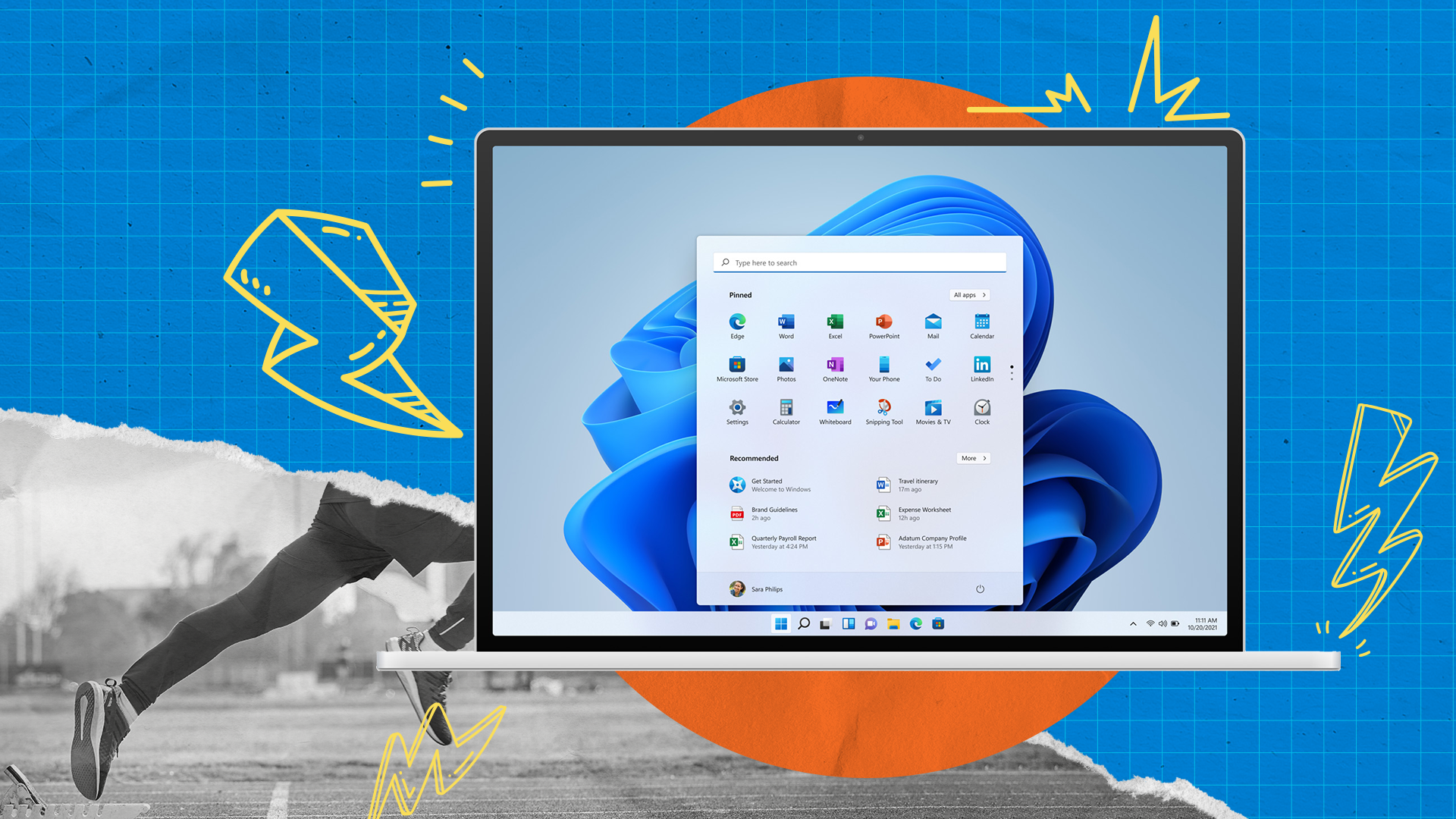
If your laptop feels slow and unresponsive, learning the right speedy Windows 11/12 optimization steps can significantly improve its performance. For example, is your laptop taking ages to boot up? Or does it feel like your computer is running through thick molasses every time you open a web browser? In Dubai’s fast-paced environment, where time is literally money, a sluggish laptop isn’t just frustrating; instead, it becomes a serious productivity barrier. Whether you use Windows 11 or the latest Windows 12, performance issues can gradually appear and disrupt your workflow.
However, the good news is that you don’t always need to replace your device. In fact, software clutter, outdated drivers, and unnecessary visual effects often cause slow performance. Therefore, by following the correct speedy Windows 11/12 optimization steps, you can restore speed, improve responsiveness, and extend your laptop’s lifespan. Moreover, these simple yet effective solutions help your system run smoothly and efficiently. In the following guide, you’ll discover practical methods to boost performance and bring your laptop back to life.
1. Taming the Startup Chaos
One of the primary reasons for slow laptop performance is the sheer number of applications trying to launch the moment you log in. Every program you’ve ever installed from Spotify to Steam wants to be ready for you immediately, but this “helpfulness” chokes your CPU and RAM during the boot process.
To fix this:
- Press Ctrl + Shift + Esc to open the Task Manager.
- Click on the Startup apps icon (it looks like a little speedometer or a list).
- Review the “Startup impact” column. Anything labeled “High” is a major candidate for disabling.
- Right-click on non-essential apps and select Disable. Don’t worry, the app will still work perfectly when you open it manually!
2. Visual Effects: Sacrificing Glamour for Speedy Windows 11/12 optimization steps
Microsoft designed Windows 11 and 12 to be beautiful. With transparency effects, smooth animations, and rounded corners, it’s a treat for the eyes. However, these visual flourishes require significant graphical power. If you’re working on a business laptop or an older model, these animations are likely causing performance lag.
To optimize your visuals:
- Search for “Adjust the appearance and performance of Windows” in your Start menu.
- In the Visual Effects tab, select the radio button for Adjust for best performance.
- If it looks too “old school” for your taste, keep Smooth edges of screen fonts and Show thumbnails instead of icons checked.
- Click Apply and notice how much snappier your windows feel when they snap open and closed.
3. Storage Management and the “Ghost” Files
Low disk space is a silent performance killer. Windows needs “breathing room” (usually about 15-20% of your drive) to swap temporary files and manage virtual memory. If your SSD or HDD is red-lining, your speed will plummet.
Use Storage Sense for Speedy Windows 11/12 optimization steps
Windows has a built-in “janitor” called Storage Sense. It automatically deletes temporary files, empties your recycle bin, and manages cloud-only files.
- Go to Settings > System > Storage.
- Toggle Storage Sense to On.
- Click on Cleanup recommendations to see large files or unused apps that you can ditch immediately.
4. Power Management: Unlocking Your Laptop’s True Potential
By default, most laptops are set to a “Balanced” power plan to save battery. While this is great for a flight, it intentionally throttles your processor’s speed. To get the speedy Windows 11/12 optimization results you want, you need to tell Windows to go all out.
- Go to Settings > System > Power & battery.
- Find the Power mode dropdown.
- Change it from “Balanced” to Best performance.
- Note: This will drain your battery faster, so keep your charger handy!
5. The Hardware Reality: When Software Optimization Isn’t Enough
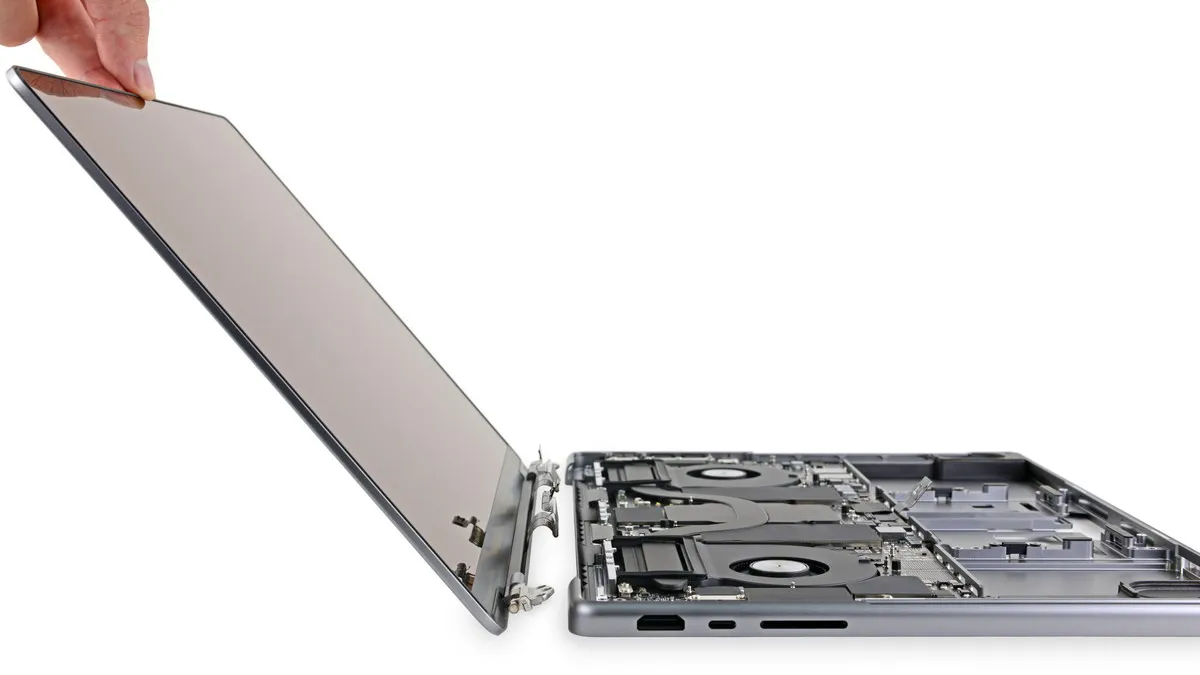
Sometimes, no amount of software tweaking can overcome aging hardware. If you are still running on 8GB of RAM or an old-school mechanical Hard Disk Drive (HDD), you are fighting a losing battle against modern software.
The SSD Upgrade for Speedy Windows 11/12 optimization steps
If your laptop has an HDD, switching to a Solid State Drive (SSD) is the single most transformative thing you can do. It can reduce boot times from 2 minutes to 15 seconds.
RAM Boost for Speedy Windows 11/12 optimization steps
Moving from 8GB to 16GB of RAM allows you to keep dozens of Chrome tabs open without your system freezing.
Milaaj Mobile and Laptop Repair Dubai: Your Speed Experts
If you’ve tried every tip and your laptop still feels like it’s stuck in second gear, it might be time for professional intervention. At Milaaj mobile and laptop repair Dubai, we specialize in taking tired, slow laptops and turning them into high-speed machines.
Why choose us for your laptop optimization?
- Speedy Repairing: We don’t believe in making you wait. Most software optimizations and hardware upgrades are completed within a few hours.
- Low Price Guarantee: We offer the most competitive rates in Dubai for RAM upgrades, SSD installations, and deep system cleanups.
- Unmatched Part Quality: We only use original-grade components. Whether it’s a Samsung NVMe SSD or Crucial RAM, we ensure your hardware lasts.
- Ultimate Convenience: Located in the heart of Al Barsha, we are easy to find. Can’t come to us? We offer a free pickup and delivery service across Dubai.
- Component-Level Care: We don’t just “reset” your PC. We perform a full diagnostic to ensure your cooling fans are clean and your thermal paste isn’t dried out, preventing thermal throttling.
FAQs: Speedy Windows 11/12 optimization steps
1. Will optimizing Windows 11/12 delete my files?
No. The optimization steps like disabling startup apps, adjusting visual effects, and clearing temporary files do not touch your personal documents, photos, or work files.
2. Is Windows 12 faster than Windows 11?
Windows 12 is designed with better AI integration and resource management. While it can be faster, it also has higher hardware requirements. Proper optimization is key to making it run smoothly on older laptops.
3. How often should I perform a system cleanup?
We recommend a “digital spring cleaning” once every three months. Running Storage Sense and checking your startup apps regularly will prevent performance degradation over time.
4. Why is my laptop fan so loud after the update?
This is often caused by high CPU usage during background indexing or a dusty cooling system. If the noise persists after optimization, you might need a physical internal cleaning at a repair shop.
5. Can I undo the “Best Performance” visual settings?
Absolutely. You can go back to the “Adjust the appearance and performance of Windows” menu at any time and select “Let Windows choose what’s best for my computer” to restore the default look.
Final Thoughts: Speedy Windows 11/12 optimization steps
A slow laptop is a barrier between you and your goals. By taking control of your startup apps, managing your storage, and adjusting your power settings, you can achieve a speedy Windows 11/12 optimization that makes work feel effortless again.
Remember, software is only half the story. If your hardware is lagging behind, a professional upgrade is the most cost-effective way to get another 3–4 years out of your favorite device. Don’t let a spinning blue circle ruin your day. Trust the experts at Milaaj to give your laptop the “warp speed” it deserves!
Get professional laptop repair services with expert technicians ensuring top-quality results.
Instead of trying random recovery apps, always rely on certified software or trusted repair centers like Milaaj for secure data restoration.
Back in your hands faster: Enjoy rapid, reliable doorstep delivery for every device we service or sell.
Sell your old iPhone with confidence and get the best value instantly.
📍 Visit Any Milaaj Branch in Dubai
🔹 Bur Dubai
Milaaj Mobile and Laptop Repair Dubai
📞 055 258 8477
🔗 Google Maps
🔹 Al Barsha
Milaaj Mobiles and Laptop Repair Al Barsha
📞 052 596 2846
🔗 Google Maps
🔹 Al Barsha 3
Milaaj Mobiles and Gaming Store
📞 052 3405 814
🔗 Google Maps
🔹 Al Nuaimiya
Milaaj Mobiles and Laptops Ajman
📞 055 788 9654
🔗 Google Maps
📧 Email: support@milaaj.com
🕒 Operating Hours: Monday – Sunday


Leave a Reply