
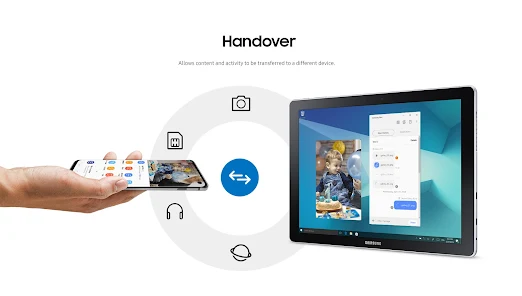
In 2026, the concept of a “standalone” device is officially a thing of the past. In fact, learning how to sync your Samsung tablet and phone for seamless multitasking unlocks the true power of the modern Samsung ecosystem. Instead of emailing photos to yourself or switching between devices manually, Samsung now allows your hardware to work together as one unified brain making everyday tasks faster and more intuitive.
Syncing your Samsung tablet and phone for seamless multitasking isn’t just about convenience; rather, it’s about building a workflow that follows you from the palm of your hand to your desk. From Multi Control to App Continuity, Samsung has created powerful tools that make switching screens feel completely natural. In this guide, we’ll show you exactly how to activate these features and transform your Galaxy devices into a true multitasking powerhouse.
The Core Pillars of Samsung Continuity
First and foremost, to get the most out of your devices, you need to ensure they are on the same page. Specifically, both your phone (like the Galaxy S26) and your tablet (such as the Tab S10 Ultra) must be signed into the same Samsung Account. This is the invisible thread that ties your ecosystem together.
1. Multi Control: One Mouse, Two Screens for Sync Your Samsung Tablet and Phone for Seamless Multitasking
Indeed, one of the most impressive features in 2026 is Multi Control. This allows you to use your tablet’s Book Cover Keyboard or a Bluetooth mouse to navigate both your tablet and your phone simultaneously.
- How it works: When enabled, you can literally drag your cursor off the edge of your tablet screen, and it will appear on your phone.
- The Benefit: You can drag and drop images from your phone’s Gallery directly into a PowerPoint presentation on your tablet. As a result, you eliminate the need for cables or slow cloud uploads.
2. App Continuity: Picking Up Where You Left Off
Furthermore, “App Continuity” ensures that your work isn’t interrupted when you switch devices. If you are browsing a long research article on Samsung Internet on your phone while commuting, you can simply tap the “Recent Apps” icon on your tablet to open that exact webpage.
- Supported Apps: This works seamlessly with Samsung Notes, Samsung Internet, and even the latest AI-integrated productivity suites.
Step-by-Step: Sync Your Samsung Tablet and Phone for Seamless Multitasking
Actually, the setup process is quite straightforward. Follow these steps to unlock your device’s full potential:
- Check Connections: Ensure both devices have Bluetooth and Wi-Fi turned on. They don’t necessarily need to be on the same network for some features, but it helps for stability.
- Enable Continuity: On both devices, go to Settings > Connected Devices.
- Toggle on “Continue apps on other devices”: This allows the app hand-off feature.
- Activate Multi Control: Under the same menu, toggle on Multi Control. Make sure both devices are nearby.
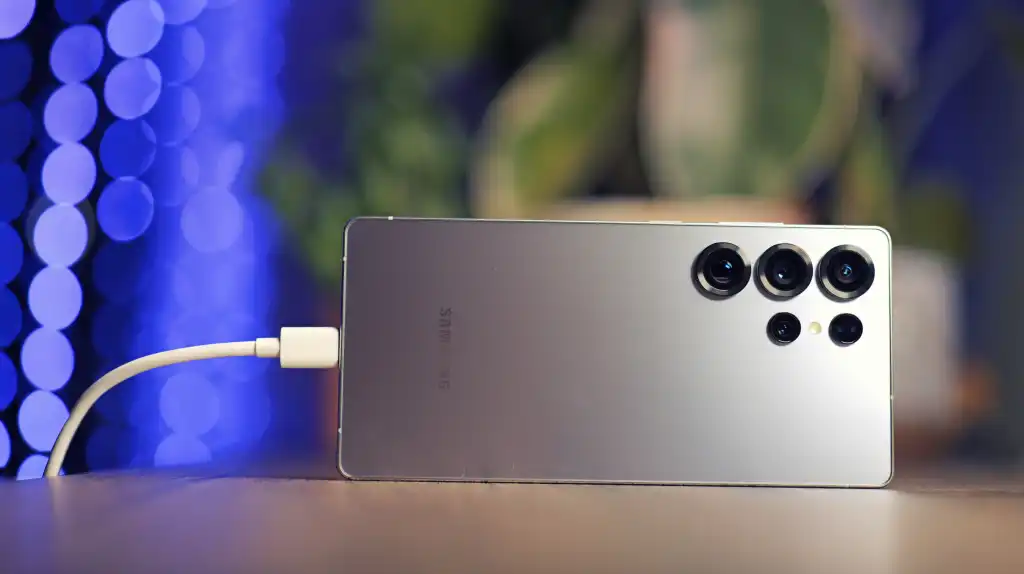
- Enable “Call & Text on Other Devices”: This is a lifesaver. Consequently, you can answer a phone call or reply to a text directly from your tablet, even if your phone is charging in the other room.
Milaaj Mobile and Laptop Repair Dubai: Ensuring Your Ecosystem Stays Connected
Even though Samsung’s software is incredibly robust, hardware issues can quickly break your “seamless” experience. A flickering tablet screen or a phone with a dying Bluetooth chip can make syncing impossible. This is where Milaaj mobile and laptop repair Dubai becomes an essential part of your tech journey.
Located in the heart of Dubai, we specialize in high-precision repairs for the entire Galaxy lineup. We know that for power users, a broken device isn’t just a nuisance it’s a loss of productivity.
- Speed Repairing: Most sync-related hardware issues, like antenna repairs or battery replacements, are handled within a few hours.
- Low Price: We offer the most competitive rates in Dubai, ensuring you get premium service without the luxury price tag.
- Convenience: With our central location in Al Barsha and home pickup/delivery options, getting your tech fixed is easier than ever.
- Part Quality: We only use genuine and premium-grade components. Indeed, using low-quality parts can interfere with the delicate sensors needed for features like Multi Control.
Whether you need a diagnostic for a connectivity glitch or a total screen overhaul, Milaaj is your trusted partner.
Advanced Tips: Samsung Flow and Link to Windows
In addition to the built-in continuity features, you should explore Samsung Flow. This app is perfect for those who need a dedicated “hub” for notifications and file sharing. Moreover, if you use a PC, “Link to Windows” allows you to mirror your phone directly onto your computer screen, creating a triple-threat multitasking setup.
As a result of these integrations, your data remains fluid. You can copy a text snippet on your phone and paste it directly onto your tablet. Indeed, once you experience this level of integration, going back to isolated devices feels like stepping back in time.
FAQ: Sync Your Samsung Tablet and Phone for Seamless Multitasking
1. Do I need the latest Galaxy S26 to use these features?
Currently, most continuity features work on any Galaxy device running One UI 5.1 or later. However, the newest 2026 models feature NPU-accelerated syncing, which makes the drag-and-drop experience much faster and more responsive.
2. Why is my Multi Control not working?
Actually, the most common reason is that the devices aren’t on the same Samsung Account or are too far apart. Therefore, ensure both devices are within 3 to 5 feet of each other for the best Bluetooth handshake.
3. Can I sync a Samsung phone with a non-Samsung tablet?
Unfortunately, most of these features (like Multi Control and App Continuity) are exclusive to the Samsung Galaxy ecosystem. Nevertheless, you can still use apps like Google Drive or Microsoft OneDrive to sync files across different brands.
4. Does syncing drain my battery faster?
Specifically, having Bluetooth and Wi-Fi constantly searching for nearby devices does use a small amount of extra power. But, the productivity gains usually far outweigh the minor battery impact.
5. What if my tablet’s Wi-Fi keeps disconnecting?
If your tablet has a weak signal, it will break the sync. In that case, visit Milaaj for a professional antenna check. A simple fix can restore your seamless multitasking in no time.
Final Thoughts: Sync Your Samsung Tablet and Phone for Seamless Multitasking
In conclusion, learning how to sync your Samsung tablet and phone for seamless multitasking is the ultimate way to respect your time. By breaking down the walls between your devices, you allow your ideas to flow freely across whatever screen is most convenient at the moment. Therefore, take five minutes today to dive into your settings and turn these features on. And remember, if your hardware isn’t performing at its peak, the experts at Milaaj are always here to help you stay connected.
Get professional Mobile Phone repair services with expert technicians ensuring top-quality results.
Instead of trying random recovery apps, always rely on certified software or trusted repair centers like Milaaj for secure data restoration.
Back in your hands faster: Enjoy rapid, reliable doorstep delivery for every device we service or sell.
Sell your old iPhone with confidence and get the best value instantly.
📍 Visit Any Milaaj Branch in Dubai
🔹 Bur Dubai
Milaaj Mobile and Laptop Repair Dubai
📞 055 258 8477
🔗 Google Maps
🔹 Al Barsha
Milaaj Mobiles and Laptop Repair Al Barsha
📞 052 596 2846
🔗 Google Maps
🔹 Al Barsha 3
Milaaj Mobiles and Gaming Store
📞 052 3405 814
🔗 Google Maps
🔹 Al Nuaimiya
Milaaj Mobiles and Laptops Ajman
📞 055 788 9654
🔗 Google Maps
📧 Email: support@milaaj.com
🕒 Operating Hours: Monday – Sunday

Leave a Reply