
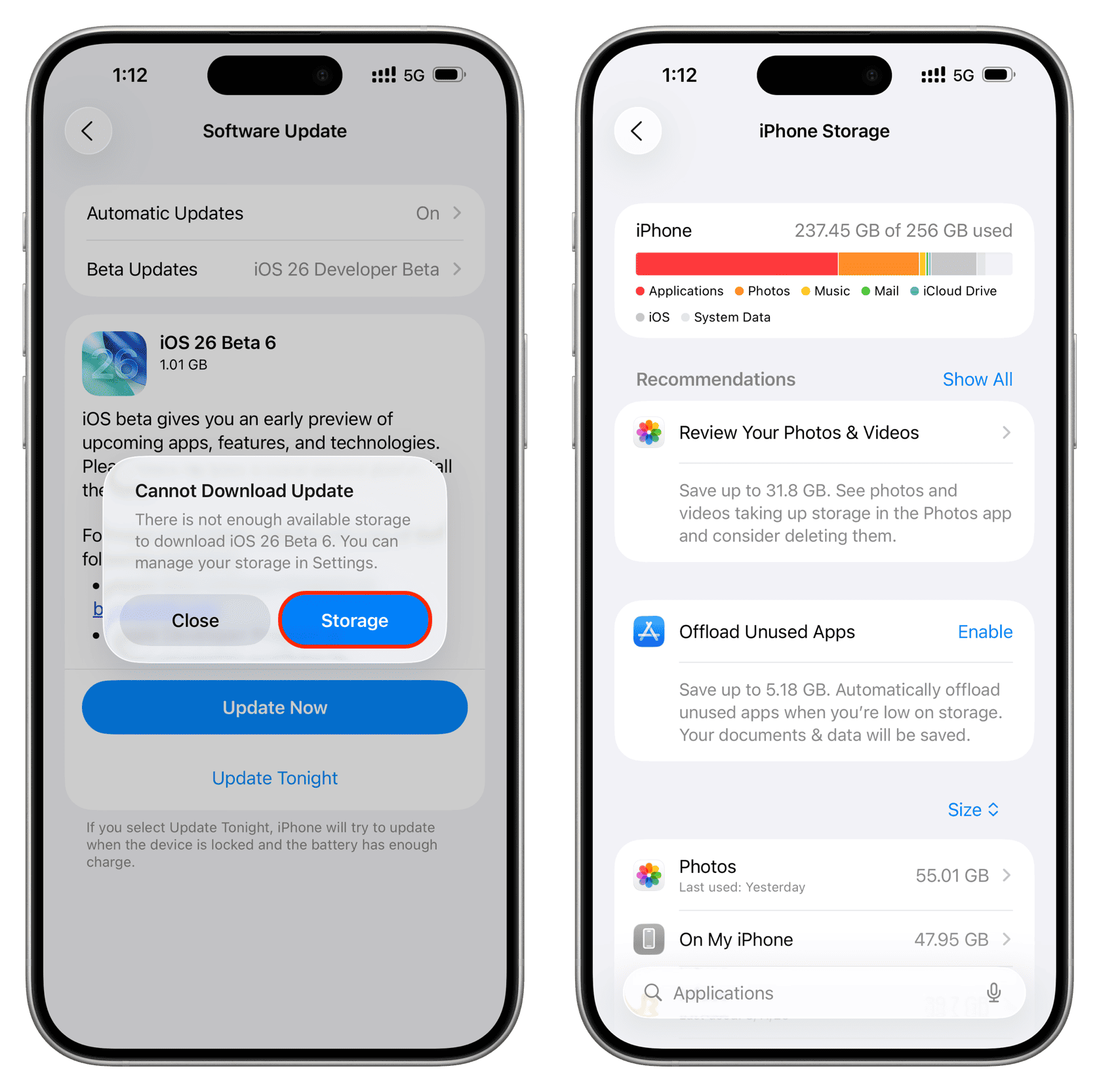
Updating your iPhone should be simple, but many users suddenly find the Apple iOS update not installing no matter how many times they try. Instead of improving the device, the update process stalls, fails, freezes, or throws error messages. Although iOS updates are designed to enhance performance and security, they can sometimes create unexpected problems—especially when something interrupts the installation.
Fortunately, most causes behind Apple iOS update not installing issues are easy to identify and resolve. Whether the issue involves low storage, a weak network, software glitches, corrupted update files, or deeper hardware problems, this complete guide explains everything you need to know. Even better, you’ll learn expert techniques used by repair professionals to fix stubborn update failures safely and efficiently.
Why Apple iOS Update Not Installing Issues Happen
Before fixing the problem, it’s essential to understand what causes the Apple iOS update not installing. Surprisingly, most failures are not complicated—they result from simple conflicts or missing requirements.
1. Insufficient Storage Space
One of the most common reasons for Apple iOS update not installing is limited storage. New updates require additional space not only to install but also to unpack temporary update files.
2. Weak or Unstable Internet Connection
Since updates need a stable Wi-Fi network, any interruption can cause the update to stop downloading or verifying.
3. Low Battery or Charging Issues
Even if the update is ready to install, iOS will refuse to proceed without enough battery.
4. Apple Server Problems
Sometimes, the issue isn’t your device—it’s the Apple server. During major releases, millions of users download updates simultaneously, causing slowdowns.
5. Software Bugs or Glitches
Occasionally, internal bugs or system corruption block the update from installing properly.
6. Corrupted Downloaded Files
If an earlier attempt to install the update was interrupted, the downloaded update file may be corrupt.
7. Device Compatibility Problems
Older iPhones or iPads might not support the latest iOS version, making the Apple iOS update not installing unavoidable.
Common Signs of Apple iOS Update Not Installing Problems
You might notice several symptoms indicating that your Apple iOS update not installing correctly:
- Stuck on Preparing Update
- Stuck on Verifying Update
- Update won’t download
- Endless spinning wheel
- Unexpected error codes
- Update bar frozen
- Repeated attempt failures
Although these symptoms seem serious, most are easily fixable with systematic troubleshooting.
How to Fix Apple iOS Update Not Installing on iPhone or iPad
Here are step-by-step solutions to quickly resolve the issue.
1. Restart Your iPhone to Refresh System Files
Restarting clears temporary glitches that may interfere with updates.
After restarting, try updating again.
2. Check Storage When Apple iOS Update Not Installing
Insufficient storage is one of the most frequent causes.
Go to:
Settings → General → iPhone Storage
Try freeing at least 5–8GB for smoother installation.
3. Fix Wi-Fi Problems When iOS Update Not Installing
Because iOS updates require a strong Wi-Fi connection, any instability can lead to failure.
Try the following:
- Reconnect to your Wi-Fi
- Restart the router
- Switch to a different Wi-Fi network
- Disable VPN or security apps
Once the connection stabilizes, attempt the update again.
4. Ensure Battery and Charging Requirements Are Met
If your battery is below 50%, the device may refuse to install the update.
Plug in your iPhone and retry.
5. Delete the Corrupted Update File
If the Apple iOS update not installing after several attempts, the downloaded file may be damaged.
Follow this:
Settings → General → iPhone Storage → iOS Update → Delete Update
Then download it again.
6. Try Updating Through a Computer (iTunes/Finder)
Sometimes updating through a PC or Mac fixes software-related blocks.
Steps:
- Connect your device via cable
- Open iTunes or Finder
- Choose Check for Updates
- Install the new iOS version
This method bypasses many issues that prevent wireless updates.
7. Reset Network Settings for Apple iOS Update Not Installing
Network conflicts often cause Apple iOS update not installing issues.
Go to:
Settings → General → Reset → Reset Network Settings
This will not delete your data.
8. Disable VPN, Proxy, or Security Apps
Security apps, VPNs, or firewalls may block Apple servers.
Disable them temporarily and try updating once again.
Advanced Fixes When Apple iOS Update Not Installing Continues
If you still struggle, you may need to use advanced repair tools.
1. Use Recovery Mode Update
Recovery Mode helps fix damaged system files preventing the update.
Steps:
- Connect your iPhone to a computer
- Force restart
- Enter Recovery Mode
- Select Update (not Restore)
This fixes update blocks without deleting data.
2. Try DFU Mode (Deep Firmware Restore)
DFU Mode is the most powerful repair method Apple offers.
It rebuilds system firmware and removes deep software corruption.
However, DFU Mode resets the device, so back up your data first.
Hardware Reasons for Apple iOS Update Not Installing
If the issue persists even after advanced methods, hardware may be responsible.
Common hardware faults linked to iOS update not installing include:
• Faulty storage IC
The internal memory chip may not write update files correctly.
• Damaged Wi-Fi module
If Wi-Fi hardware is unstable, updates cannot verify.
• Power IC (PMIC) failure
This can cause random shutdowns during updates.
• Logic board damage
Dropped, bent, or water-damaged devices may not support update installation.
Hardware faults require professional repair tools and micro-soldering equipment.
When to Seek Professional Repair Help for Apple iOS Update Not Installing
If you continue experiencing:
- Endless update loops
- Stuck Apple logo
- Repeated update failures
- Reboots during installation
- Storage not reading correctly
- Boot loop after update
- Frozen screen
…it’s time to consult a certified technician.
You can visit Milaaj Mobile and Laptop Repair Dubai, a trusted and well-equipped service center that expertly handles software failures, update errors, firmware corruption, storage IC issues, Wi-Fi antenna faults, and complex board-level repairs.
Their experienced technicians use specialized diagnostic tools to identify and fix stubborn update issues safely and efficiently.
How to Prevent Apple iOS Update Not Installing in the Future
To avoid these problems again, follow these essential tips:
1. Maintain at Least 10GB Free Space
Regularly clear old photos, videos, and unused apps.
2. Keep Battery Health Stable
Avoid excessive heat and use original chargers.
3. Disable Beta Profiles
Beta versions often interrupt official updates.
4. Use Stable Wi-Fi Only
Avoid public hotspots or weak networks during updates.
5. Update Early
Installing updates soon after release reduces download server congestion.
FAQs About Apple iOS Update Not Installing
1. Why is my Apple iOS update not installing on Wi-Fi?
Weak Wi-Fi, router issues, VPNs, or server problems can block installation.
2. How much storage do I need to install iOS updates?
You should keep at least 5–10GB free for safe installation.
3. What if my update is stuck on “Verifying Update”?
Restart your device or delete and redownload the update.
4. Does using iTunes help fix update issues?
Yes, updating through iTunes/Finder often solves wireless update failures.
5. Why won’t my iPhone update even after restarting?
You may have a corrupted file, low storage, network issues, or hardware faults.
6. Can a damaged battery cause update problems?
Yes, if the battery cannot maintain stable power, updates may fail.
7. What should I do if my iPhone is stuck on the Apple logo after an update?
Try Recovery Mode or DFU Mode. If that fails, seek professional repair.
Conclusion: Apple iOS Update Not Installing
Dealing with an Apple iOS update not installing can be stressful, but the issue is usually easy to fix with the right steps. From clearing storage and resetting network settings to using iTunes or Recovery Mode, most users can resolve the problem at home. However, if software fixes don’t work and the device continues failing to update, the issue may be hardware-related. In that case, seeking expert help ensures your device is repaired safely and professionally.
With proper troubleshooting and timely maintenance, your iPhone or iPad will update smoothly and continue performing at its best.
Get professional iPhone repair services with expert technicians ensuring top-quality results.
Enjoy quick and reliable home delivery for your repaired or purchased devices.
Sell your old iPhone with confidence and get the best value instantly.
📍 Visit Any Milaaj Branch in Dubai
🔹 Bur Dubai
Milaaj Mobile and Laptop Repair Dubai
📞 055 258 8477
🔗 Google Maps
🔹 Al Barsha
Milaaj Mobiles and Laptop Repair Al Barsha
📞 052 596 2846
🔗 Google Maps
🔹 Al Barsha 3
Milaaj Mobiles and Gaming Store
📞 052 3405 814
🔗 Google Maps
🔹 Al Nuaimiya
Milaaj Mobiles and Laptops Ajman
📞 055 788 9654
🔗 Google Maps
📧 Email: support@milaaj.com
🕒 Operating Hours: Monday – Sunday



Leave a Reply