
Keeping your laptop clean is essential for performance, hygiene, and longevity. However, many users accidentally cause serious damage while trying to clean their devices the wrong way. If you’ve ever wondered how to clean your laptop safely without damaging them, you’re not alone. Dust, fingerprints, spills, and debris can slowly affect your laptop’s cooling system, keyboard responsiveness, and screen clarity.
Therefore, understanding the correct laptop cleaning methods is just as important as cleaning itself. In this detailed guide, you’ll learn safe laptop cleaning techniques, common mistakes to avoid, recommended tools, and when professional cleaning becomes the best solution.
Why Safe Laptop Cleaning Is Important for Long-Term Performance
Over time, dust and grime accumulate inside and outside your laptop. As a result, airflow becomes restricted, temperatures rise, and internal components wear out faster. Moreover, dirty keyboards and screens can harbor bacteria and reduce usability.
However, using harsh chemicals, excess liquid, or sharp tools can permanently damage your laptop. That is why learning how to clean your laptop safely without damaging them helps protect your investment while maintaining optimal performance.
Things You Should Never Do When Clean your laptop safely without damaging them
Before learning the correct method, it’s important to understand what not to do.
Avoid These Common Mistakes
- Spraying liquid directly onto the screen or keyboard
- Using glass cleaner, alcohol with high concentration, or bleach
- Cleaning while the laptop is powered on
- Using paper towels or rough cloths
- Shaking the laptop to remove dust
Instead, safe laptop cleaning requires patience, the right tools, and gentle techniques.
Essential Tools for Clean your laptop safely without damaging them
Using the proper tools ensures effective cleaning without damage.
Recommended Laptop Cleaning Tools
- Microfiber cloth
- Soft-bristle brush
- Compressed air can
- Isopropyl alcohol (70% or less)
- Cotton swabs
- Laptop cleaning gel (optional)
Once you have these tools ready, you can begin cleaning safely and confidently.
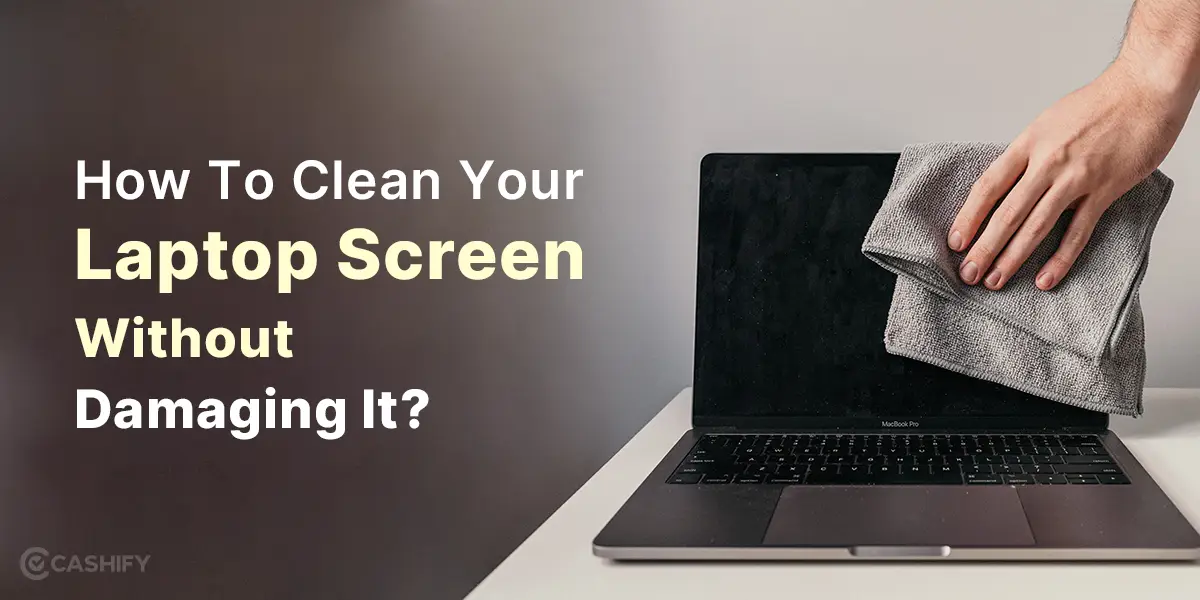
How to Clean Your Laptop Screen Safely Without Damage
The screen is the most delicate part of your laptop. Therefore, extra care is required.
Step-by-Step Screen Cleaning
- First, turn off the laptop and unplug it
- Then, use a dry microfiber cloth to remove dust
- Slightly dampen the cloth with distilled water or diluted isopropyl alcohol
- Gently wipe the screen in one direction
- Finally, let the screen air-dry completely
As a result, your display remains crystal clear without streaks or scratches.
How to Clean a Laptop Keyboard Without Causing Damage
Keyboards trap dust, food crumbs, and bacteria more than any other part.
Safe Keyboard Cleaning Method
- Turn the laptop upside down and gently tap it
- Use compressed air to remove debris between keys
- Lightly dampen a cotton swab with isopropyl alcohol
- Clean the surface of each key carefully
Consequently, keys respond better and typing feels smoother.
How to Clean Laptop Ports and Vents Properly
Blocked vents cause overheating, which can shorten your laptop’s lifespan.
Safe Vent and Port Cleaning
- Use compressed air in short bursts
- Hold the can upright to avoid moisture release
- Never insert metal objects into ports
- Use a soft brush for stubborn dust
Thus, airflow improves and internal temperatures remain stable.
How to Clean Laptop Body and Touchpad Safely
Fingerprints and oils build up on laptop surfaces over time.
Cleaning the Laptop Exterior
- Use a microfiber cloth slightly dampened with alcohol
- Wipe the palm rest, lid, and touchpad gently
- Avoid soaking seams or buttons
As a result, your laptop looks cleaner and feels more comfortable to use.
How Often Should You Clean Your Laptop?
Cleaning frequency depends on usage.
Recommended Cleaning Schedule
- Light users: Once every 2–3 months
- Office users: Once a month
- Heavy users or dusty environments: Every 2–4 weeks
Regular cleaning prevents deeper issues and expensive repairs later.
Signs Your Laptop Needs Professional Cleaning
Sometimes, surface cleaning isn’t enough.
Warning Signs for Clean your laptop safely without damaging them
- Loud fan noise
- Frequent overheating
- Sudden shutdowns
- Sticky or unresponsive keys
- Poor performance despite updates
In these cases, internal cleaning becomes essential.
Professional Laptop Cleaning vs DIY Cleaning
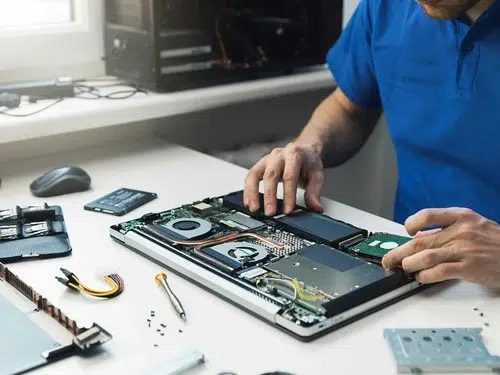
While DIY cleaning works for surface maintenance, internal cleaning requires expertise.
Why Professional Cleaning Is Safer
- Full internal dust removal
- Thermal paste replacement
- Fan and heat sink cleaning
- No risk of cable or component damage
Therefore, professional service ensures thorough cleaning without risk.
Why Choose Milaaj for Clean your laptop safely without damaging them
When DIY cleaning isn’t enough, professional help makes all the difference. Milaaj mobile and laptop repair Dubai offers expert laptop cleaning and maintenance using industry-standard tools and techniques.
What Makes Milaaj Different
- Low-price laptop cleaning packages
- Fast service with minimal downtime
- High-quality parts and safe materials
- Convenient service for all laptop brands
- Skilled technicians with advanced diagnostics
As a result, your laptop stays clean, cool, and reliable for longer.
Additional Benefits of Professional Laptop Maintenance
Beyond cleaning, professional service helps detect early hardware issues.
Long-Term Advantages for Clean your laptop safely without damaging them
- Improved performance and speed
- Better battery efficiency
- Reduced overheating risks
- Extended device lifespan
Therefore, professional cleaning is an investment—not an expense.
How to Keep Your Laptop Clean After Cleaning
Once your laptop is clean, maintenance becomes easier.
Preventive Tips for Clean your laptop safely without damaging them
- Wash hands before use
- Avoid eating near the laptop
- Use a keyboard cover
- Store laptop in a clean bag
- Keep liquids away
By following these steps, you reduce the need for frequent deep cleaning.
FAQs About Clean your laptop safely without damaging them
Q1: How can I clean my laptop safely without damaging it?
Use a microfiber cloth, compressed air, and small amounts of isopropyl alcohol. Always power off the laptop and avoid spraying liquids directly.
Q2: Can I use water to clean my laptop screen?
Yes, but only distilled water applied to a microfiber cloth—not directly to the screen.
Q3: What should I never use to clean a laptop?
Avoid glass cleaners, bleach, paper towels, and excessive liquid, as they can damage screens and internal components.
Q4: How often should I clean my laptop?
Light users should clean every 2–3 months, while heavy users should clean monthly or more often.
Q5: Is professional laptop cleaning worth it?
Yes. Professional cleaning removes internal dust safely, improves cooling, and extends your laptop’s lifespan.
Conclusion: Clean your laptop safely without damaging them
Knowing how to clean your laptop safely without damaging them protects both performance and hardware. While gentle DIY cleaning works for everyday maintenance, professional laptop cleaning ensures deep internal protection and long-term reliability.
Most importantly, avoiding harsh chemicals, excess moisture, and improper tools prevents costly damage. And when your laptop needs expert attention, trusted professionals can restore it safely and efficiently.
With the right cleaning habits—and expert support when needed—your laptop will continue to perform smoothly for years to come.
Get professional macbook repair services with expert technicians ensuring top-quality results.
Instead of trying random recovery apps, always rely on certified software or trusted repair centers like Milaaj for secure data restoration.
Enjoy quick and reliable home delivery for your repaired or purchased devices.
Sell your device with confidence and get the best value instantly.
📍 Visit Any Milaaj Branch in Dubai
🔹 Bur Dubai
Milaaj Mobile and Laptop Repair Dubai
📞 055 258 8477
🔗 Google Maps
🔹 Al Barsha
Milaaj Mobiles and Laptop Repair Al Barsha
📞 052 596 2846
🔗 Google Maps
🔹 Al Barsha 3
Milaaj Mobiles and Gaming Store
📞 052 3405 814
🔗 Google Maps
🔹 Al Nuaimiya
Milaaj Mobiles and Laptops Ajman
📞 055 788 9654
🔗 Google Maps
📧 Email: support@milaaj.com
🕒 Operating Hours: Monday – Sunday

Leave a Reply