
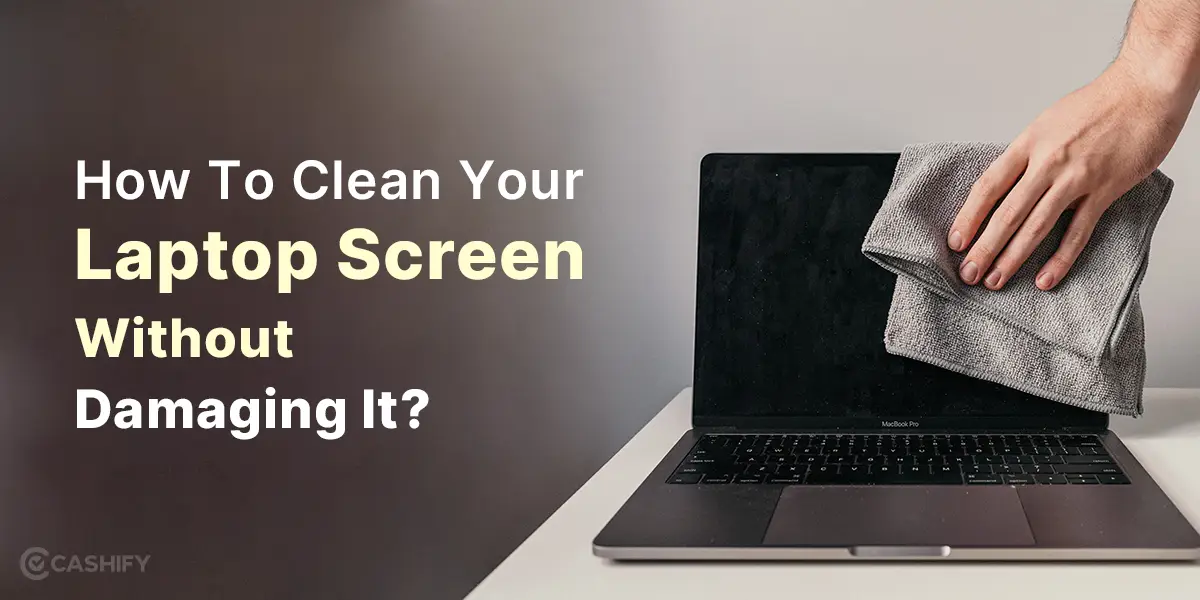
Keeping your laptop clean is essential for performance, hygiene, and long-term reliability. However, many users unintentionally damage their devices by using the wrong cleaning methods. If you’ve ever searched for how to clean a laptop safely without causing damage, you’re not alone.
Dust, fingerprints, crumbs, and even tiny debris can slowly impact your laptop’s cooling system, keyboard responsiveness, and screen clarity. Over time, this can lead to overheating, lag, and even hardware failure.
The good news is that cleaning your laptop safely is simple when you follow the right steps. In this complete guide, you’ll learn safe cleaning techniques, tools to use, mistakes to avoid, and when professional help is the smarter option.
Why Cleaning Your Laptop Safely Matters
A clean laptop does not just look good. It performs better.
When dust builds up inside vents and fans, airflow becomes restricted. As a result, your laptop heats up faster, which can reduce performance and shorten its lifespan. At the same time, dirty keyboards and touchpads can affect usability and hygiene.
However, improper cleaning like using too much liquid or harsh chemicals can permanently damage sensitive components. That is why learning the right way to clean your laptop safely is important.
Common Mistakes to Avoid When Cleaning a Laptop
Before you start, it is important to understand what not to do.
Avoid these mistakes:
- Spraying liquid directly onto the screen or keyboard
- Using strong cleaners like bleach or glass spray
- Cleaning while the laptop is powered on
- Using rough cloths or paper towels
- Forcing dust out by shaking the device
Instead, safe cleaning is all about gentle handling and proper tools.
Essential Tools for Safe Laptop Cleaning
Using the right tools makes all the difference.
Here is what you need:
- Microfiber cloth
- Soft brush
- Compressed air
- Isopropyl alcohol at 70 percent or less
- Cotton swabs
These tools help you clean effectively without risking damage.
How to Clean Your Laptop Screen Safely
Your screen is delicate, so it needs extra care.
Step-by-step:
- Turn off and unplug your laptop
- Use a dry microfiber cloth to remove dust
- Lightly dampen the cloth with distilled water or mild alcohol
- Gently wipe in one direction
- Let it air dry completely
This method keeps your display clear without streaks or scratches.
How to Clean Your Laptop Keyboard Properly
Keyboards collect the most dirt and bacteria.
Safe cleaning method:
- Turn the laptop upside down and gently tap it
- Use compressed air to remove debris
- Lightly clean keys with a damp cotton swab
- Avoid excess moisture
This improves typing comfort and responsiveness.
Cleaning Laptop Vents and Ports
Dust in vents can lead to overheating and slow performance.
What to do:
- Use compressed air in short bursts
- Keep the can upright
- Never insert objects into ports
- Use a soft brush if needed
Better airflow means better performance and longer lifespan.
Cleaning the Laptop Body and Touchpad
Your laptop exterior also needs attention.
Steps:
- Use a slightly damp microfiber cloth
- Gently wipe the touchpad, palm rest, and outer casing
- Avoid liquid entering edges or buttons
This keeps your device clean and comfortable to use daily.
How Often Should You Clean Your Laptop?
Cleaning frequency depends on usage:
- Light users: every 2 to 3 months
- Regular users: once a month
- Heavy use or dusty areas: every 2 to 4 weeks
Regular cleaning prevents buildup and reduces repair risks.
Signs Your Laptop Needs Professional Cleaning
Sometimes, surface cleaning is not enough.
Watch for:
- Loud or constantly running fan
- Overheating
- Sudden slowdowns
- Sticky or unresponsive keys
- Unexpected shutdowns
These signs often mean internal dust buildup that requires expert cleaning.
DIY vs Professional Laptop Cleaning
Basic cleaning at home works well for maintenance. But internal cleaning is more complex.
Professional cleaning includes:
- Internal dust removal
- Fan and heat sink cleaning
- Thermal paste replacement
- Safe handling of internal components
This ensures deeper cleaning without risking damage.
Simple Habits to Keep Your Laptop Clean Longer
Prevention is always easier than cleaning.
- Wash your hands before use
- Avoid eating near your laptop
- Use a keyboard cover
- Keep liquids away
- Store your laptop in a clean bag
These habits reduce dirt buildup significantly.
FAQs: Clean Laptop Safely
How can I clean my laptop safely at home?
Use a microfiber cloth, compressed air, and minimal alcohol. Always power off your laptop before cleaning.
Can I use water to clean my laptop screen?
Yes, but only distilled water applied to a cloth, not directly on the screen.
What should I avoid when cleaning a laptop?
Avoid harsh chemicals, excess liquid, and rough materials that can damage components.
How often should I clean my laptop?
Every 1 to 3 months depending on usage and environment.
Is professional laptop cleaning necessary?
Yes, especially if your laptop overheats or has internal dust buildup.
Final Thoughts
Learning how to clean your laptop safely without causing damage helps protect performance, improve usability, and extend your device’s lifespan. With the right tools and simple habits, you can keep your laptop running smoothly without risking unnecessary damage.
However, if your laptop still overheats or slows down after cleaning, it may point to a deeper issue. In that case, it’s often better to explore laptop repair in Dubai to ensure everything is working properly internally.
If your system issues have already affected important files, it’s also worth checking professional data recovery in Dubai options early to avoid permanent loss.
And if repair costs feel too high or your device is aging, some users also consider it a good time to sell used laptop in Dubai and upgrade to a newer, more efficient model.
📍 Visit Any Milaaj Branch in Dubai
🔹 Bur Dubai
Milaaj Mobile and Laptop Repair Dubai
📞 055 258 8477
🔗 Google Maps
🔹 Al Barsha
Milaaj Mobiles and Laptop Repair Al Barsha
📞 052 596 2846
🔗 Google Maps
🔹 Al Barsha 3
Milaaj Mobiles , Laptops and Watches Repair Service
📞 052 3405 814
🔗 Google Maps
🔹 Al Nuaimiya
Milaaj Mobiles and Laptops Ajman
📞 055 788 9654
🔗 Google Maps
📧 Email: support@milaaj.com
🕒 Operating Hours: Monday – Sunday



Leave a Reply