
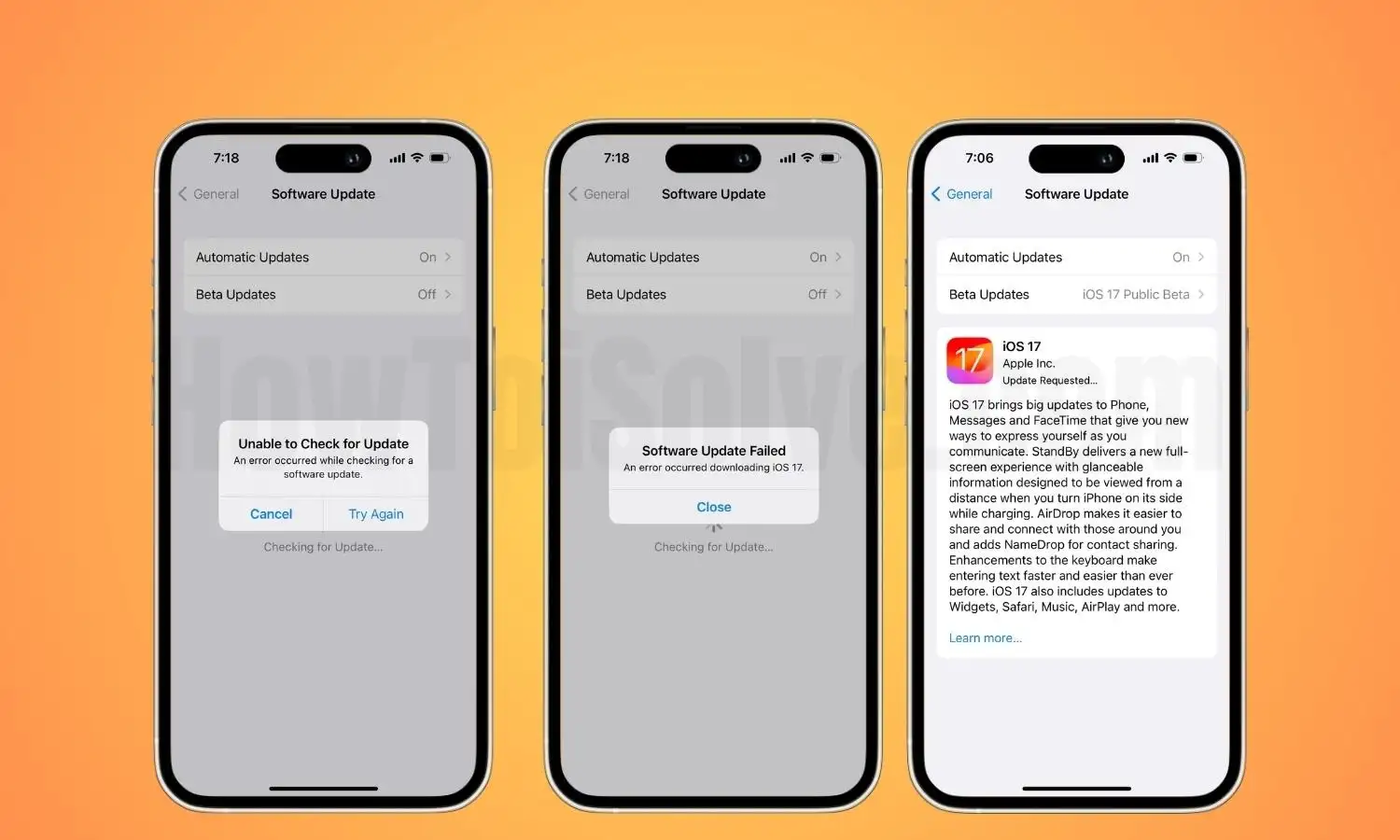
iOS update errors have become one of the most common issues among iPhone users. While updates are meant to improve performance and security, they sometimes fail, get stuck, or trigger unexpected problems.
If your iPhone is stuck on “verifying update,” showing error codes, or freezing during installation, you are not alone. The key is not just trying random fixes, but understanding why the error happens and how to fix it safely without risking your data.
In this guide, you will learn the real causes behind iOS update errors, step-by-step solutions, and how professionals handle complex cases more effectively.
Why iOS Update Errors Happen
Many users assume update failures are simple glitches. In reality, they often have deeper causes.
Common reasons include:
- Low storage space
- Weak or unstable internet connection
- Corrupted update files
- Battery interruptions during update
- Software bugs or system conflicts
- Hardware issues like battery or storage failure
Even a small interruption during the update process can cause the system to fail or freeze.
Common iPhone iOS Update Errors You Might See
Understanding the error helps you fix it faster.
Some of the most frequent issues include:
- Stuck on “Preparing Update”
- Stuck on “Verifying Update”
- iPhone frozen on Apple logo
- Error 4013 or 4014
- “Unable to Install Update” message
Each of these points to a different type of problem, from software glitches to hardware faults.
How to Fix iOS Update Errors at Home
Before going for advanced solutions, try these safe steps.
1. Check Storage Space
iOS updates need free space to install properly.
Go to Settings > General > iPhone Storage and ensure you have at least 5 to 10 GB free.
2. Restart Your iPhone
A simple restart can clear temporary bugs that block updates.
3. Use a Stable Wi-Fi Connection
Avoid mobile data or weak networks. A stable Wi-Fi connection prevents corrupted downloads.
4. Charge Your Device
Make sure your battery is above 50 percent or keep the phone plugged in during the update.
5. Delete and Reinstall the Update
Sometimes the downloaded update file itself is corrupted.
Steps:
- Go to iPhone Storage
- Find the iOS update file
- Delete it
- Re-download from Software Update
Advanced Methods for Fixing iOS Update Errors
If basic steps do not work, you may need deeper fixes.
Use Recovery Mode
Recovery mode helps reinstall iOS safely.
- Connect your iPhone to a computer
- Open Finder or iTunes
- Force restart into recovery mode
- Choose Update instead of Restore
Use DFU Mode (Advanced)
DFU mode is used when firmware is deeply corrupted.
It allows a complete system reinstall.
However, this method requires precision. Incorrect use can erase data.
When iOS Update Errors Are Caused by Hardware
Many users overlook this, but update failures are not always software-related.
Possible hardware causes:
- Weak or failing battery
- Damaged storage (NAND issues)
- Charging port problems
- Logic board faults
If these exist, no software fix will work until the hardware issue is resolved.
How Professionals Fix iOS Update Errors Safely
Technicians follow a structured process instead of trial and error.
They typically:
- Run full diagnostics to identify root cause
- Use verified firmware files
- Repair corrupted system files
- Check hardware health before updating
- Protect data using backup and recovery tools
This approach significantly increases success rates and reduces risk.
How to Prevent iOS Update Errors in the Future
Prevention is always better than repair.
Follow these tips:
- Keep at least 5 to 10 GB free storage
- Always use a strong Wi-Fi connection
- Avoid interrupting updates
- Keep your battery healthy
- Avoid installing unstable beta updates
These habits reduce the chances of facing update issues again.
Signs You Need Professional Help
You should consider expert help if:
- Your iPhone is stuck for more than 30 minutes
- The device keeps restarting during update
- Error codes keep appearing
- The phone does not turn on after update
- Data is important and cannot be lost
Delaying in such cases can make recovery harder.
FAQs: Fixing iPhone iOS Update Errors
Why is my iPhone stuck on verifying update?
This usually happens due to slow internet, low storage, or corrupted update files.
Can I fix iOS update errors without losing data?
Yes, in many cases using recovery mode or professional tools can fix the issue without data loss.
What causes error 4013 or 4014?
These errors are often linked to hardware issues or connection problems during update.
How long should an iOS update take?
Normally 15 to 30 minutes. If it takes longer, there may be a problem.
Is it safe to use DFU mode?
Yes, but only if done correctly. Otherwise, it may erase your data.
Final Thoughts
Fixing iOS update errors is not always as simple as restarting your iPhone. While basic troubleshooting works for minor issues, persistent problems often require a deeper approach.
If your device still fails to update, it may be worth looking into iPhone repair in Dubai to identify underlying issues safely.
And if your data becomes inaccessible during an update failure, understanding your options for data recovery in Dubai early can help avoid permanent loss.
In some cases, if repair costs are too high, users also explore ways to sell their iPhone for cash in Dubai and upgrade to a newer device instead.
📍 Visit Any Milaaj Branch in Dubai
🔹 Bur Dubai
Milaaj Mobile and Laptop Repair Dubai
📞 055 258 8477
🔗 Google Maps
🔹 Al Barsha
Milaaj Mobiles and Laptop Repair Al Barsha
📞 052 596 2846
🔗 Google Maps
🔹 Al Barsha 3
Milaaj Mobiles , Laptops and Watches Repair Service
📞 052 3405 814
🔗 Google Maps
🔹 Al Nuaimiya
Milaaj Mobiles and Laptops Ajman
📞 055 788 9654
🔗 Google Maps
📧 Email: support@milaaj.com
🕒 Operating Hours: Monday – Sunday


Leave a Reply