
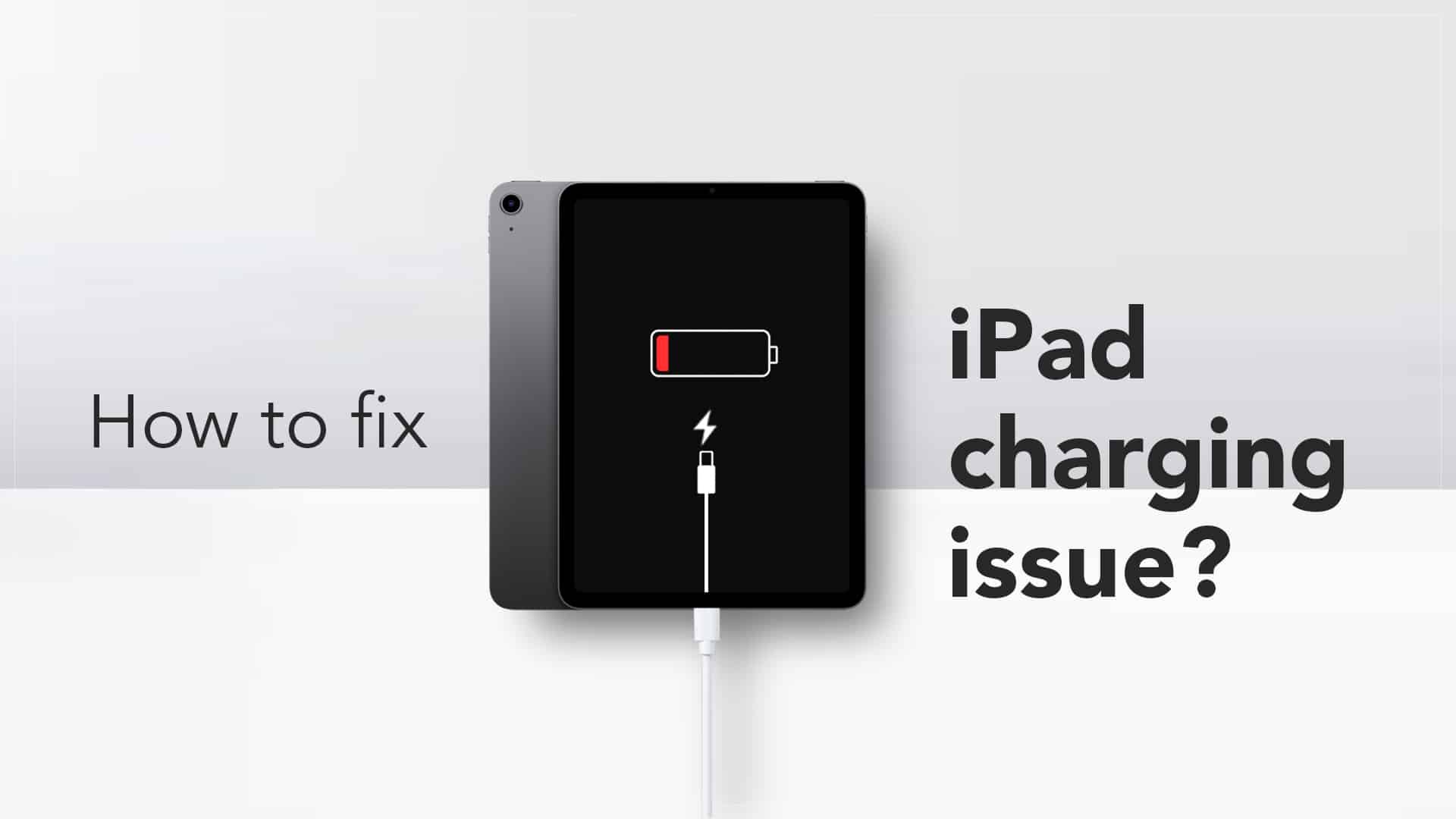
When your iPad charging slowly becomes a daily frustration, it can disrupt your work, entertainment, or studies. Many users overlook the small issues that lead to slow charging, assuming their iPad battery is wearing out. However, this isn’t always the case. The good news is that there are several effective ways to fix and prevent slow charging problems. This expert guide will walk you through the most common causes and proven solutions to restore fast and efficient charging.
Why Is My iPad Charging Slowly?
Before you rush to replace your charger or battery, it’s essential to understand why your iPad charging slowly issue occurs. Several hardware and software factors can influence charging speed, and identifying the root cause helps you choose the right fix.
1. Damaged or Non-Original Charging Accessories
One of the main reasons your iPad charging slowly is the use of low-quality or counterfeit accessories. Non-certified cables or adapters can limit power flow, causing your device to charge at a much slower rate. Moreover, using cheap accessories can harm your iPad’s battery health over time.
2. Dirty or Blocked Charging Port
Dust, lint, or debris in the charging port can prevent the cable from connecting properly. Over time, this build-up interrupts the electrical current, leading to your iPad not charging as fast as usual. Cleaning the port gently with a soft brush or compressed air can restore proper charging.
3. Background Apps Draining Power
Even while charging, apps running in the background continue to consume battery power. This is one of the most overlooked reasons for iPad charging slowly. Closing unused apps or enabling Low Power Mode can help your iPad charge faster.
4. Outdated Software or System Bugs
Sometimes, the problem lies within the software. An outdated iPadOS or corrupted files can interfere with power management, resulting in your iPad not charging as fast as usual. Regular updates ensure bug fixes and optimized charging performance.
5. Overheating Issues
When your iPad becomes too hot, it automatically slows charging to protect the battery. If you notice your iPad charging slowly after extended use or while exposed to heat, let it cool down before plugging it in again.
How to Fix iPad Charging Slowly
Now that you understand the common causes, let’s explore practical solutions that can fix your iPad charging slowly issue efficiently.
1. Use Original Apple Charger and Cable
Always use the original charger that came with your device or an Apple-certified replacement. Generic accessories often fail to deliver the necessary power output, which makes your iPad charging slowly and potentially damages the port.
2. Clean the Charging Port Carefully
A simple cleaning routine can make a significant difference. Use a soft-bristled brush or dry cotton swab to remove debris. Never use metal pins or sharp tools, as they can damage the port. After cleaning, reconnect your charger and see if your iPad charging slowly problem improves.
3. Restart or Force Restart Your iPad
Restarting helps clear temporary bugs or background glitches that could cause your iPad charging slowly. Press and hold the power button and volume button together until the Apple logo appears, then release.
4. Enable Airplane Mode While Charging
Another helpful trick is to turn on Airplane Mode. By disabling wireless connections and notifications, your device uses less energy. As a result, this can speed up charging when your iPad not charging as fast as usual continues to frustrate you.
5. Avoid Using the iPad During Charging
It’s tempting to scroll, stream, or work while your iPad charges. However, doing so causes overheating and slows down the process. To stop your iPad not charging as fast as usual, keep it idle until the charge reaches at least 80%.
Advanced Fixes for iPad Charging Slowly
If the basic methods don’t resolve the problem, it might be time to consider some advanced solutions. These methods can address deeper software or hardware issues behind your iPad charging slowly concern.
1. Check Battery Health
If your iPad is older, the battery’s capacity might have declined. A weak battery doesn’t accept charge efficiently, making your iPad charging slowly over time. Visit Settings > Battery > Battery Health to see its current status.
2. Reset All Settings
If there are configuration errors or software conflicts, resetting all settings can help. Go to Settings > General > Reset > Reset All Settings. This won’t delete data but can fix issues responsible for iPad charging slowly.
3. Update iPadOS
Always ensure your software is up to date. New updates often include charging optimizations and power management improvements. By updating regularly, you can reduce the chances of iPad taking too long to charge due to outdated firmware.
4. Try a Different Power Source
Sometimes, the issue lies with your power outlet or USB port. Try plugging your charger into another socket or using a direct wall outlet instead of a computer. This can make a noticeable difference if your iPad charging slowly persists.
5. Use a Higher Wattage Adapter
Certain iPad models support faster charging with higher-wattage adapters. For example, using a 20W or 30W adapter instead of a 10W one can drastically improve charging time and prevent your iPad charging slowly problem.
Preventive Maintenance Tips to Avoid iPad Charging Slowly
Consistency is key to maintaining charging speed and battery health. These proactive steps can help ensure your device charges optimally every time.
- Keep Software Updated: Regular updates prevent bugs that make your iPad taking too long to charge.
- Store at Room Temperature: Extreme temperatures degrade battery health.
- Avoid Overnight Charging: Prolonged charging can affect longevity.
- Use Certified Accessories: Genuine chargers deliver consistent voltage.
- Perform Regular Cleaning: Keep ports dust-free to ensure proper connection.
- Monitor Battery Health: Replace weak batteries before performance drops significantly.
When to Seek Professional Help
If your iPad charging slowly issue persists after trying all the fixes above, there might be an internal hardware problem. It could involve the charging port, logic board, or battery itself. In such cases, consulting professionals is the safest solution.
For reliable and efficient iPad repairs, Milaaj Mobile and Laptop Repair Dubai offers expert diagnostics and genuine parts replacement. Their technicians can quickly identify the root cause of why your iPad taking too long to charge and restore it to full performance.
Frequently Asked Questions (FAQs)
1. Why does my iPad charge so slowly all of a sudden?
It could be due to a faulty cable, dirt in the port, or software issues. Try cleaning, updating, and restarting your device.
2. Does using my iPad while charging make it slower?
Yes. Using it during charging increases power consumption and causes heating, leading to your iPad charging slowly.
3. Can a software update fix slow charging?
Absolutely. Apple frequently releases updates that optimize battery performance and fix charging issues.
4. Should I replace my iPad battery if it charges slowly?
If your battery health is below 80% and your iPad taking too long to charge even after troubleshooting, it’s time for a replacement.
5. How long should an iPad take to charge fully?
It depends on the model, but typically 2–4 hours using an original adapter. If it takes longer, your iPad charging slowly likely needs attention.
To sum up, when your iPad charging slowly, it’s not always a sign of battery failure. Often, the issue stems from minor factors like faulty accessories, outdated software, or overheating. With regular maintenance, cleaning, and the right accessories, you can restore fast charging and extend your iPad’s battery life. However, if you’ve exhausted all fixes and the problem persists, don’t hesitate to consult professionals for expert repair. With the right care, your iPad can perform efficiently for years to come.
📍 Visit Any Milaaj Branch in Dubai
🔹 Bur Dubai
Milaaj Mobile and Laptop Repair Dubai
📞 055 258 8477
🔗 Google Maps
🔹 Al Barsha
Milaaj Mobiles and Laptop Repair Al Barsha
📞 052 596 2846
🔗 Google Maps
🔹 Reef Mall (Salah Al Din)
Milaaj Service Center Reef Mall
📞 052 3405 814
📍 1st Floor, Shop 16, Deira
🔗 Google Maps
🔹 Al Nuaimiya
Milaaj Mobiles and Laptops Ajman
📞 055 788 9654
🔗 Google Maps
📧 Email: support@milaaj.com
🕒 Operating Hours: Monday – Sunday


Leave a Reply