
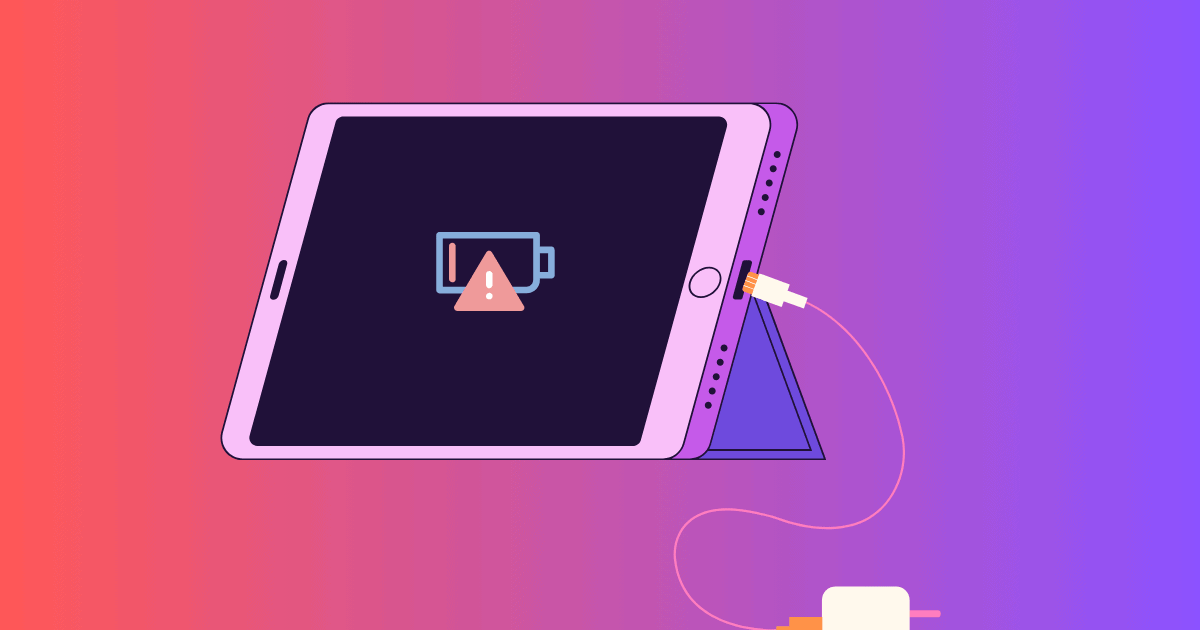
Apple iPad updates are designed to enhance security, improve performance, and introduce new features. However, many users face a frustrating issue soon after updating iPad won’t charge after update. When your iPad suddenly refuses to charge or charges inconsistently, it can interrupt work, learning, and daily tasks.
Fortunately, an iPad won’t charge after update problem is usually fixable. Therefore, understanding why updates trigger charging issues and applying the correct solutions can restore normal charging safely. In this comprehensive guide, we explain the common causes, safe fixes, mistakes to avoid, and how professional repair services ensure long-lasting results.
Why iPad Won’t Charge After Update Happens
First and foremost, it’s important to understand why an iPad won’t charge after update. Although updates are software-based, they interact closely with hardware components such as the battery, charging port, and power management system.
In many cases, an update recalibrates power settings or introduces temporary bugs. As a result, the iPad may fail to recognize the charger or limit charging to protect internal components. Therefore, identifying the exact cause is essential before attempting fixes.
Common Symptoms When iPad Won’t Charge After Update
Before moving to solutions, recognizing the warning signs helps narrow down the issue. Typically, users experiencing iPad won’t charge after update notice:
- Charging icon does not appear
- Battery percentage stays the same
- Charging starts and stops repeatedly
- iPad only charges when powered off
- “Accessory not supported” message
- iPad heats up while plugged in
Although these symptoms vary, they often point to a combination of software and hardware stress.
Software Glitches Causing iPad Charging Issues After Update
One of the most common reasons an iPad won’t charge after update is a temporary software glitch. During updates, background processes may overload the system, interfering with power management.
Moreover, corrupted system files or unfinished update processes can block charging recognition. Therefore, software issues should always be checked first.
Quick software fixes to try for iPad won’t charge after update
- Restart the iPad to clear temporary bugs
- Force restart to refresh system processes
- Check for a follow-up iPadOS update
- Reset settings (without deleting data)
In many cases, these steps restore charging functionality quickly.
Charging Cable and Adapter Issues After Update
Although the timing makes the update seem responsible, faulty accessories are often the real cause. An iPad won’t charge after update may simply be exposing an existing cable or adapter issue.
Over time, cables wear internally and deliver unstable power. Consequently, after an update recalibrates charging thresholds, the iPad may reject weak power input.
Therefore, always test with:
- A certified or original charging cable
- A different Apple-compatible adapter
- Another power outlet
Surprisingly, many charging issues disappear immediately after changing accessories.
Dirty or Damaged Charging Port After Software Update
Another common reason an iPad won’t charge after update is a dirty or damaged charging port. Dust, lint, and debris accumulate gradually and block proper contact between the cable and charging pins.
Furthermore, minor port damage may go unnoticed until an update demands more precise power regulation. As a result, charging fails entirely.
While gentle cleaning can help, improper tools may damage internal pins. Therefore, professional port cleaning is the safest option.
Battery Health Problems Triggered by Updates
Software updates often recalibrate battery health readings. If the battery is already degraded, the update may expose underlying issues. Consequently, the iPad may stop charging to protect itself.
Signs of battery-related charging issues include:
- Rapid battery drain
- Charging stops at a certain percentage
- iPad only charges when powered off
In such cases, battery diagnostics are essential to confirm whether replacement is required.
Overheating Issues After Update That Stop Charging
Another factor to consider is overheating. If the iPad becomes too warm, the system automatically pauses charging. After an update, background tasks can increase CPU usage and heat.
Therefore, if your iPad won’t charge after update, check for:
- Excessive heat while charging
- Heavy app usage during charging
- Charging in hot environments
Allowing the iPad to cool often restores charging temporarily. However, persistent overheating requires professional evaluation.
Safe DIY Steps to Fix iPad Won’t Charge After Update
Before seeking professional help, you can try a few safe troubleshooting steps. However, avoid aggressive DIY methods that may cause permanent damage.
Safe steps include:
- Restart or force restart the iPad
- Use a different certified charger
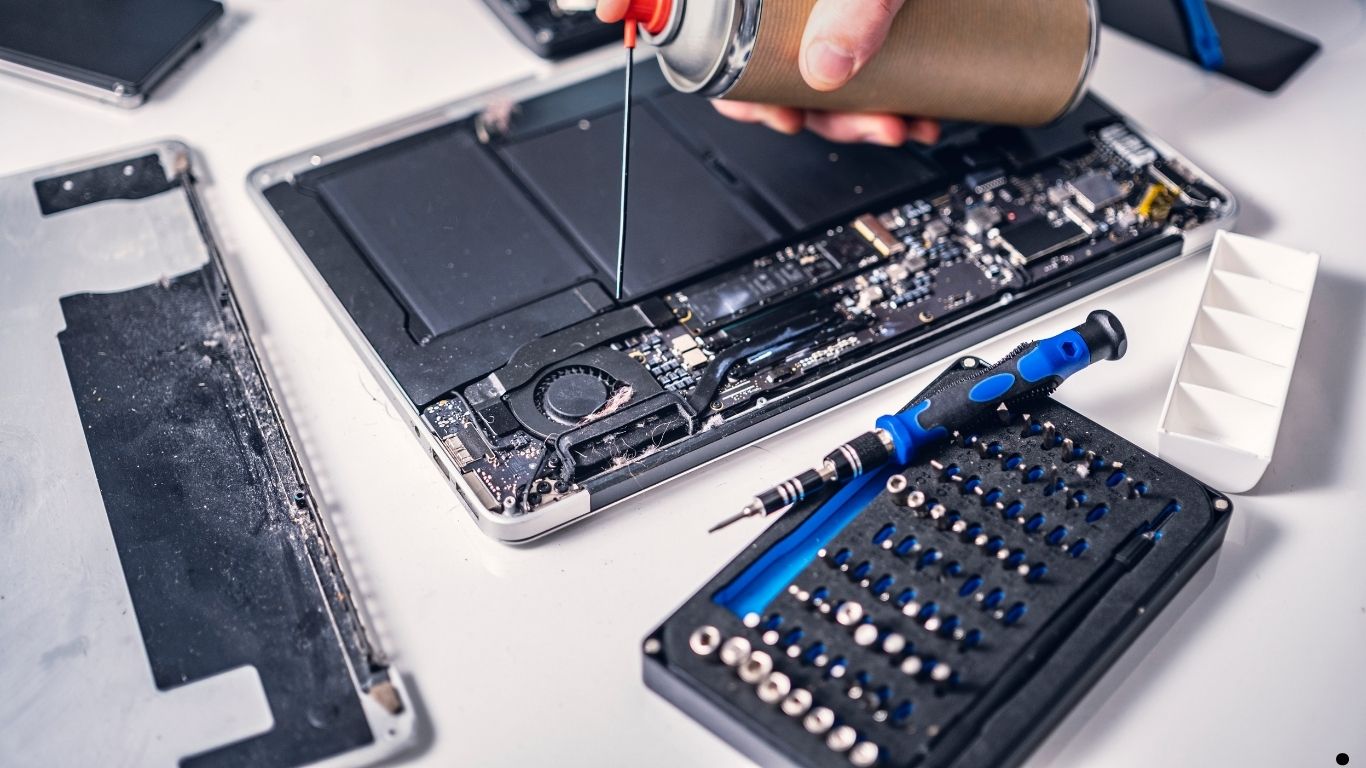
- Clean the charging port gently with compressed air
- Remove the case to reduce heat
- Update to the latest iPadOS version
If the issue persists after these steps, professional repair is recommended.
Mistakes to Avoid When iPad Won’t Charge After Update
Frustration often leads users to try risky solutions. Unfortunately, these mistakes can worsen the problem.
Avoid:
- Using sharp objects to clean the charging port
- Charging with cheap or counterfeit cables
- Ignoring overheating warnings
- Continuing to charge with a loose connection
- Resetting the device repeatedly without diagnosis
Therefore, stopping unsafe attempts early can save both time and money.
When Professional Repair Is Necessary
If your iPad won’t charge after update despite basic troubleshooting, professional diagnosis becomes essential. Experts can identify whether the issue involves:
- Charging port damage
- Battery degradation
- Power IC (charging chip) failure
- Software corruption linked to hardware stress
Moreover, professional repair ensures no data loss during the process.
How Experts Fix iPad Charging Problems Safely
Professional technicians follow a structured approach to restore charging safely.
Expert repair steps include:
- Detailed charging diagnostics
- Battery health testing
- Precision charging port cleaning or replacement
- Power circuit inspection
- Software optimization
As a result, charging stability is restored without compromising performance or data.
Milaaj Mobile Repair: Trusted iPad Charging Solutions
For reliable service, Milaaj mobile and laptop repair Dubai provides expert solutions for iPad charging issues.
Why choose Milaaj?
- Low price and transparent repair costs
- Fast repairing, often same-day service
- High-quality parts for replacements
- Convenient service with expert diagnostics
- Safe handling to protect data and battery health
Therefore, instead of guessing, customers receive honest advice and long-lasting results.
Preventing Future iPad Charging Issues After Updates
Once charging is restored, prevention becomes crucial.
Best prevention tips:
- Always use certified charging accessories
- Keep the charging port clean and dry
- Avoid charging in extreme heat
- Update iPadOS regularly
- Schedule periodic battery health checks
By following these habits, you can reduce the risk of your iPad won’t charge issue returning.
FAQs About iPad won’t charge after update
1. Why won’t my iPad charge after an update?
In most cases, an iPad won’t charge after update due to software glitches, battery recalibration issues, or charging port problems triggered during the update process.
2. Can a software update damage my iPad battery?
No, updates do not damage batteries directly. However, they may reveal existing battery health issues or adjust charging behavior, making problems more noticeable.
3. How long does it take to fix iPad charging issues?
Most charging issues are resolved within a few hours, especially when handled by professional technicians using proper diagnostic tools.
4. Is it safe to reset my iPad if it won’t charge after update?
Yes, resetting settings (not data) is safe. However, repeated resets without diagnosis may not solve hardware-related charging problems.
5. Should I replace the charging port or battery first?
This depends on diagnostics. Professionals test the charging port, battery health, and power circuits before recommending repair or replacement.
6. Can dirt in the charging port cause charging failure after update?
Yes. Dust or lint can block proper contact. After an update, stricter power regulation may prevent charging through a dirty port.
7. Will professional repair erase my iPad data?
No. Expert repair methods fix iPad charging issues without data loss, ensuring files, photos, and apps remain safe.
Final Thoughts: iPad won’t charge after update
In conclusion, iPad won’t charge after update is a common but manageable issue. While software glitches often trigger the problem, underlying hardware stress may also play a role.
Instead of risking further damage with unsafe DIY fixes, choosing professional repair ensures safety, convenience, and long-term performance. With timely action, expert diagnostics, and quality parts, your iPad can regain reliable charging and remain dependable for years to come.
If your iPad won’t charge after update, addressing the issue early is the smartest solution.
Get professional iPad repair services with expert technicians ensuring top-quality results.
Instead of trying random recovery apps, always rely on certified software or trusted repair centers like Milaaj for secure data restoration.
Enjoy quick and reliable home delivery for your repaired or purchased devices.
Sell your old iPad with confidence and get the best value instantly.
📍 Visit Any Milaaj Branch in Dubai
🔹 Bur Dubai
Milaaj Mobile and Laptop Repair Dubai
📞 055 258 8477
🔗 Google Maps
🔹 Al Barsha
Milaaj Mobiles and Laptop Repair Al Barsha
📞 052 596 2846
🔗 Google Maps
🔹 Al Barsha 3
Milaaj Mobiles and Gaming Store
📞 052 3405 814
🔗 Google Maps
🔹 Al Nuaimiya
Milaaj Mobiles and Laptops Ajman
📞 055 788 9654
🔗 Google Maps
📧 Email: support@milaaj.com
🕒 Operating Hours: Monday – Sunday


Leave a Reply