
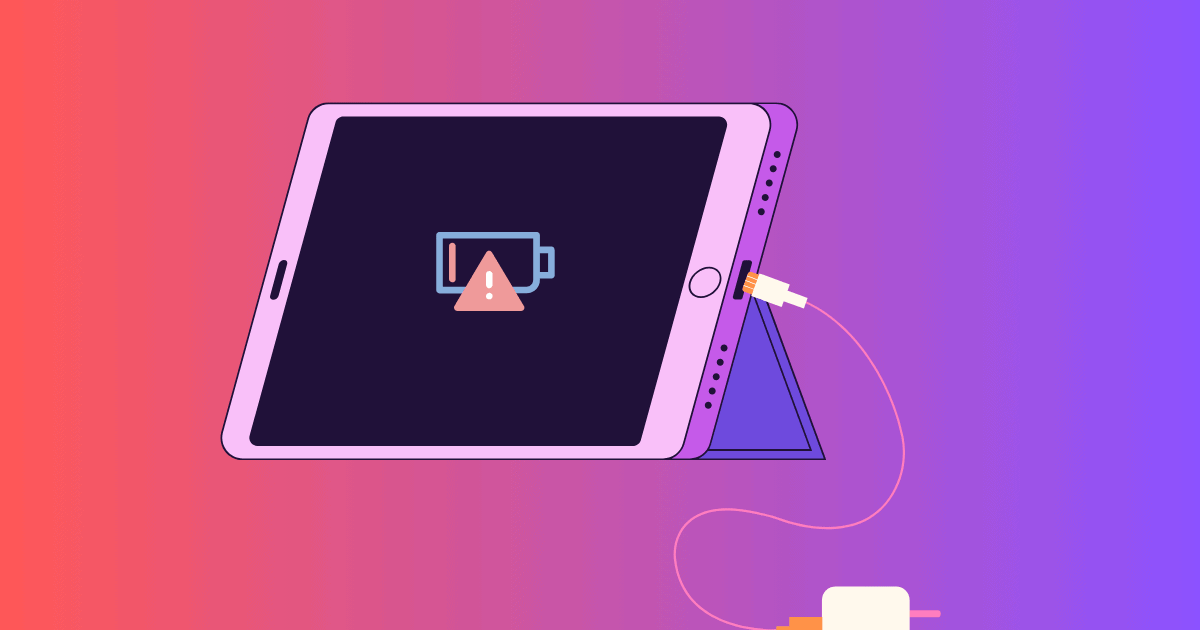
Apple iPad updates are designed to improve performance, security, and features. However, many users face a frustrating issue right after updating: iPad won’t charge after update.
When your iPad suddenly stops charging, charges inconsistently, or shows no charging response, it can disrupt work, study, and daily use. The good news is that this issue is usually fixable once the root cause is identified.
In this guide, you’ll learn why this happens, how to fix it safely, and when professional help is needed.
Why iPad Won’t Charge After Update Happens
Even though updates are software-based, they directly interact with hardware systems like battery management, charging circuits, and power control.
Sometimes, after an update, iOS may:
- Misread battery status
- Trigger temporary power management bugs
- Interrupt charging recognition
- Or expose existing hardware weaknesses
As a result, the iPad may fail to charge properly even though the charger is working fine.
Common Symptoms When iPad Won’t Charge After Update
If you are experiencing this issue, you may notice:
- No charging icon appears
- Battery percentage stays stuck
- Charging starts and stops repeatedly
- iPad only charges when switched off
- “Accessory not supported” message
- Device heats up while charging
These signs usually point to either software instability or hidden hardware issues.
Software Glitches Causing Charging Issues After Update
One of the most common reasons for iPad won’t charge after update is a temporary iPadOS glitch.
During updates, background processes may:
- Overload system power management
- Corrupt temporary system files
- Interrupt charging communication
Quick software fixes you can try:
- Restart the iPad
- Force restart the device
- Install the latest iPadOS update
- Reset settings (without deleting data)
In many cases, charging starts working again after these steps.
Charging Cable or Adapter Problems After Update
Sometimes the update is not the real problem—it simply exposes weak charging accessories.
Worn-out cables or adapters may:
- Deliver unstable power
- Fail under updated charging requirements
- Trigger charging restrictions
What to check:
- Use an original or certified Apple charger
- Try a different charging cable
- Switch power outlets
A simple accessory change often fixes the issue instantly.
Dirty or Damaged Charging Port
Dust, lint, or moisture inside the charging port is another major cause of iPad won’t charge after update.
Over time, debris blocks proper contact between the cable and internal pins. After an update, stricter power detection may prevent charging completely.
⚠️ Avoid using sharp objects for cleaning, as this can damage internal connectors.
Battery Health Problems Triggered After Update
iOS updates sometimes recalibrate battery readings. If your battery is already weak, the update may highlight the issue.
Common battery-related signs:
- Rapid battery drain
- Charging stops at a certain percentage
- iPad only works while plugged in
In such cases, battery testing is necessary to confirm if replacement is needed.
Overheating Issues That Stop Charging
If your iPad becomes too hot, it automatically pauses charging to protect internal components.
After an update, increased background activity may cause:
- Higher CPU usage
- Faster heating
- Temporary charging pauses
Letting the device cool down often restores charging temporarily.
Safe DIY Fixes for iPad Won’t Charge After Update
Before assuming hardware damage, try these safe steps:
- Restart or force restart iPad
- Use a certified charger
- Clean charging port gently using compressed air
- Remove protective case while charging
- Update to the latest iPadOS version
If the issue continues, deeper inspection is needed.
Mistakes to Avoid
Avoid these common mistakes as they can worsen the issue:
- Using sharp tools inside the charging port
- Charging with low-quality cables
- Ignoring overheating warnings
- Repeated factory resets without diagnosis
- Forcing cable connection into loose ports
These actions can cause permanent hardware damage.
When Professional Repair Is Needed
If your iPad won’t charge after update even after trying basic fixes, it may indicate:
- Charging port damage
- Battery failure
- Power IC (charging chip) issue
- Deep software corruption
Professional diagnosis ensures the real issue is found without risking data loss.
How Experts Fix iPad Charging Issues
Advanced repair involves:
- Charging system diagnostics
- Battery health testing
- Charging port cleaning or replacement
- Power IC inspection
- Software-level optimization
This ensures stable and long-term charging performance.
Preventing iPad Charging Issues After Updates
To avoid future problems:
- Always use certified charging accessories
- Keep charging port clean and dry
- Avoid overheating during charging
- Install iPadOS updates regularly
- Check battery health periodically
Good maintenance reduces the chance of repeated charging failures.
FAQs About iPad Won’t Charge After Update
Why won’t my iPad charge after update?
It usually happens due to software glitches, charging port issues, or battery recalibration triggered by the update.
Can an update damage my iPad battery?
No, updates don’t damage batteries, but they can reveal existing battery issues.
How long does it take to fix this issue?
Most cases are resolved within a few hours after proper diagnosis and repair.
Is it safe to reset my iPad?
Yes, but only reset settings first. Avoid full resets unless necessary.
Can a dirty charging port stop charging?
Yes, dust or lint can block proper charging connection.
Final Thoughts: iPad Won’t Charge After Update
In conclusion, iPad won’t charge after update is a common issue caused by software glitches, charging accessory faults, battery recalibration, or hidden hardware problems that become visible after an iPadOS update.
While basic troubleshooting can often restore charging, persistent issues usually point to deeper faults that need proper diagnosis. Getting the issue checked early helps avoid battery damage or long-term charging failure.
If the problem continues, it’s better to go for professional iPad repair in Dubai to safely diagnose and fix the charging system without risking your data or device health. In some cases, if the device is older or repairs are not cost-effective, you may also consider options to sell iPad in Dubai and upgrade to a newer model.
Either way, timely action ensures your iPad stays reliable, efficient, and ready for daily use.
📍 Visit Any Milaaj Branch in Dubai
🔹 Bur Dubai
Milaaj Mobile and Laptop Repair Dubai
📞 055 258 8477
🔗 Google Maps
🔹 Al Barsha
Milaaj Mobiles and Laptop Repair Al Barsha
📞 052 596 2846
🔗 Google Maps
🔹 Al Barsha 3
Milaaj Mobiles , Laptops and Watches Repair Service
📞 052 3405 814
🔗 Google Maps
🔹 Al Nuaimiya
Milaaj Mobiles and Laptops Ajman
📞 055 788 9654
🔗 Google Maps
📧 Email: support@milaaj.com
🕒 Operating Hours: Monday – Sunday


Leave a Reply