
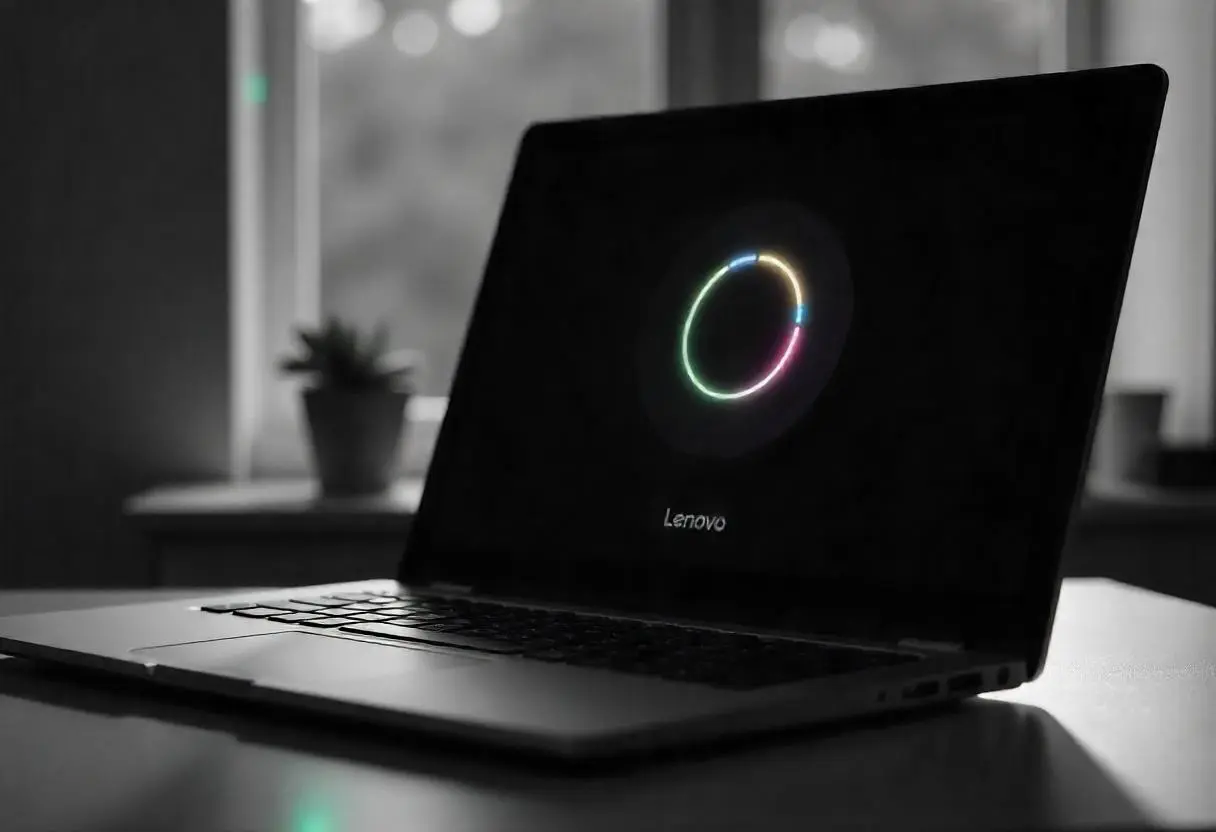
A laptop stuck in boot loop can feel like your device is completely unusable. It keeps restarting, never reaches the login screen, and locks you out of your important files. Whether it’s a Windows boot loop, macOS restart loop, or BIOS-related issue, this problem is more common than you think.
The good news is that in most cases, your data is still safe, and the issue can be fixed with the right approach. This updated guide explains why boot loops happen, how to fix them safely, and how to recover your data without risk.
What Does “Laptop Stuck in Boot Loop” Mean?
A boot loop happens when your laptop continuously restarts without successfully loading the operating system.
Common Symptoms:
- Laptop keeps restarting repeatedly
- Stuck on brand logo (HP, Dell, Lenovo, Apple)
- Infinite loading or spinning circle
- Blue screen followed by automatic restart
- Unable to reach login or desktop
Even though the system won’t load, your files are usually still stored safely on the drive.
Why Laptop Gets Stuck in Boot Loop (Latest Causes)
Understanding the cause helps you choose the right fix.
1. Corrupted Operating System Files
Damaged system files from improper shutdowns or errors can prevent startup.
2. Failed Windows or macOS Updates
Interrupted updates are one of the most common reasons for boot loops today.
3. Hard Drive or SSD Failure
Storage issues can stop your laptop from reading system files properly.
4. Faulty RAM
Defective memory can cause repeated crashes during startup.
5. Malware or System Corruption
Viruses can damage boot files and trigger restart loops.
6. Overheating or Power Issues
Thermal shutdowns or unstable power delivery can force repeated restarts.
Is Your Data Safe in a Boot Loop?
In most cases, yes.
A laptop stuck in boot loop usually affects only the operating system, not your personal files.
Why Data Is Still Recoverable:
- Files are stored separately from OS
- Storage drive may still be readable
- Boot failure does not erase data automatically
However, incorrect actions can lead to permanent data loss.
What to Do First (Important Safety Steps)
Before trying any fix, follow these precautions:
- Turn off the laptop completely
- Avoid repeated forced restarts
- Disconnect USB devices and accessories
- Do NOT reinstall the OS immediately
Taking the wrong step early can overwrite your data.
What NOT to Do (Common Mistakes)
Many users accidentally make things worse.
Avoid these:
- Factory reset without backup
- Formatting the drive
- Installing random recovery tools
- Ignoring hardware warning signs
These actions can reduce the chances of successful recovery.
How to Fix Laptop Stuck in Boot Loop (Step-by-Step)
1. Use Startup Repair (Windows)
- Turn on and interrupt boot 3 times
- Enter Recovery Mode
- Select Startup Repair
This fixes common boot file issues automatically.
2. Boot into Safe Mode
Safe Mode loads only essential drivers.
If your laptop works here:
- Uninstall recent apps
- Remove faulty drivers
- Roll back updates
3. System Restore
Restore your laptop to a previous working state without deleting files.
4. Check BIOS Settings
- Ensure correct boot drive is selected
- Reset BIOS to default settings
5. Disconnect External Devices
Faulty USB devices can cause startup conflicts.
Recover Data from a Laptop Stuck in Boot Loop
If your laptop still won’t start, focus on data recovery first.
Option 1: Use Bootable USB
- Create a recovery USB
- Boot from it
- Access files and copy to external drive
Option 2: Remove the Storage Drive
- Take out HDD/SSD
- Connect to another computer
- Transfer your data safely
Option 3: Professional Recovery (Safest)
For critical data, professional help is recommended.
You can explore trusted data recovery services in Dubai to safely recover files without risking damage.
When Boot Loop Indicates Hardware Failure
If fixes don’t work, hardware may be the issue.
Warning Signs:
- Clicking or grinding sounds
- Drive not detected in BIOS
- Laptop overheating
- Random shutdowns before restart
In such cases, proper diagnosis is required. A reliable laptop repair service in Dubai can identify whether the issue is storage, RAM, or motherboard-related.
Why Professional Repair Is Safer
DIY fixes are helpful, but not always reliable.
Professional repair ensures:
- Accurate diagnosis
- Safe data handling
- No risk of overwriting files
- Long-term stability
How to Prevent Boot Loop Issues
Once fixed, follow these habits:
- Keep your OS updated properly
- Avoid force shutdowns
- Use antivirus protection
- Maintain proper cooling
- Back up important files regularly
Prevention saves both time and data.
Final Thoughts
A laptop stuck in boot loop may look serious, but it’s often fixable without losing your data. The key is to act carefully, avoid risky shortcuts, and prioritize data recovery before attempting major fixes.
If your laptop is too damaged or repair costs are high, you can also consider options to sell your laptop in Dubai and upgrade to a newer, more reliable device.
📍 Visit Any Milaaj Branch in Dubai
🔹 Bur Dubai
Milaaj Mobile and Laptop Repair Dubai
📞 055 258 8477
🔗 Google Maps
🔹 Al Barsha
Milaaj Mobiles and Laptop Repair Al Barsha
📞 052 596 2846
🔗 Google Maps
🔹 Al Barsha 3
Milaaj Mobiles , Laptops and Watches Repair Service
📞 052 3405 814
🔗 Google Maps
🔹 Al Nuaimiya
Milaaj Mobiles and Laptops Ajman
📞 055 788 9654
🔗 Google Maps
📧 Email: support@milaaj.com
🕒 Operating Hours: Monday – Sunday



Leave a Reply