
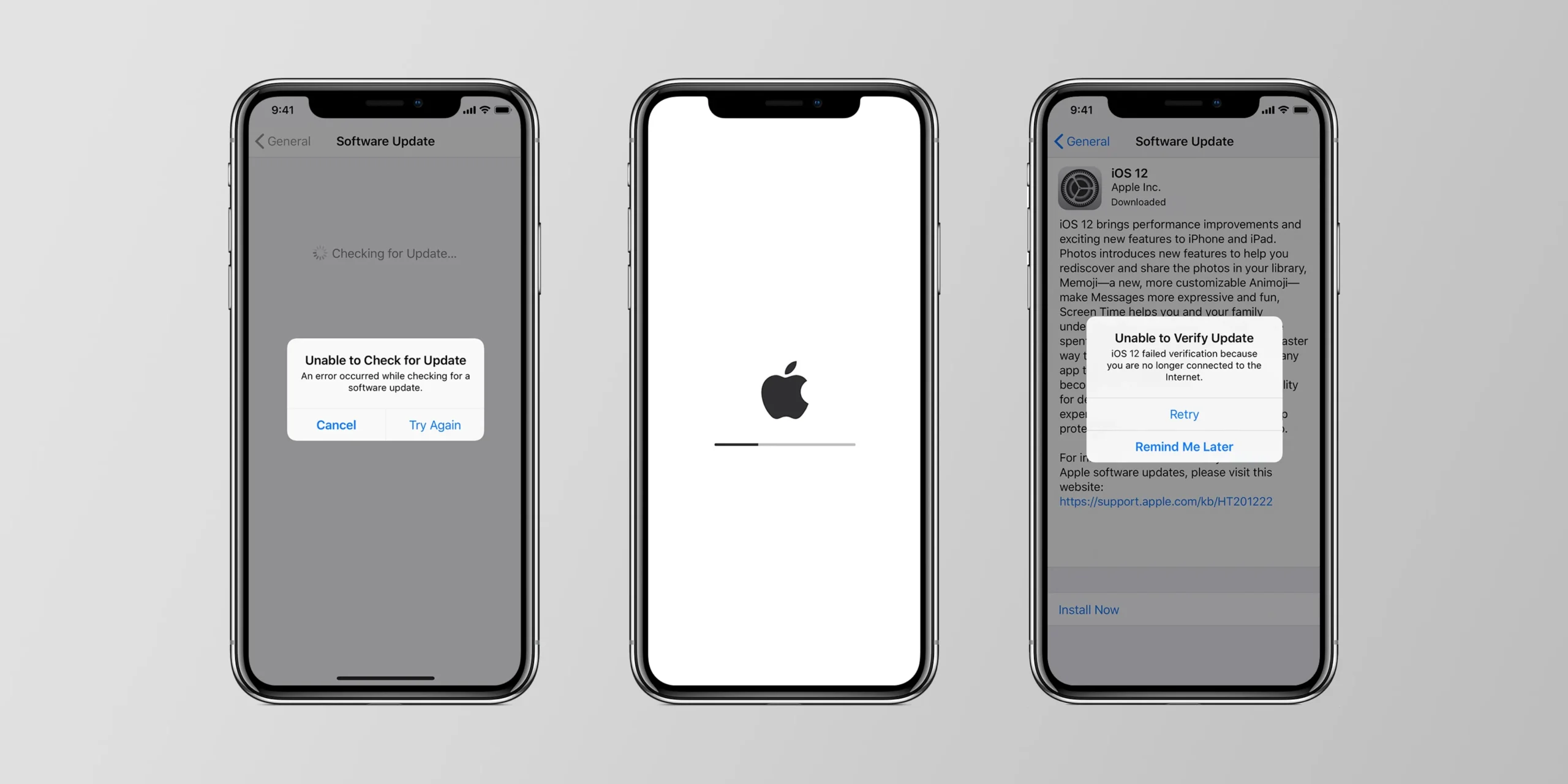
Updating your iPhone should be a smooth process that brings new features, enhanced security, and improved performance. However, many users experience sudden interruptions or errors that stop the update entirely. Understanding why iOS updates fail is crucial because these issues can lead to frozen screens, installation loops, data loss, or even device malfunction. Fortunately, most of these problems can be diagnosed and resolved with the right steps—or by professional repair technicians using advanced tools.
In this comprehensive guide, you’ll learn why iOS updates fail, what causes these update errors, how to troubleshoot them at home, and how expert repair technicians fix complex installation failures safely.
Why iOS Updates Fail: Understanding the Root Causes
When your device refuses to update, it isn’t always the software’s fault. In many cases, understanding why iOS updates fail reveals that the issue originates from storage problems, corrupt files, unstable networks, battery issues, or hardware malfunctions.
Below are the most common reasons iOS updates fail and how they affect the device.
Storage Limitations & File Corruption — Major Reasons Why iOS Updates Fail
One of the biggest reasons why iOS updates fail is insufficient storage. iOS requires temporary space for unpacking and installing system files. Therefore, even if you think you have enough space, cached data or hidden system files may still block the process.
Low Storage Space Triggering iOS Update Errors
When the available space drops below the required threshold, the update may:
- stop midway
- display “Unable to Install Update”
- loop back to the home screen
- continuously restart
Corrupt System Files Leading to Failed Updates
Old, outdated, or corrupted system files can interfere with the update process. Consequently, the device may reject the installation or freeze during setup.
Network Failures & Connectivity Issues Affecting iOS Update Completion
A stable internet connection is essential for the update process. Because of this, poor Wi-Fi, unstable networks, or router restrictions can explain why iOS updates fail unexpectedly.
Wi-Fi Drops During Update Download
If your Wi-Fi disconnects during the download, the system file becomes incomplete or damaged, causing update failure.
VPN, Proxy, or Firewall Blocking the Update
Security filters often block Apple’s update servers. As a result, your device cannot verify or download update files properly.
Battery Problems & Power Interruptions — Another Reason Why iOS Updates Fail
iOS updates require a minimum of 50% battery or an active charger connection. Any interruption can explain why iOS updates fail during installation.
Device Overheating or Shutting Down Mid-Update
If your iPhone overheats or powers off, the installation stops suddenly. In many cases, this leads to boot loops or incomplete updates.
Software Bugs & System Conflicts Causing iOS Update Failures
Sometimes the issue is purely software-based. For instance, outdated apps, incompatible profiles, or system glitches may prevent the update from installing.
Beta Profiles Interfering with Official Updates
If your device previously used a developer or beta profile, it may block current stable updates.
iOS Bugs Leading to Update Verification Errors
Occasionally, iOS itself has bugs that create update verification failures or installation freezes.
Hardware Problems — A Hidden Reason Why iOS Updates Fail
Not all update problems stem from software. Surprisingly, hardware malfunctions can also explain why iOS updates fail, especially when key components stop communicating with the system.
Faulty Storage Chip (NAND Failure)
If the internal storage is damaged, the update cannot write necessary files.
Logic Board Damage Preventing iOS Installation
Board-level issues often cause:
- random restarts
- update loops
- failure to verify updates
- black screen after update
How to Fix iOS Update Errors at Home
Although update failures can be frustrating, many issues can be resolved without expert help. Below are reliable troubleshooting steps that address most causes behind why iOS updates fail.
Step 1 — Check Storage to Prevent iOS Update Failure
Go to:
Settings → General → iPhone Storage
Delete unwanted apps, videos, or cached files to free up space. Additionally, clearing old backups helps create room for new system files.
Step 2 — Restart Your Device to Fix Temporary Update Problems
A simple restart often resolves temporary software conflicts. Moreover, restarting clears RAM and processes that could interfere with the installation.
Step 3 — Reset Network Settings for Connectivity-Related Update Failures
If Wi-Fi issues explain why iOS updates fail, reset the network:
Settings → General → Transfer or Reset iPhone → Reset → Reset Network Settings
This removes old Wi-Fi profiles, VPNs, and DNS errors.
Step 4 — Update Using iTunes or Finder (Alternative Method)
If the OTA (over-the-air) update fails, connecting your device to a computer often resolves the issue.
H3: Using iTunes/Finder to Install Updates
- Connect your iPhone to a PC/Mac
- Open iTunes/Finder
- Select Update
This method bypasses many errors that occur during wireless updates.
Step 5 — Force Restart for Frozen Update Screens
If the device gets stuck:
Volume Up → Volume Down → Hold Power until the Apple Logo appears
A force restart clears update freezes caused by system conflicts.
When to Seek Professional Help if iOS Updates Still Fail
Even after trying home troubleshooting, some users continue facing update failures. In such cases, professional repair is essential.
Issues that require expert repair include:
- update stuck in DFU/recovery mode
- continuous boot loops
- storage chip failure
- logic board damage
- severe software corruption
- update failing after multiple attempts
This is where skilled technicians come in.
How Repair Centers Fix iOS Update Failures
Repair centers rely on specialized tools, diagnostics, and micro-soldering techniques to fix deeper issues behind why iOS updates fail.
Advanced Diagnostics to Identify Why iOS Updates Fail
Technicians use tools like:
- ZXW board schematics
- Storage health scanners
- Multimeters & microscopes
- Chip-level analyzers
These tools pinpoint hidden faults like capacitor shorts, storage corruption, or board damage.
Fixing Storage Corruption & NAND Issues
If the storage chip is failing, experts can:
- reprogram the chip
- repair damaged pathways
- replace faulty NAND modules
This resolves recurring update failures caused by write errors.
Logic Board Repairs for Persistent Update Errors
Technicians perform:
- micro-soldering
- IC replacements
- board cleaning
- short detection
These board-level solutions fix update failures caused by internal hardware faults.
Why Professional Repair Is Safer for Complex Why iOS Updates Fail
While DIY fixes help with simple problems, deeper issues require skilled handling. Therefore, visiting a certified repair center ensures safe and accurate resolution.
You can visit Milaaj Mobile and Laptop Repair Dubai, where trained technicians diagnose complicated iOS update failures and perform hardware-level repairs using advanced tools.
FAQs About Why iOS Updates Fail
1. Why do iOS updates fail on my iPhone?
iOS updates usually fail due to low storage, unstable internet, battery issues, software corruption, or hardware faults such as NAND or logic board problems.
2. How can I fix an iOS update that won’t install?
Start by freeing storage, restarting the device, resetting network settings, or updating through iTunes/Finder. These steps resolve most update errors.
3. Why does my iPhone get stuck during the update process?
Freezing usually happens because of corrupt system files, interrupted downloads, overheating, or internal hardware issues.
4. Can a repair center fix iOS update failures?
Yes. Repair centers can diagnose complex issues using advanced tools, repair logic board faults, restore corrupted software, and fix storage-related errors.
5. Is it safe to force restart the device during an update failure?
Yes, if the screen is frozen or unresponsive. A force restart often resolves temporary glitches without harming the device.
6. When should I seek professional help for a failed iOS update?
If your device enters recovery mode repeatedly, gets stuck in a boot loop, or fails to update after multiple attempts, expert repair is necessary.
Conclusion: Why iOS Updates Fail
Understanding why iOS updates fail helps prevent serious issues like system corruption, update freezes, or data loss. Although many of these problems can be fixed at home using simple steps, hardware-related failures require professional repair. Ultimately, with the right troubleshooting or expert assistance, your iPhone can return to smooth, stable performance with the latest iOS update.
Get professional iPhone repair services with expert technicians ensuring top-quality results.
Enjoy quick and reliable home delivery for your repaired or purchased devices.
Sell your old iPhone with confidence and get the best value instantly.
📍 Visit Any Milaaj Branch in Dubai
🔹 Bur Dubai
Milaaj Mobile and Laptop Repair Dubai
📞 055 258 8477
🔗 Google Maps
🔹 Al Barsha
Milaaj Mobiles and Laptop Repair Al Barsha
📞 052 596 2846
🔗 Google Maps
🔹 Al Barsha 3
Milaaj Mobiles and Gaming Store
📞 052 3405 814
🔗 Google Maps
🔹 Al Nuaimiya
Milaaj Mobiles and Laptops Ajman
📞 055 788 9654
🔗 Google Maps
📧 Email: support@milaaj.com
🕒 Operating Hours: Monday – Sunday




Leave a Reply